


Introduction
A second screen can make a laptop much more useful. It gives you more room for documents, browser tabs, video calls, coding windows, spreadsheets, design tools, or entertainment. Whether you work from home, study in a dorm, travel often, or use your laptop as your main computer, a laptop second screen setup can improve comfort and productivity.
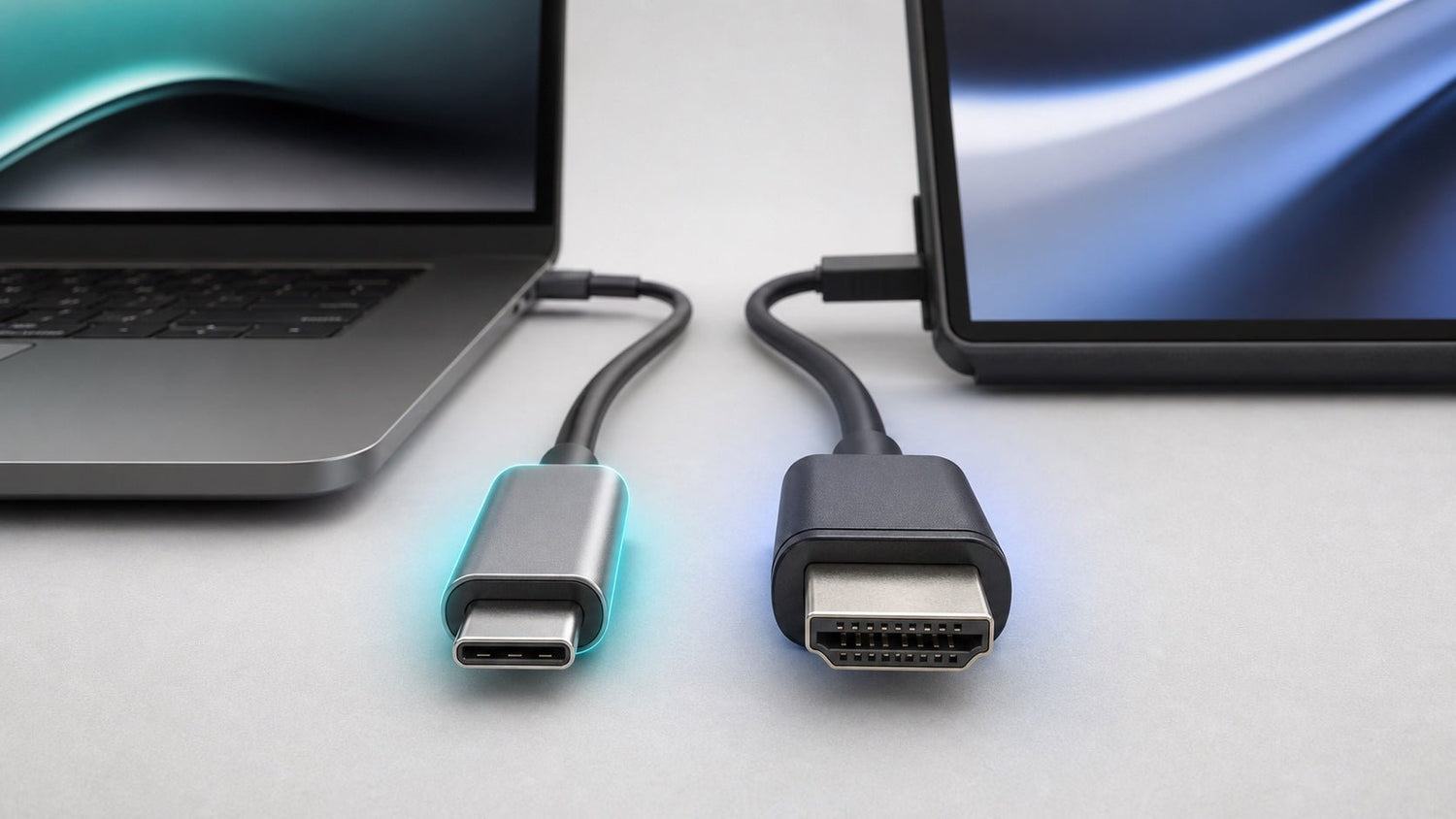
The two most common ways to connect a laptop to an external display are USB-C and HDMI. Both can work well, but they are built for slightly different needs.
A USB-C second screen setup is often best for modern laptops, portable monitors, and clean desk setups because one cable may handle video, power, and data. HDMI is usually better for broad compatibility because it works with many monitors, TVs, projectors, and older displays.
So, USB-C vs HDMI: which is better for a laptop second screen? The answer depends on your laptop, monitor, cable, and how you plan to use the setup.
Quick Comparison: USB-C vs HDMI for a Laptop Second Screen
| Feature | USB-C | HDMI |
|---|---|---|
| Best for | Modern laptops, portable monitors, clean desk setups | TVs, projectors, older monitors, simple setups |
| Carries video | Yes, if the USB-C port supports video output | Yes |
| Carries audio | Yes, if supported by the device | Yes |
| Charges laptop | Yes, with USB-C Power Delivery | No |
| One-cable setup | Possible | No |
| Compatibility | Good, but depends on port support | Very broad |
| Portability | Excellent for travel monitors | Good, but may need adapters |
| Beginner-friendly | Medium | High |
| Best overall use | Modern flexible workstations | Simple reliable display connections |
What Is a USB-C Second Screen Setup?
A USB-C second screen setup uses a USB-C cable to connect a laptop to an external monitor or portable display. On supported devices, USB-C can send a video signal from the laptop to the screen. Some USB-C monitors can also charge the laptop and connect accessories through the same cable.
This is the main appeal of USB-C. With the right laptop and monitor, one cable can replace several cables. You may be able to connect your display, charge your laptop, and use a keyboard, mouse, webcam, or external drive through the monitor’s built-in USB hub.
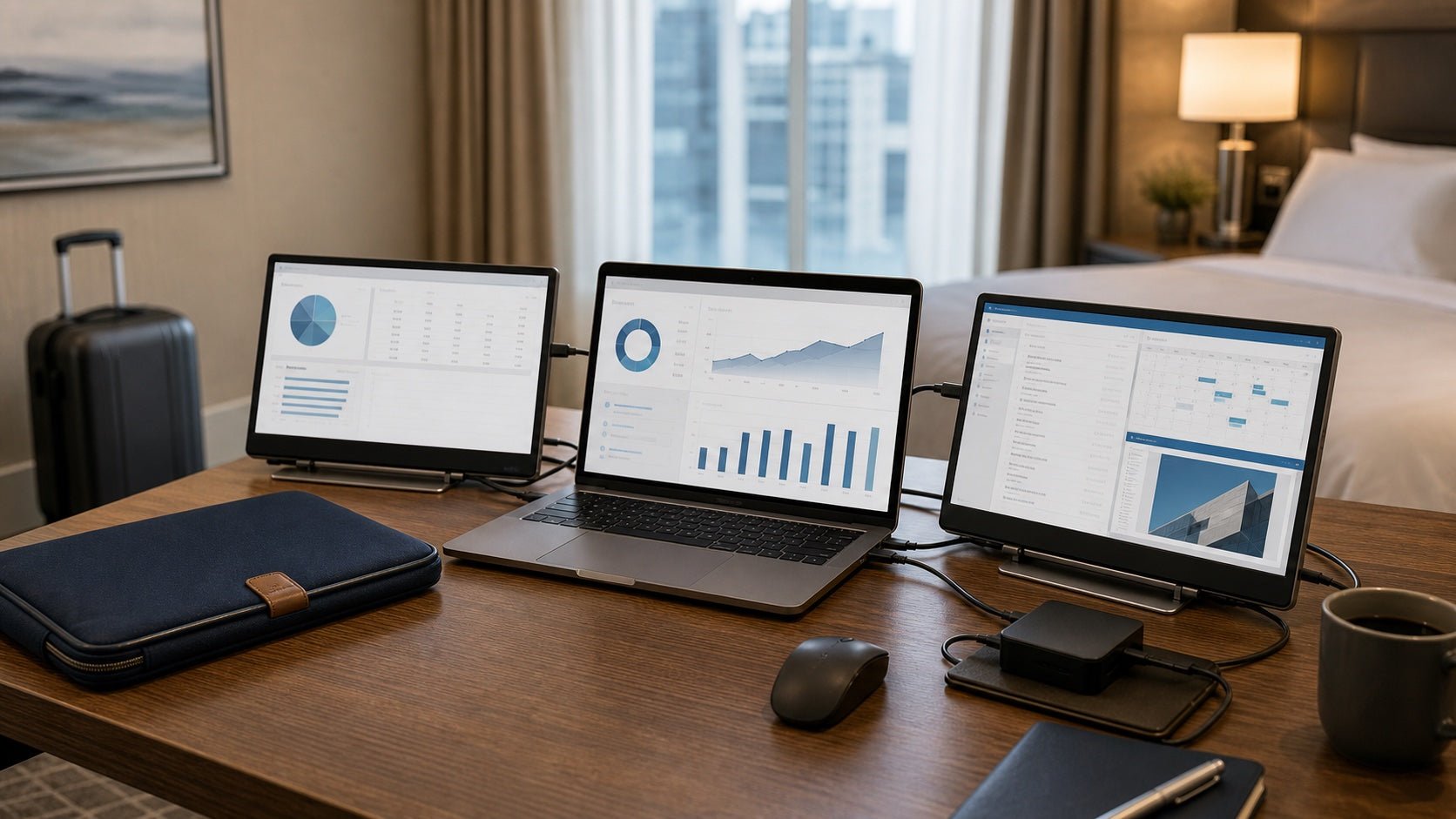
For example, a remote worker could place a USB-C monitor on a desk, connect one cable to a laptop, and instantly have a larger screen, charging, and connected accessories. A traveler could connect a portable monitor with one short USB-C cable and create a dual-screen workspace in a hotel room or shared office.
However, USB-C can also be confusing. The connector shape does not guarantee the same features on every device. Some USB-C ports only support charging or data transfer. To connect laptop to monitor USB-C successfully, the laptop port must support video output through a standard such as DisplayPort Alt Mode, Thunderbolt, or USB4.
In simple terms, DisplayPort Alt Mode allows a USB-C port to send a display signal to an external screen. Without this feature, your USB-C cable may fit perfectly but still fail to show an image.
What Is an HDMI Second Screen Setup?
An HDMI second screen setup uses an HDMI cable to connect a laptop to a monitor, TV, or projector. HDMI has been widely used for many years, so it is common on office monitors, televisions, gaming displays, conference room screens, and classroom projectors.
HDMI usually carries both video and audio. This makes it useful when connecting a laptop to a TV for movies, a projector for presentations, or a monitor for everyday work. In many cases, you only need to plug in the cable, choose the correct input on the display, and adjust your laptop’s screen settings.
HDMI does not charge your laptop and does not transfer general data. It is mainly a display and audio connection. That means you still need a separate laptop charger and separate ports or adapters for accessories.
Even with that limitation, HDMI remains one of the easiest ways to connect laptop to monitor HDMI because it is familiar, affordable, and widely supported.
USB-C vs HDMI: Key Differences
1. Ease of Setup
HDMI is usually easier for beginners. If your laptop and monitor both have HDMI ports, the setup is normally straightforward. You connect the cable, select the HDMI input on the display, and choose whether to mirror or extend your laptop screen.
USB-C can be just as simple, but only when every part of the setup supports video. The laptop port, monitor port, and cable all need to support the right features. If one part does not, the screen may not be detected.
For a basic second screen for laptop use, HDMI is more predictable. For a modern workstation, USB-C can be more convenient once compatibility is confirmed.
2. Display Quality
Both USB-C and HDMI can support high-quality displays, including Full HD, 1440p, and 4K. The actual performance depends on the laptop, monitor, cable, and connection standard.
USB-C often uses DisplayPort Alt Mode, Thunderbolt, or USB4 to send video. These standards can support high resolutions, high refresh rates, and docking stations, depending on the device.
HDMI performance depends on the HDMI version. Older HDMI ports may support 4K only at lower refresh rates, while newer HDMI standards can handle higher resolutions and smoother motion if both the laptop and monitor support them.
For normal office work, both USB-C and HDMI are usually good enough. For gaming, video editing, design, or high-refresh-rate monitors, check the exact specifications before buying a cable or adapter.
3. Charging Support
USB-C has a clear advantage here.
A USB-C monitor with USB-C Power Delivery can charge your laptop while acting as a second screen. This creates a cleaner setup because you may only need one cable connected to your laptop.
HDMI cannot charge your laptop. When using HDMI, you need a separate power cable.
If you want a minimal desk with fewer cables, USB-C is usually the better choice.
4. Cable Convenience
USB-C cables are small, reversible, and easy to plug in. They are especially useful for thin laptops and portable monitors.
The downside is that USB-C cables can be hard to identify. Some USB-C cables are made only for charging. Some support data but not video. Others support video but not enough power for your laptop or monitor.
HDMI cables are usually easier to understand because they are mainly used for display and audio. However, HDMI connectors are larger, and many slim laptops no longer include a full-size HDMI port.
If you want the best cable for laptop second monitor use, check that the cable supports the resolution, refresh rate, and power requirements of your setup.
5. Device Compatibility
HDMI wins for broad compatibility. It is common on older monitors, TVs, projectors, and meeting room displays. If you often connect to shared screens, HDMI is usually the safer option.
USB-C is common on newer laptops and portable monitors, but support varies. A laptop may have USB-C charging but no USB-C video output. A monitor may have USB-C for data but not display input.
For universal compatibility, HDMI is stronger. For modern devices designed around a one-cable setup, USB-C is often better.
6. Portability
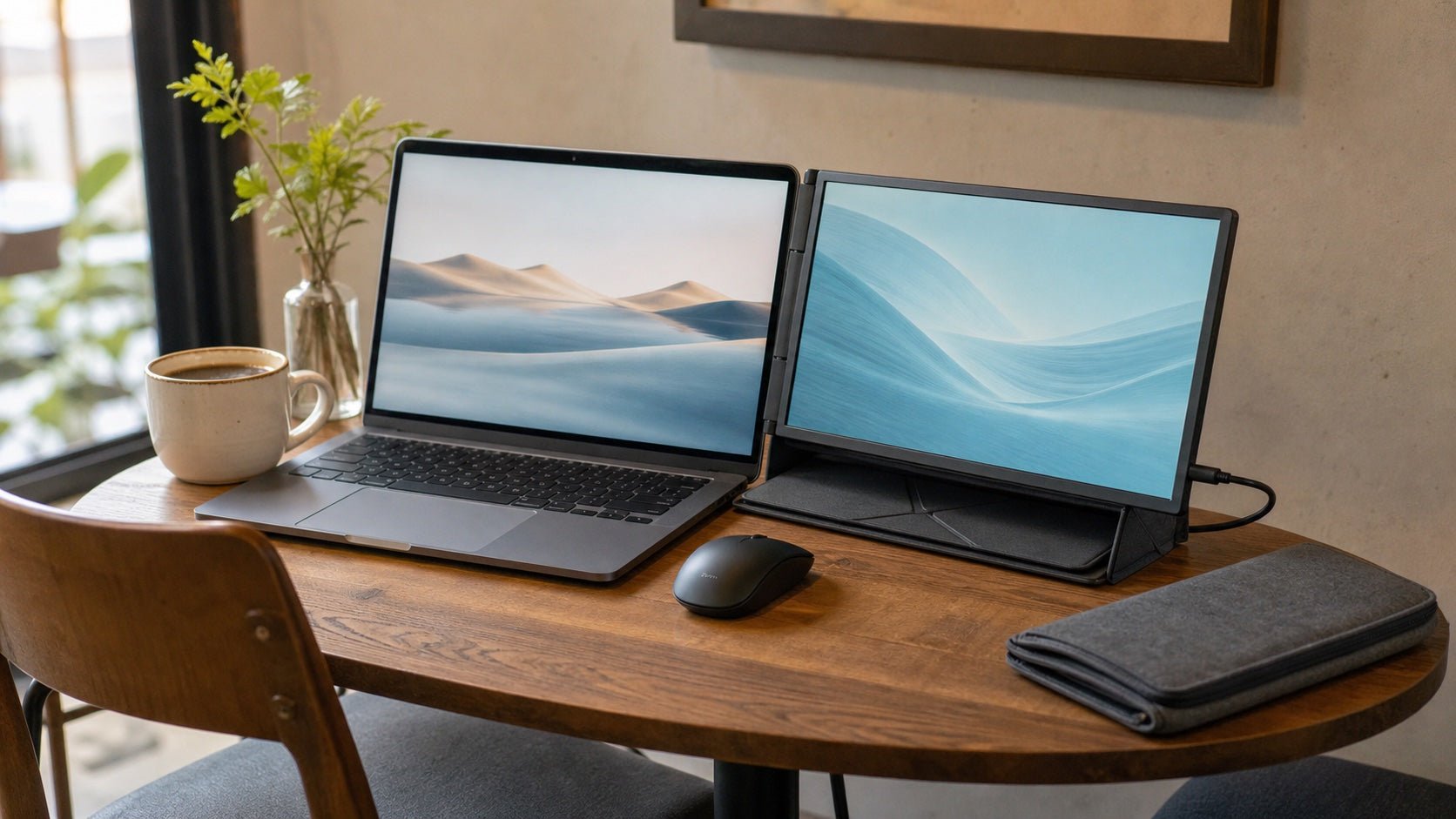
USB-C is usually better for portable monitor setups. Many portable displays are designed to work through USB-C because it can carry video and power through one cable.
This is useful for students, business travelers, remote workers, and anyone who wants a lightweight laptop dual monitor setup. Instead of carrying several cables and adapters, you may only need one USB-C cable.
HDMI can still work for travel, but portable monitors often need separate power when using HDMI. Many laptops also require a USB-C to HDMI adapter if they do not have a built-in HDMI port.
7. Cost
HDMI setups are often cheaper. HDMI cables are common, and many budget monitors include HDMI ports. If your laptop already has an HDMI port, you may not need extra equipment.
USB-C setups can cost more, especially if you need a USB-C monitor, Thunderbolt dock, USB-C hub, or high-quality video-capable cable. However, the extra cost may be worth it if you want laptop charging, fewer cables, and a cleaner workspace.
8. Reliability
HDMI is reliable because it has a focused purpose: sending video and audio. There is less confusion about charging, data transfer, or port capabilities.
USB-C can also be reliable, but only when the hardware is compatible. Most USB-C second screen setup problems come from unsupported ports, low-quality cables, or power limitations.
When USB-C Is Better
USB-C is the better choice if you want a modern, portable, and clean setup.
It is especially useful if you use a newer laptop with limited ports. Many modern laptops now rely on USB-C for charging, display output, and accessories. Some do not include HDMI at all.
USB-C is also ideal for portable monitors. A USB-C portable monitor can be powered by the laptop while receiving the display signal through the same cable, depending on the device. This makes it convenient for travel, hybrid work, and small desks.
A USB-C monitor is also a strong choice for a permanent desk setup. If the monitor supports Power Delivery and has a USB hub, it can act like a simple docking station. You plug in one cable and get your second screen, laptop charging, keyboard, mouse, and other accessories.
Choose USB-C if you want:
- A clean one-cable setup
- Laptop charging through the monitor
- A portable monitor
- A modern desk setup
- Fast docking and undocking
- Less cable clutter
- A flexible laptop dual monitor setup
When HDMI Is Better
HDMI is the better choice if you want simple compatibility.
It is still the safest option for older monitors, TVs, projectors, conference rooms, classrooms, and shared office displays. If you often give presentations or connect your laptop to different screens, HDMI is practical because many displays already support it.
HDMI is also a good option for budget setups. If your laptop and monitor both have HDMI ports, you may only need one affordable cable. There is no need to worry about whether a USB-C port supports video output.
Choose HDMI if you want:
- Wide compatibility
- A simple plug-and-play display connection
- A budget-friendly monitor setup
- Easy connection to TVs and projectors
- Fewer concerns about USB-C standards
- A reliable basic external display for laptop use
Common USB-C Second Screen Setup Problems
A USB-C second screen setup is convenient when it works, but several issues can prevent the display from turning on.
USB-C Port Does Not Support Video
This is the most common problem. The USB-C cable fits, but the laptop does not send a display signal. Check your laptop specifications for DisplayPort Alt Mode, Thunderbolt, or USB4 support.
Wrong USB-C Cable
Not every USB-C cable supports video. A charging-only USB-C cable may not work with a second screen. Use a cable rated for video output and the resolution you need.
Monitor Does Not Get Enough Power
Some portable monitors need more power than the laptop can provide. If the screen flickers, dims, or disconnects, try connecting the monitor to an external power source.
USB-C Display Not Detected
If your USB-C display is not detected, unplug and reconnect the cable, restart the laptop, check display settings, and confirm that the correct input is selected on the monitor.
Resolution or Refresh Rate Is Limited
A monitor may support 4K or a high refresh rate, but your laptop port, cable, or adapter may limit the output. Always check the full signal chain, not just the monitor specs.
Common HDMI Second Screen Setup Problems
HDMI is usually straightforward, but it can still create problems.
Separate Charging Cable Required
HDMI does not provide laptop charging. You need a separate charger, which can make your desk or travel setup less tidy.
Adapter Needed for Thin Laptops
Many slim laptops do not include HDMI ports. In that case, you may need a USB-C to HDMI adapter. The adapter must support the resolution and refresh rate you want.
HDMI Second Monitor Not Detected
If your HDMI second monitor is not detected, check the cable, select the correct HDMI input, restart the laptop, and open your display settings to detect the screen manually.
Refresh Rate or Resolution Limits
Older HDMI ports and cables may limit 4K or high-refresh-rate performance. This matters most for gaming, video editing, and smooth motion.
Audio Switches Automatically
When you connect HDMI, your laptop may send audio to the monitor or TV. If you want sound from your laptop speakers or headphones, change the audio output settings.
USB-C to HDMI Adapter: When Do You Need One?
You may need a USB-C to HDMI adapter if your laptop has USB-C but your monitor only has HDMI. This is common with thin laptops that do not include a built-in HDMI port.
A USB-C to HDMI adapter can be useful, but it must match your needs. For example, if you want 4K resolution, make sure the adapter supports 4K at your desired refresh rate. Also confirm that your laptop’s USB-C port supports video output. An adapter cannot add video support to a USB-C port that does not provide it.
A USB-C to HDMI adapter is a good solution when:
- Your laptop has no HDMI port
- Your monitor, TV, or projector only accepts HDMI
- You need to connect to conference room displays
- You want a compact travel adapter
- Your USB-C port supports video output
Before You Buy: Quick Compatibility Checklist
Before buying a monitor, cable, dock, or adapter, check these points:
- Does your laptop’s USB-C port support video output?
- Does your monitor support USB-C input, HDMI input, or both?
- Do you need laptop charging through the monitor?
- Does the monitor support USB-C Power Delivery?
- Are you using a portable monitor or desk monitor?
- What resolution do you need: Full HD, 1440p, or 4K?
- What refresh rate do you need: 60Hz, 120Hz, 144Hz, or higher?
- Do you need a USB-C to HDMI adapter?
- Is your USB-C cable rated for video, not just charging?
- Is your HDMI cable suitable for your target resolution and refresh rate?
- Do you need audio through the monitor or TV?
- Do you need extra ports for a keyboard, mouse, webcam, or external drive?
This checklist can prevent most laptop second screen setup problems before they happen.
Which One Should You Choose?
Choose USB-C if you want the cleanest and most flexible setup. It is usually better for modern laptops, portable monitors, remote work desks, travel setups, and users who want one cable for video and charging.
Choose HDMI if you want the most widely compatible option. It is usually better for older monitors, TVs, projectors, classrooms, meeting rooms, and simple budget setups.
For most modern laptop users, USB-C is the better long-term choice if the laptop and monitor both support video and Power Delivery. For users who need a simple connection that works almost anywhere, HDMI is still the safer option.
The best answer is not only about USB-C vs HDMI. It is about matching the connection to your actual laptop, monitor, cable, and workflow.
Conclusion
USB-C and HDMI can both work well for a laptop second screen, but they solve different problems.
A USB-C second screen setup is best for users who want fewer cables, easier portability, laptop charging, and a cleaner desk. It is especially useful with modern laptops and portable monitors.
HDMI is best for simple, reliable display connections. It works well with older monitors, TVs, projectors, and shared screens. It is also often cheaper and easier for beginners.
If you are building a modern workstation or travel-friendly laptop dual monitor setup, USB-C is usually the better choice. If you need broad compatibility and simple plug-and-play use, HDMI is hard to beat.
Before buying anything, check your laptop port, monitor input, cable type, charging needs, resolution, and refresh rate. The right second screen setup starts with knowing what your devices actually support.
FAQ
1. Is USB-C better than HDMI for a laptop second screen?
USB-C is better if you want a clean setup with fewer cables, especially when the monitor can also charge your laptop. HDMI is better if you want broad compatibility with monitors, TVs, and projectors.
2. Can every USB-C port connect to a second screen?
No. Not every USB-C port supports video output. Your laptop’s USB-C port must support DisplayPort Alt Mode, Thunderbolt, USB4, or another display-capable standard.
3. Why is my USB-C display not detected?
Your USB-C display may not be detected because the port does not support video, the cable is not video-capable, the monitor lacks power, or the display settings need to be adjusted.
4. Does HDMI charge a laptop?
No. HDMI carries video and audio, but it does not charge your laptop. You need a separate charger when using HDMI.
5. Is USB-C good for portable monitors?
Yes. USB-C is often the best option for portable monitors because it can carry video and power through one cable, depending on the laptop and monitor.
6. Do I need a special USB-C cable for a second screen?
Yes. You need a USB-C cable that supports video output, not just charging. For 4K or high-refresh-rate displays, choose a cable that supports the required bandwidth.

Leave a comment
This site is protected by hCaptcha and the hCaptcha Privacy Policy and Terms of Service apply.