


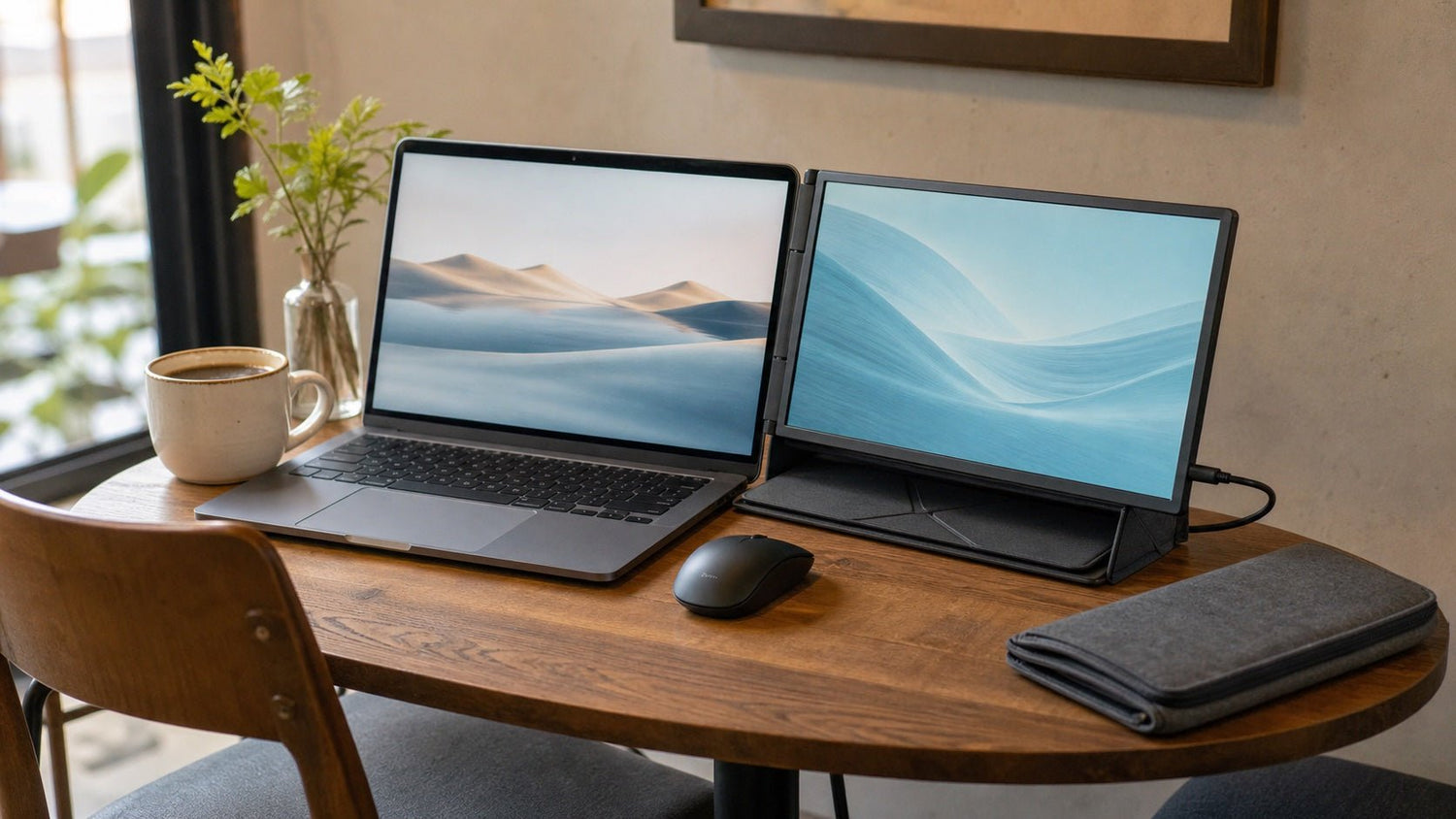
A laptop feels perfectly capable until you try to keep a video call, notes, Slack, a spreadsheet, and twelve browser tabs open at the same time. Suddenly, your portable workstation feels crowded, and every task requires dragging, resizing, minimizing, or hunting through hidden windows.
That is why many people search for how to get more screen space on laptop without building a permanent desk setup. You may not have room for a full-size monitor. You may work from cafés, airports, dorm rooms, coworking spaces, or a small apartment table. Or you may simply want a cleaner, more flexible way to work without turning your laptop into a bulky workstation.
The good news is that more screen space does not always mean buying a large monitor. You can expand your laptop workspace with portable hardware, smarter software settings, better window management, or a few compact accessories. The right choice depends on how you work, where you work, and how much gear you are willing to carry.
Why Laptop Screens Feel So Cramped
Laptop screens are built for portability first. A 13-inch or 14-inch laptop is easy to carry, but it can feel limiting when your work involves multitasking. Even a 15-inch or 16-inch laptop can feel tight if you regularly compare documents, review dashboards, edit visuals, write code, or attend meetings while taking notes.
The problem is usually not just screen size. It is also how your digital workspace is arranged.
Common causes include:
-
Too many overlapping windows
-
Crowded browser tabs
-
Large app toolbars and side panels
-
Poor window organization
-
Oversized display scaling
-
Constant switching between apps
-
No dedicated space for reference material
For a student, this might mean switching between lecture slides, notes, and research tabs. For a developer, it might mean jumping between code, documentation, terminal windows, and browser previews. For a designer, it might mean losing canvas space to layers, menus, and asset panels.
The goal is not simply to add more pixels. The goal is to create a workspace where you can see what matters without breaking focus.
How to Get More Screen Space on Laptop Without a Full Desk Setup
There are three practical ways to increase usable laptop screen space:
-
Add a portable second display.
-
Use built-in software tools more effectively.
-
Improve your physical laptop layout with compact accessories.
You do not need every solution. A writer may only need better tab organization and split-screen mode. A remote worker may benefit from a portable monitor. A frequent traveler may prefer a laptop screen extender or tablet second screen.
Here is a quick comparison:
| Option | Best for | Cost level | Portability | Main drawback |
|---|---|---|---|---|
| Portable monitor | Remote workers, students, developers | Medium | Good | Extra device to carry |
| Laptop screen extender | Mobile professionals, heavy multitaskers | High | Medium | Adds weight and bulk |
| Tablet as second screen | Tablet owners, students, creatives | Low to medium | Excellent | Smaller display |
| Virtual desktops | Anyone using one laptop screen | Free | Excellent | Does not add physical screen |
| Window snapping | Writers, researchers, students | Free | Excellent | Limited by screen size |
| Display scaling adjustments | Spreadsheet users, coders, analysts | Free | Excellent | Can reduce readability |
| Compact stand and keyboard | Long work sessions | Low to medium | Good | Requires extra accessories |
Use a Portable Monitor
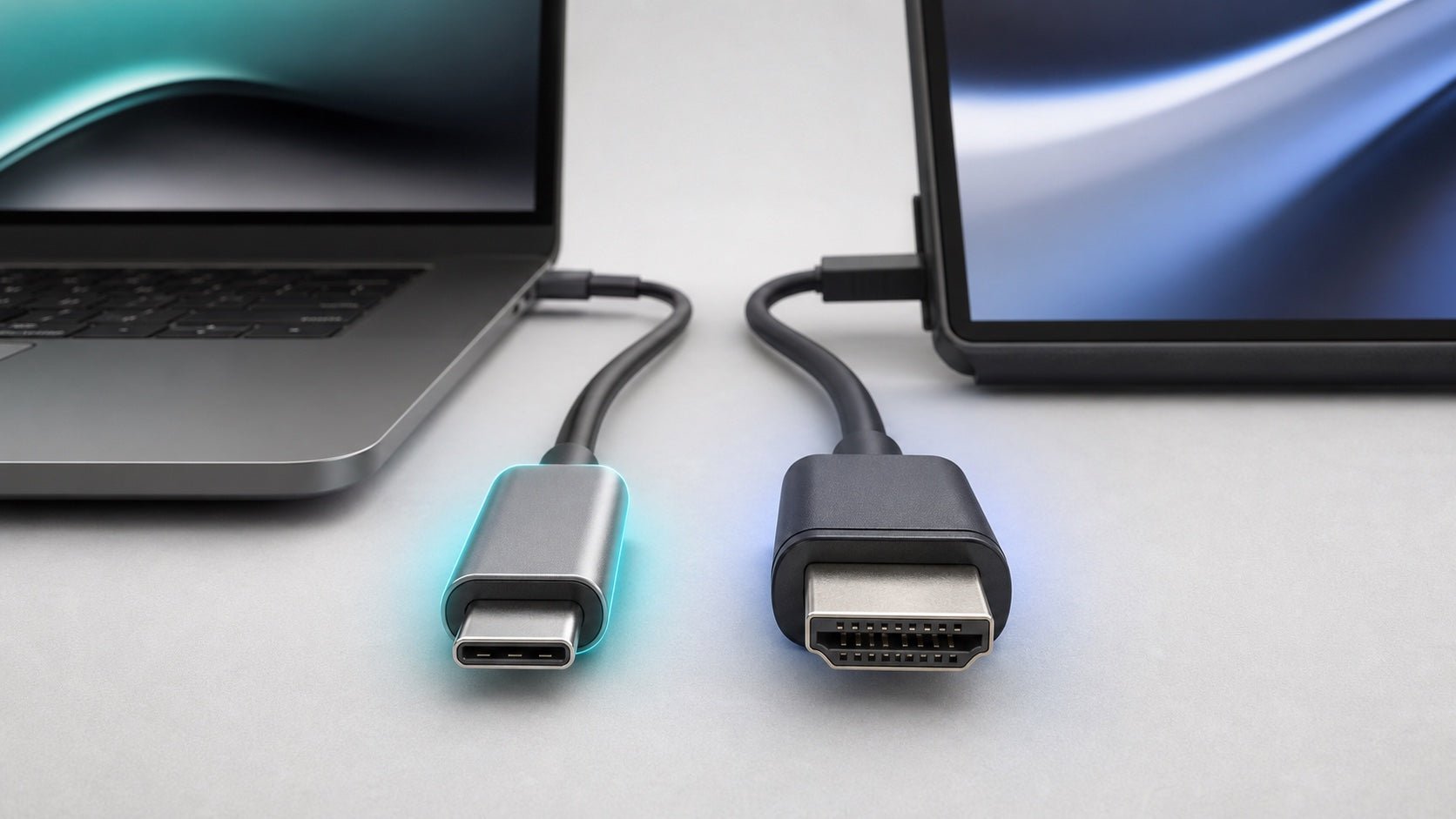
A portable monitor is one of the easiest ways to get more screen space on a laptop without using a traditional desk monitor. These slim displays usually connect through USB-C or HDMI and are light enough to fit in a laptop bag.
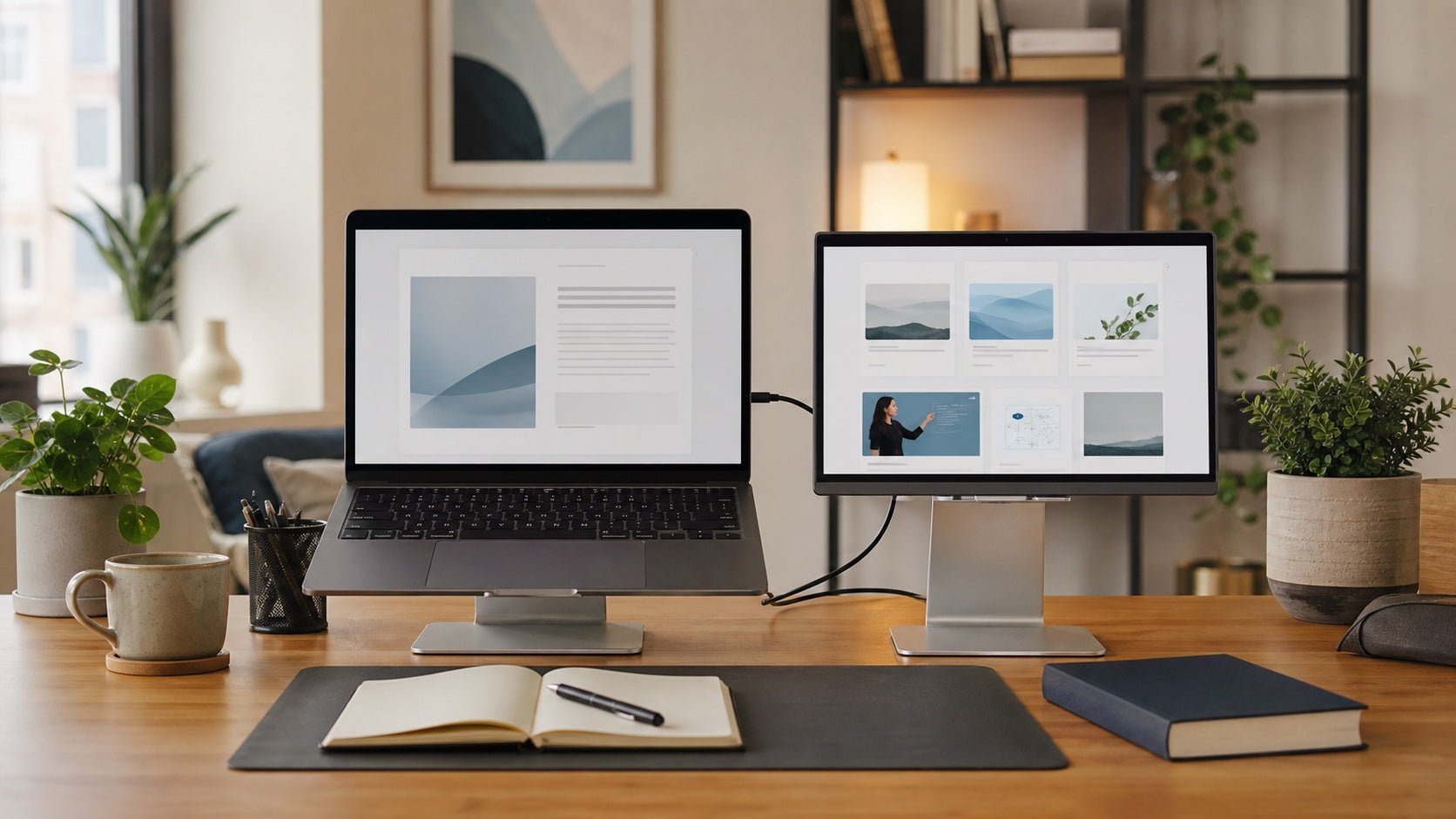
A portable monitor is useful when you need a true second screen but still want a setup that can be packed away quickly. You can place your main work on the laptop and use the second screen for supporting tasks.
For example:
-
A remote worker can keep a video call on one screen and meeting notes on the other.
-
A student can watch a lecture while typing notes.
-
A developer can keep documentation or a live preview beside the code editor.
-
A data analyst can compare a spreadsheet with a dashboard.
-
A writer can keep research visible while drafting.
The best portable monitor setup is usually simple: one cable, a stable stand, and enough screen size to justify carrying it. A 13-inch portable monitor may be enough for notes, email, and chat. A 15.6-inch or 16-inch model is better for spreadsheets, coding, design work, and side-by-side document comparison.
Pros:
-
Adds real screen space
-
Works well for multitasking
-
Easier to pack than a desktop monitor
-
Good balance of size and portability
Cons:
-
Requires extra bag space
-
Uses more battery
-
Needs a stable surface
-
May require adapters depending on your laptop ports
A portable monitor is usually the best all-around choice if you work from different locations but still want a serious productivity upgrade.
Try a Laptop Screen Extender
A laptop screen extender attaches directly to your laptop and adds one or two extra displays. Some models slide out from behind the laptop screen, while others clip or mount to the sides.
This setup is designed for people who want a more integrated mobile workstation. Instead of placing a separate monitor beside your laptop, the extender travels with the laptop and opens into a multi-screen setup.
It can be useful for:
-
Consultants working from client offices
-
Project managers monitoring dashboards and messages
-
Developers using code, preview, and terminal windows
-
Financial professionals comparing reports and spreadsheets
-
Travelers who need a repeatable mobile office setup
A screen extender can create a powerful compact workstation, but it is not the lightest option. It adds weight, increases power usage, and may make your laptop less comfortable to carry every day.
Before buying one, check:
-
Laptop size compatibility
-
Operating system support
-
USB-C, HDMI, or driver requirements
-
Screen weight
-
Battery impact
-
Whether it fits your usual work surface
A laptop screen extender makes the most sense if you regularly need multiple screens away from a full desk. For occasional use, a portable monitor or tablet second screen may be simpler.
Turn a Tablet Into a Second Screen
If you already own a tablet, it can become a practical second display. This is one of the most cost-effective ways to expand your laptop workspace without buying a dedicated monitor.
A tablet works well for secondary tasks such as:
-
Reading PDFs
-
Viewing notes
-
Keeping chat open
-
Displaying reference images
-
Monitoring email
-
Holding outlines or checklists
-
Showing presentation notes
For students, a tablet can hold lecture slides while the laptop is used for notes. For designers, it can display mood boards, reference photos, or color palettes. For writers, it can keep an outline visible without crowding the main screen.
The biggest advantage is portability. A tablet is easy to carry, quick to set up, and useful even when you are not using it as a second screen.
Pros:
-
Low-cost if you already own a tablet
-
Very portable
-
Great for notes, references, and reading
-
Works well in tight spaces
Cons:
-
Smaller than most portable monitors
-
Wireless setups may lag
-
Not ideal for detailed spreadsheet or design work
-
May need a stand or case for a comfortable angle
A tablet second screen is best for people who need supporting information visible, not necessarily a full-size work display.
Use Virtual Desktops
Virtual desktops are one of the most underrated ways to get more usable screen space without extra hardware. They allow you to create separate workspaces for different tasks instead of crowding everything onto one screen.
For example:
-
Desktop 1: Main work document
-
Desktop 2: Email and messaging
-
Desktop 3: Research tabs
-
Desktop 4: Video calls and meeting notes
-
Desktop 5: Dashboards or admin tools
This does not physically increase your screen size, but it reduces visual clutter. Instead of minimizing and reopening apps all day, you can switch between organized workspaces.
Virtual desktops are especially useful for laptop-only users. Students can separate coursework from communication. Remote workers can separate meetings from deep work. Developers can create one desktop per project.
The key is to avoid creating too many desktops. Use only enough to reduce clutter. Otherwise, virtual desktops can become another place to lose things.
Use Window Snapping and Split-Screen Layouts
Window snapping helps you divide your laptop screen into clean sections. Instead of manually resizing windows, you can quickly snap them to the left, right, corners, or preset layouts.
This is useful for simple side-by-side work:
-
Browser on the left, document on the right
-
Lecture video on one side, notes on the other
-
Spreadsheet on one side, report on the other
-
Code editor on one side, terminal on the other
-
Research article on one side, outline on the other
For many users, split-screen layouts are enough to make a laptop feel more manageable. The trick is to pair apps intentionally. Do not keep everything visible. Keep only the two or three windows that support your current task.
For example, if you are writing, your best layout may be a document plus research. If you are in a meeting, it may be video call plus notes. If you are managing a project, it may be task board plus calendar.
Window snapping is free, fast, and available on most modern operating systems.
Adjust Display Scaling and App Layouts
Sometimes your laptop feels cramped because everything on the screen is too large. Display scaling controls the size of text, icons, menus, and interface elements. Reducing scaling slightly can fit more content on the screen.
For example, changing from 150% scaling to 125% may show more spreadsheet rows, more lines of code, or more of a webpage. This can make a noticeable difference on higher-resolution laptop screens.
However, do not reduce scaling so much that text becomes uncomfortable to read. More screen space is not helpful if it causes eye strain.
You can also create more room inside individual apps:
-
Hide unnecessary sidebars
-
Collapse tool panels
-
Turn off bookmark bars
-
Use full-screen writing mode
-
Reduce toolbar density
-
Hide file explorers when not needed
-
Use keyboard shortcuts instead of visible menus
-
Move secondary panels to another screen if available
This is especially helpful in apps with busy interfaces, such as design tools, code editors, spreadsheets, project management platforms, and browsers.
Organize Browser Tabs and Workspaces
Browser clutter can make any laptop screen feel smaller. When you have dozens of tabs open, you waste time searching instead of working.
A better approach is to organize tabs by task or project.
Try this structure:
-
One group for research
-
One group for communication
-
One group for dashboards
-
One group for active documents
-
One group for temporary references
Use pinned tabs for tools you open every day, such as email, calendar, project management software, or messaging apps. Use tab groups for research-heavy tasks. Close or save tabs that are not needed right now.
Separate browser profiles can also help. A small business owner might use one profile for admin work, one for customer support, and one for marketing. A student might separate school accounts from personal browsing. A freelancer might keep each client’s tools in a separate profile.
Tab organization does not add physical screen space, but it reduces mental clutter and makes your laptop feel easier to control.
Use Compact Accessories to Make the Screen Easier to Use
You can also make your laptop screen more effective by improving your physical setup. This matters when you work for long periods from small spaces.
A few compact accessories can help:
-
Foldable laptop stand
-
Compact keyboard
-
Travel mouse
-
Tablet stand
-
USB-C hub
-
Short cables
-
Portable monitor case
-
Cable organizer
A laptop stand raises the screen closer to eye level, which makes it easier to view. An external keyboard lets you push the laptop farther back, creating a better viewing distance. A mouse or trackpad can also make window management easier.
This setup does not increase the number of pixels on your screen, but it can make the laptop feel less cramped because your posture, viewing angle, and workspace layout improve.
For cafés, libraries, hotel rooms, dorms, and coworking spaces, a foldable stand plus compact keyboard can be enough to make a laptop feel more like a workstation without needing a full desk.
Best Option Based on Your Situation
The best solution depends on your budget, work style, and mobility needs.
| Situation | Best option |
|---|---|
| You want a free fix | Use window snapping, virtual desktops, and tab groups |
| You already own a tablet | Use the tablet as a second screen |
| You need the best portable upgrade | Choose a portable monitor |
| You need multiple screens while traveling | Consider a laptop screen extender |
| You mainly write or research | Use split-screen layouts and better browser organization |
| You work with code, spreadsheets, or dashboards | Use a dedicated second screen |
| You work in very tight spaces | Use software tools first, then consider a tablet |
| You work long hours from a small table | Add a stand, keyboard, and mouse |
Start with free changes before buying gear. Many people can improve their setup just by using split-screen layouts, reducing tab clutter, and adjusting display scaling. If that still feels limiting, then a second screen becomes more worthwhile.
What to Consider Before Buying Extra Screen Gear
Before buying a portable monitor, screen extender, or second-screen accessory, think about how you actually work.
Portability
If you travel often, weight matters. A large portable monitor may be useful, but it can become annoying if it makes your bag too heavy.
Screen Size
A smaller display is easier to carry, but a larger one is better for spreadsheets, coding, design tools, and side-by-side documents.
Connectivity
Check whether your laptop supports USB-C display output, HDMI, or both. A single-cable USB-C setup is usually the cleanest option.
Power Use
Extra screens use battery. If you often work away from outlets, consider how much power your setup requires.
Stability
Portable screens need a reliable stand. Screen extenders need secure mounting. Tablets need a case or stand that holds a comfortable angle.
Workflow
Do not buy the biggest or most expensive option automatically. Match the tool to your work. A writer may need organization more than hardware. A developer may need a true second display. A traveler may need the lightest possible setup.
Final Thoughts
Learning how to get more screen space on a laptop does not mean you need a full desk, a large monitor, or a permanent office setup. You can create a more spacious laptop workspace with the right mix of hardware, software, and organization.
Start with the free fixes: use window snapping, create virtual desktops, clean up browser tabs, hide unnecessary toolbars, and adjust display scaling. These changes can make your current laptop screen feel much more usable.
If you still need more room, choose based on your situation. Use a tablet if you already own one. Pick a portable monitor if you want the best balance of screen size and mobility. Choose a laptop screen extender if you regularly need a multi-screen setup while traveling or working away from a desk.
The best setup is not the biggest one. It is the one that helps you work with less switching, less clutter, and fewer interruptions, wherever your laptop happens to be.

Leave a comment
This site is protected by hCaptcha and the hCaptcha Privacy Policy and Terms of Service apply.