


Introduction
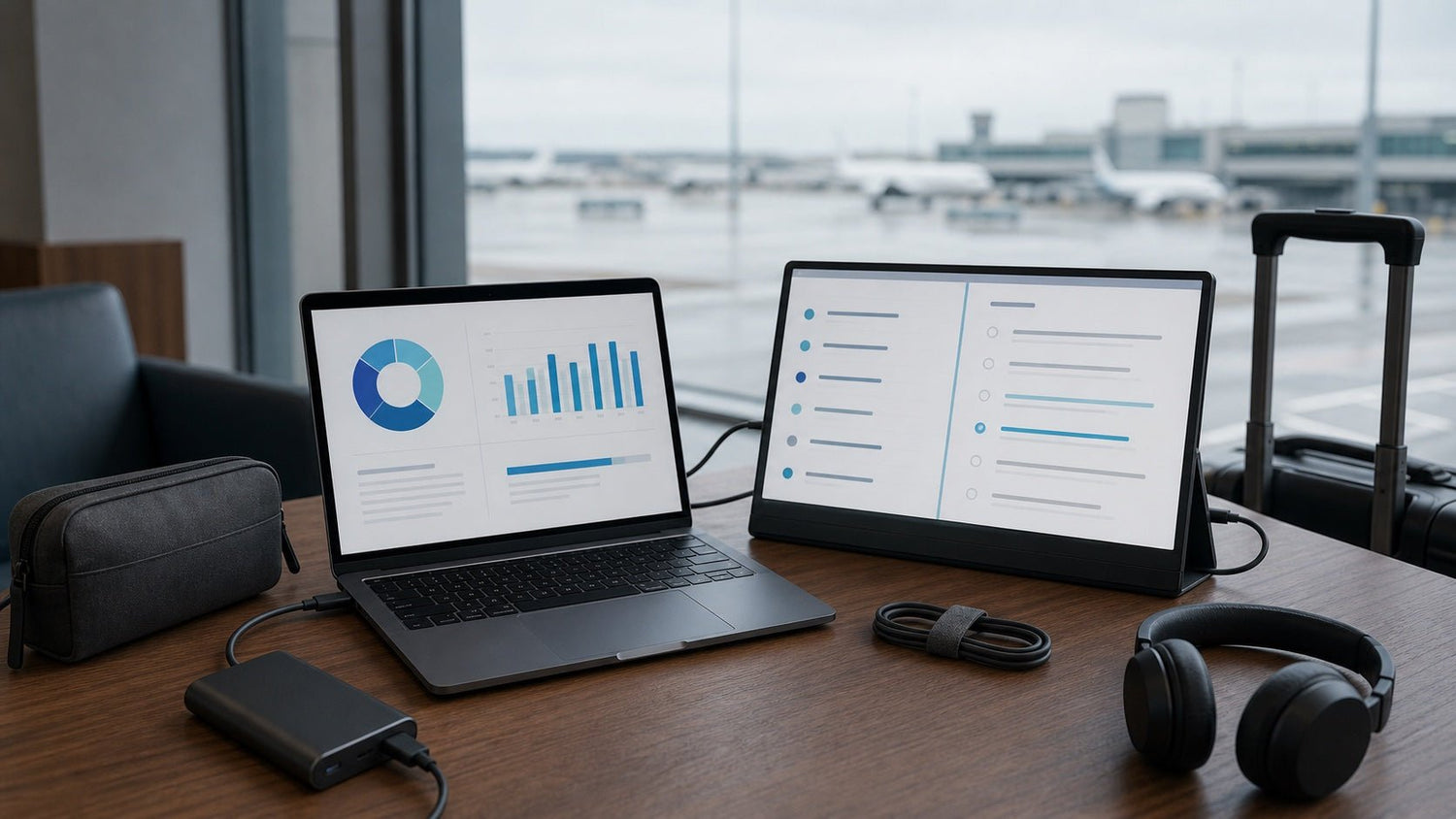
You open your laptop in an airport lounge, ready to finish a report before boarding. Then the Wi-Fi drops, your battery falls below 15%, your charger is buried somewhere in your backpack, and the table is too small for anything except your coffee.
This is where a smart travel laptop setup makes a real difference.
Working while traveling is not just about owning a laptop. It is about creating a portable workstation that helps you stay productive in unpredictable places: airports, hotels, trains, cafés, coworking spaces, client offices, and temporary apartments.
A good laptop setup for travel should help you solve the most common problems: weak internet, limited desk space, poor posture, low battery, noisy surroundings, security risks, and disorganized gear.
Whether you are a remote worker, digital nomad, consultant, student, freelancer, or business traveler, this guide will show you how to work efficiently while traveling with a laptop.
What Makes a Good Travel Laptop Setup?
A good travel laptop setup is simple, lightweight, reliable, and easy to unpack. The goal is not to carry every possible gadget. The goal is to carry the right tools for the way you work.
Your setup should help you:
- Start working quickly
- Stay connected when Wi-Fi is unreliable
- Keep your laptop charged
- Work comfortably for longer sessions
- Protect your data in public spaces
- Pack and unpack without losing accessories
The best setup usually balances three things: portability, comfort, and dependability. If your gear is too heavy, you will avoid carrying it. If it is too minimal, you may struggle when something goes wrong. The ideal setup sits in the middle.
Choose the Right Laptop for Travel Work
Your laptop is the center of your portable workstation. The best choice depends on your work style.
For email, writing, spreadsheets, research, online meetings, and browser-based tools, a lightweight laptop with strong battery life is usually enough. For video editing, software development, design, data analysis, or heavy multitasking, you may need more memory, faster storage, and stronger processing power.
Key features to consider
Battery life: Long battery life gives you more flexibility when outlets are unavailable. This is especially useful in airports, trains, cafés, and conference venues.
Weight: A laptop that feels fine at home can feel heavy after a full travel day. Many travelers prefer a 13-inch or 14-inch laptop because it balances screen size and portability.
Ports: USB-C is useful for charging, hubs, displays, and accessories. However, HDMI, USB-A, and SD card access may still be important depending on your work.
Screen quality: A bright, clear screen helps when working near windows, in cafés, or under strong overhead lighting.
Durability: Travel exposes your laptop to movement, pressure, dust, and temperature changes. A sturdy laptop sleeve or padded backpack compartment is worth using.
Minimal Setup vs. Full Travel Workstation
Not every traveler needs the same gear. A person answering emails during a weekend trip needs a different setup from a creator editing video files abroad.
| Setup type | Best for | Recommended items |
|---|---|---|
| Minimal setup | Short trips, light work, email, writing | Laptop, charger, earbuds, phone hotspot |
| Balanced setup | Most remote workers and business travelers | Laptop, charger, USB-C hub, mouse, headphones, laptop stand |
| Full setup | Designers, developers, creators, consultants | Laptop, stand, keyboard, mouse, external SSD, power bank, hub, privacy screen |
For most people, the balanced setup is enough. It improves comfort and reliability without making your bag too heavy.
Essential Accessories for a Travel Laptop Setup
The right accessories can make your laptop much easier to use on the road. Choose compact items that solve real problems.
Foldable laptop stand
A laptop stand raises your screen closer to eye level. This helps reduce neck and shoulder strain, especially when working from a hotel desk or coworking space.
Look for a stand that is lightweight, foldable, stable, and easy to pack.
Compact keyboard
If you use a laptop stand, you will need an external keyboard. A slim Bluetooth keyboard lets you type with a more natural posture.
This is useful for writers, developers, students, and anyone who spends long hours typing.
Wireless mouse
A small wireless mouse is often more efficient than a trackpad. It is especially useful for spreadsheets, design tools, editing software, and multitasking.
Choose one that is comfortable but still compact enough for travel.
USB-C hub
A USB-C hub is one of the most practical laptop accessories for travel. It can add ports your laptop may not have, such as HDMI, USB-A, SD card slots, Ethernet, and extra USB-C connections.
A good travel hub should be small, reliable, and support the ports you actually use.
Noise-canceling headphones
Airports, cafés, hotel lobbies, and shared workspaces are often noisy. Noise-canceling headphones help you focus and improve your audio during calls.
For frequent meetings, microphone quality is just as important as sound quality.
Portable charger or power bank
A laptop-compatible power bank can be helpful during long flights, train rides, conferences, or airport delays.
Look for USB-C power delivery support and make sure the capacity is travel-friendly for flights.
External SSD
An external SSD is useful if you work with large files, need local backups, or handle creative projects. It is faster and more portable than older external hard drives.
This is especially helpful for photographers, videographers, designers, and consultants managing large client files.
Tech pouch or cable organizer
Loose cables create stress and waste time. A small tech pouch keeps your charger, adapters, earbuds, drives, memory cards, and cables in one place.
This also makes it easier to check whether anything is missing before leaving a hotel room or café.
How to Stay Productive with Limited Space
Travel work often happens in imperfect spaces. You may have a tiny hotel desk, a narrow train table, a small café corner, or only your lap while waiting at a gate.
The key is to match your task to your environment.
Use airport waiting time for lighter tasks such as email, planning, reading, file cleanup, or reviewing documents. Save deep work for quieter places like hotel rooms, coworking spaces, or libraries.
For example, a consultant might review meeting notes at the airport, finalize a presentation in the hotel room, and use a coworking space for client calls. A student might read course material on a train, write assignments at a café, and submit work once they have stronger Wi-Fi.
Keep your physical workspace simple. Put only your laptop, charger, drink, and one essential accessory on the table. Everything else should stay in your bag.
Also prepare offline work in advance. Download documents, slides, PDFs, maps, tickets, and important files before you travel. This prevents weak Wi-Fi from stopping your progress.
Battery and Charging Tips
Power management is a major part of any travel laptop setup. A productive work session can end quickly if your laptop dies at the wrong time.
Before leaving your hotel or home base, charge every important device:
- Laptop
- Phone
- Headphones
- Keyboard
- Mouse
- Power bank
- Hotspot
Use a compact charger that can power multiple devices when possible. A good USB-C charger can reduce the number of adapters in your bag.
To extend battery life while traveling:
- Lower screen brightness
- Close unused apps and browser tabs
- Turn off Bluetooth when not needed
- Use battery saver mode
- Pause large cloud syncs
- Download files instead of streaming repeatedly
- Avoid heavy tasks like rendering video when unplugged
Do not depend on finding an outlet. In busy airports, cafés, and conference halls, the best seats near power are often taken.
Internet and Connectivity Tips While Traveling
Unreliable internet is one of the biggest challenges of remote work while traveling. Hotel Wi-Fi may be fine for browsing but fail during video calls. Café Wi-Fi may slow down when the space gets crowded. Airport Wi-Fi may be unstable, restricted, or time-limited.
A good laptop setup for travel should include a backup connection.
Use your phone as a hotspot
Your phone hotspot is often the easiest backup. Make sure your plan supports tethering and has enough data for work tasks.
Consider a dedicated hotspot
A portable hotspot may be useful if you travel frequently, work internationally, or need a more consistent connection.
Test Wi-Fi before important calls
Before a meeting, test your connection, microphone, camera, and video call software. If the connection is weak, switch to your hotspot before the meeting starts.
Keep offline options ready
Store essential files locally so you can continue working even without internet. This is useful during flights, train rides, or hotel Wi-Fi outages.
Reduce bandwidth when needed
If the connection is weak, turn off video, pause file syncing, close extra browser tabs, and avoid streaming. Audio-only calls are often more stable than video calls.
Ergonomics: Work Comfortably from Anywhere
Poor posture is common when working from a laptop while traveling. Looking down at a screen for hours can strain your neck. Typing on a cramped surface can affect your wrists. Sitting on café stools or hotel chairs can cause back discomfort.
A better travel laptop setup should make your temporary workspace more comfortable.
Use a laptop stand when possible. Raise the screen so your eyes look forward instead of downward. Pair the stand with a compact keyboard and mouse so your shoulders and wrists stay relaxed.
If you do not have a stand, improvise. In a hotel room, you can place the laptop on a stack of books, a firm box, or a stable bag. This is not perfect, but it is better than working hunched over for hours.
Take short breaks every hour. Stand up, stretch your shoulders, rest your eyes, and move your wrists. Travel work often means sitting in awkward positions, so small breaks matter.
When choosing a place to work, comfort should come before appearance. A stylish café with low tables and hard chairs may be worse than a quiet library, hotel lobby, or coworking space with proper seating.
Security Tips for Working in Public Places
Security should be part of your travel laptop setup, especially if you handle client files, company documents, financial information, or personal data.
Public spaces create several risks: unsecured Wi-Fi, people looking at your screen, stolen devices, and accidental exposure of sensitive information.
Use these basic protections:
- Set a strong password or biometric login
- Enable full-disk encryption
- Keep your operating system and apps updated
- Use a reputable VPN on public Wi-Fi
- Turn on device tracking
- Lock your screen when stepping away
- Avoid leaving your laptop unattended
- Use a privacy screen when working with sensitive information
- Keep important files backed up
Be careful with public USB charging ports. Use your own charger and wall outlet when possible.
If you work for a company, follow its travel security policy. Some organizations have specific rules for VPNs, file storage, device encryption, and public Wi-Fi use.
Packing Tips: Keep Your Setup Lightweight and Organized
A good setup should be easy to pack, unpack, and repack. If your gear is messy or complicated, you are less likely to use it consistently.
Keep your laptop in a padded sleeve or protected backpack compartment. Store small accessories in a tech pouch. Keep cables wrapped or tied so they do not tangle.
Do not pack every accessory you own. Focus on tools you use regularly. One reliable charger is better than three unnecessary adapters. One useful USB-C hub is better than a bag full of loose connectors.
For frequent travel, create a permanent travel tech kit. Keep your charger, hub, mouse, earbuds, cables, and adapters packed together. This saves time and reduces the chance of forgetting something.
Before leaving any workspace, use a quick check: laptop, phone, charger, hub, headphones, storage drive, passport or wallet. This habit can prevent expensive mistakes.
Common Travel Laptop Setup Mistakes
Many travelers make their setup harder than it needs to be. Avoid these common mistakes.
Carrying too much gear
Extra accessories add weight and clutter. Pack based on your actual work, not every possible situation.
Relying only on public Wi-Fi
Always have a backup connection if you need to work seriously while traveling.
Ignoring ergonomics
A laptop alone is fine for short sessions, but long workdays need better posture support.
Forgetting adapters
A missing HDMI adapter, USB-C hub, or charger can disrupt presentations, meetings, and file transfers.
Not testing the setup before travel
Test your charger, hotspot, headphones, hub, keyboard, mouse, and video call apps before your trip.
Leaving security as an afterthought
Public workspaces require more caution. Protect your screen, connection, files, and device.
Travel Laptop Setup Checklist
Use this checklist before your next trip.
Core gear
- Laptop
- Laptop sleeve or padded backpack compartment
- Main charger
- Phone
- Earbuds or headphones
Productivity accessories
- Foldable laptop stand
- Compact keyboard
- Wireless mouse
- USB-C hub or adapter
- External SSD or backup drive
Power
- Power bank
- Extra charging cable
- Travel plug adapter, if needed
- Compact multi-device charger
Connectivity
- Phone hotspot enabled
- Dedicated hotspot, if needed
- Important files downloaded offline
- Video call apps tested
- Cloud sync checked before departure
Comfort
- Noise-canceling headphones
- Lightweight laptop stand
- Comfortable mouse
- Blue light or brightness settings adjusted
Security
- VPN installed and tested
- Password manager ready
- Full-disk encryption enabled
- Device tracking enabled
- Privacy screen, if needed
- Backup enabled
Organization
- Tech pouch
- Cable ties or cable organizer
- Labeled adapters
- Digital copies of travel documents
- Quick final check before leaving each location
FAQs About Travel Laptop Setups
What should I include in a travel laptop setup?
A basic travel laptop setup should include your laptop, charger, headphones, phone hotspot, and a protective sleeve. A more complete setup may include a laptop stand, compact keyboard, wireless mouse, USB-C hub, power bank, external SSD, and tech pouch.
How can I work comfortably on a laptop while traveling?
Use a laptop stand to raise your screen, then pair it with an external keyboard and mouse. Choose workspaces with decent seating, take short breaks, and avoid working hunched over for long periods.
How do I stay connected while working remotely?
Use hotel, café, or coworking Wi-Fi when available, but keep a backup connection ready. Your phone hotspot or a dedicated mobile hotspot can help when public Wi-Fi is weak or unreliable.
Is a laptop stand worth carrying while traveling?
Yes, if you work for long sessions. A foldable laptop stand is lightweight and can greatly improve posture by raising your screen closer to eye level.
How do I keep my laptop secure while traveling?
Use a strong password, enable encryption, use a VPN on public Wi-Fi, turn on device tracking, keep your laptop with you, and use a privacy screen when working with sensitive information.
Final Thoughts
Working efficiently while traveling with a laptop depends on preparation. You do not need a complicated setup, but you do need a reliable one.
A smart travel laptop setup helps you stay productive when your environment changes. It gives you better battery control, stronger connectivity, improved comfort, cleaner organization, and better security.
Start with the essentials: a dependable laptop, compact charger, backup internet, headphones, and a simple tech pouch. Then add accessories based on your work style, such as a laptop stand, keyboard, mouse, USB-C hub, power bank, or external SSD.
The best setup is the one you can carry easily, unpack quickly, and use confidently in real travel situations. With the right portable workstation, you can handle emails at the airport, take calls from a hotel room, finish projects in a coworking space, and stay focused wherever your trip takes you.

Leave a comment
This site is protected by hCaptcha and the hCaptcha Privacy Policy and Terms of Service apply.