


A laptop is built for mobility, but not always for multitasking. When your screen is filled with browser tabs, video calls, documents, spreadsheets, and project tools, work can quickly feel cramped.
Using a second screen with your laptop gives you more room to think, compare, create, and stay organized. Whether you are working from home, setting up in a hotel room, studying in a library, or handling tasks between flights, a portable second screen can turn your laptop into a more flexible workstation.
The key is choosing a setup that is easy to connect, simple to power, and practical enough to carry. This guide explains what you need, how to connect a second screen, and how to build a reliable dual-screen setup almost anywhere.
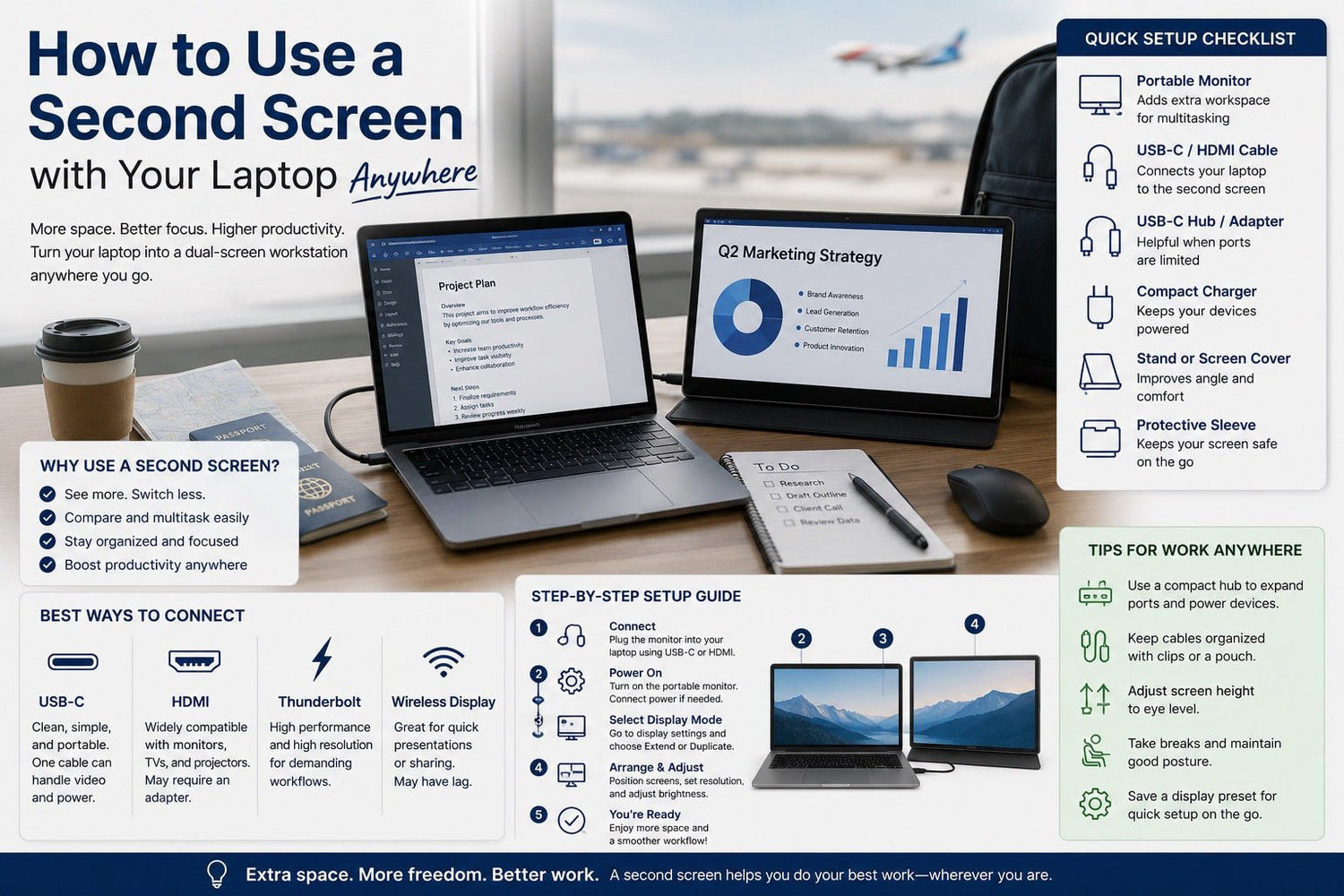
Quick Setup Checklist
Before you start, make sure you have the right essentials.
| What You Need | Why It Matters |
|---|---|
| Portable monitor or external display | Adds extra workspace for multitasking |
| USB-C or HDMI cable | Connects your laptop to the second screen |
| USB-C hub or adapter | Helps when your laptop has limited ports |
| Compact charger | Keeps your laptop and accessories powered |
| Foldable stand or screen cover | Improves viewing angle and comfort |
| Protective sleeve | Keeps your portable screen safe during travel |
For the cleanest mobile setup, USB-C is often the most convenient option because it can reduce cable clutter and may support video and power through one connection.
Why Use a Second Screen with Your Laptop?
A second screen gives you more visible workspace without needing a full desktop setup. Instead of constantly switching between apps, you can keep important information open side by side.
For example, you can write on one screen while keeping research open on the other. You can join a video meeting on your laptop while viewing notes, slides, or project documents on the second display. You can also work on a spreadsheet while keeping a dashboard, calculator, or reference file visible.
A laptop dual-screen setup is especially helpful for:
- Writing and researching at the same time
- Comparing documents or reports
- Managing email while working on a main task
- Coding with documentation or preview windows open
- Editing photos, videos, or design files
- Viewing large spreadsheets with less scrolling
- Presenting content while keeping notes private
The benefit is not only screen size. It is smoother workflow. When the tools and information you need are easier to see, your work feels less interrupted.
What You Need to Use a Second Screen Anywhere
1. A Laptop with Display Output
Most modern laptops can connect to an external monitor through USB-C, Thunderbolt, HDMI, Mini DisplayPort, or an adapter. However, not every USB-C port supports video output.
Before choosing a portable second screen, check your laptop specifications. Look for support for USB-C DisplayPort Alt Mode, Thunderbolt, HDMI, or external display output.
2. A Portable Monitor or External Display
For travel and flexible work, a portable monitor is usually the best option. It is slimmer and lighter than a traditional monitor and can fit into a backpack with your laptop.
When choosing a portable monitor for laptop use, consider:
- Screen size
- Weight
- Resolution
- Brightness
- Stand design
- Cable requirements
- Power requirements
- Device compatibility
A 13-inch to 16-inch portable monitor is often a practical size for travel because it adds useful screen space without making your bag too heavy.
3. The Right Cable or Adapter
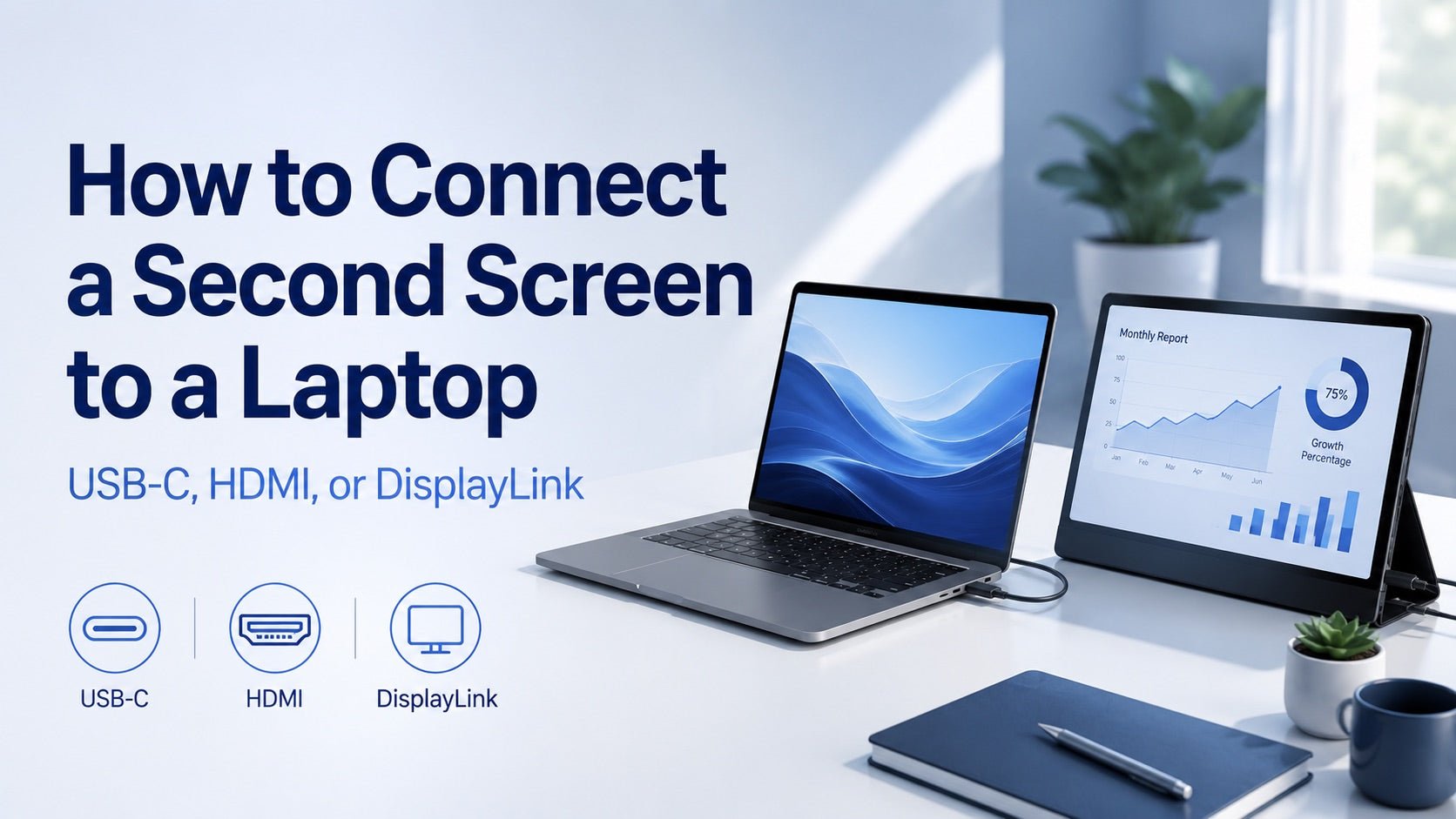
Your cable choice depends on your laptop and monitor. Common options include USB-C to USB-C, HDMI to HDMI, USB-C to HDMI, and Thunderbolt-compatible cables.
For a work-anywhere setup, it is worth carrying one primary cable and one backup adapter. This helps you avoid connection problems when moving between offices, hotels, classrooms, and coworking spaces.
4. A Reliable Power Source
Some portable monitors draw power directly from your laptop. Others need separate power. If your second screen uses your laptop battery, your battery may drain faster.
A compact multi-port USB-C charger can make the setup easier by powering your laptop, phone, tablet, and accessories from one wall outlet. This is especially useful in hotel rooms, airport lounges, cafés, and shared workspaces where outlet access may be limited.
5. A Comfortable Stand or Viewing Angle
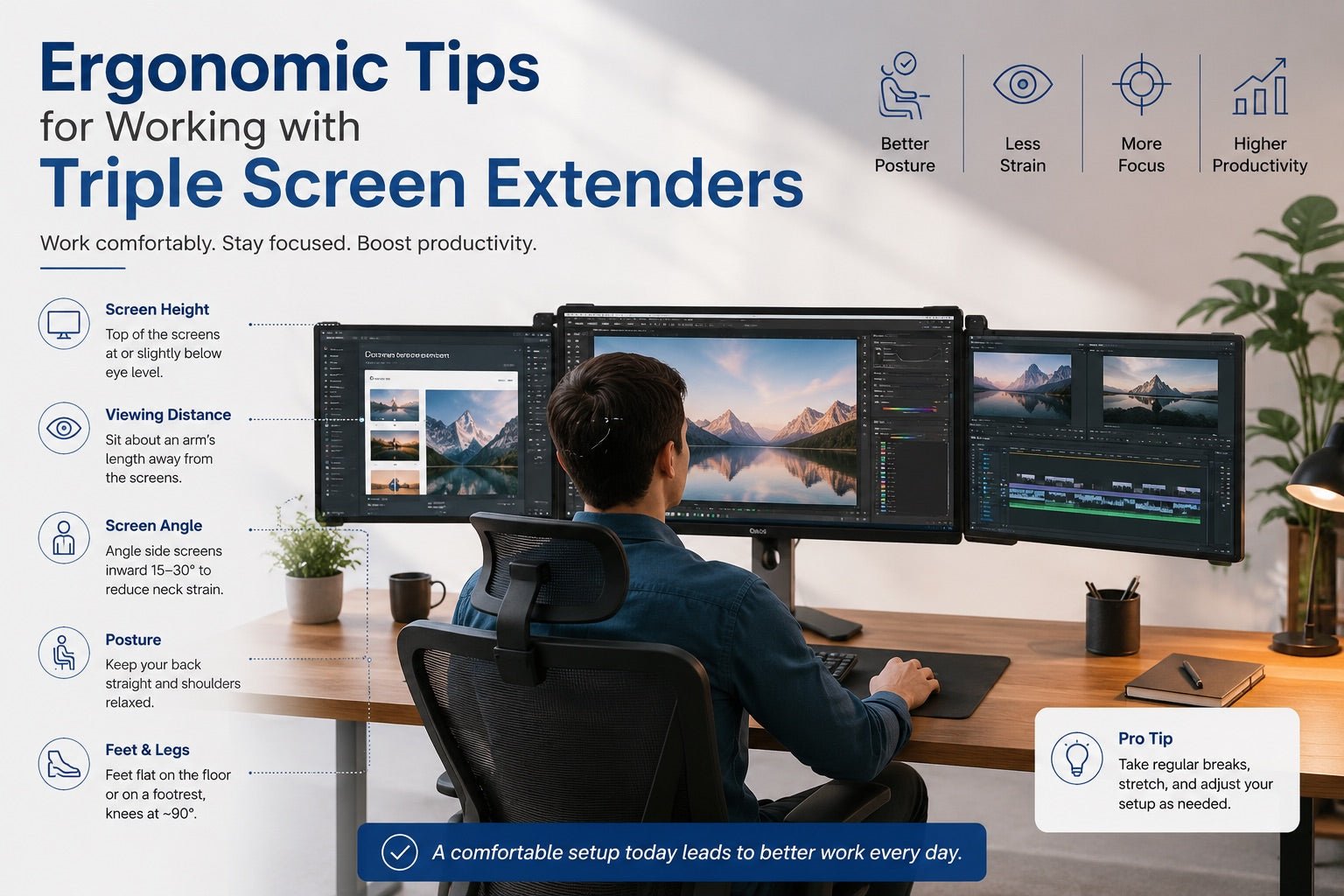
A second screen should not force you to bend your neck or sit awkwardly. Use a built-in cover stand, foldable stand, or laptop stand to keep both screens at a comfortable viewing height.
A small improvement in screen angle can make a big difference during long work sessions.
Best Ways to Connect a Second Screen to Your Laptop
| Connection Type | Best For | Things to Check |
|---|---|---|
| USB-C | Clean portable setups with fewer cables | Your laptop must support video output through USB-C |
| HDMI | Office monitors, TVs, projectors, and meeting rooms | Some thin laptops may need an adapter |
| Thunderbolt | High-performance display setups | Requires compatible laptop and cable |
| Wireless display | Presentations or temporary sharing | May be less stable than a wired connection |
USB-C Connection
USB-C is often the simplest choice for a portable second screen. If your laptop and monitor both support USB-C video, you may only need one cable. In some setups, that same cable can handle both display and power.
This makes USB-C especially useful for mobile workers who want fewer cables and a cleaner desk.
HDMI Connection
HDMI is widely supported and reliable. It is common on office monitors, TVs, projectors, and conference room displays. If your laptop does not have an HDMI port, a USB-C to HDMI adapter or hub can solve the issue.
Wireless Display
Wireless display options can be useful for presentations or quick screen sharing. However, they may not be ideal for detailed work such as editing, coding, or spreadsheet tasks because wireless connections can have delay or stability issues.
For daily productivity, a wired connection is usually more dependable.
How to Set Up Your Laptop Second Screen
Step 1: Connect the Screen
Plug the portable monitor or external display into your laptop using USB-C, HDMI, or the correct adapter. If the monitor needs separate power, connect it to a charger or power source.
Step 2: Open Display Settings
Once connected, open your laptop’s display settings. Most systems will detect the second screen automatically. If not, use the “detect display” option.
Step 3: Choose Extend or Duplicate
Use extend display when you want more workspace. This lets you move windows between your laptop screen and the second screen.
Use duplicate display when you want both screens to show the same content. This is useful for presentations, teaching, or sharing your screen with someone nearby.
Step 4: Arrange the Screens
In display settings, drag the screen icons so they match your physical setup. If your second screen is on the right side of your laptop, place it there in the settings. This makes your cursor movement feel natural.
Step 5: Adjust Resolution and Scaling
Choose the recommended resolution for the second screen. If text looks too small or too large, adjust scaling until the display feels comfortable.
How to Use a Second Screen in Different Places
Home Office
At home, a second screen can create a more complete workstation. Use your larger or more comfortable display for your main task and your laptop screen for email, chat, notes, or calls.
A charger, hub, keyboard, and stand can help create a cleaner desk setup.
Coffee Shop
In a café, space is limited. Use a slim portable monitor, a short USB-C cable, and a compact charger. Keep the second screen close to your laptop so your setup does not take over the table.
This setup works well for writing, planning, research, and light admin work.
Hotel Room
A hotel desk can become a practical temporary office. Place the second screen beside your laptop, connect with USB-C or HDMI, and use a multi-port charger to power your laptop and other devices from one outlet.
This is useful for business travelers who need to review slides, join calls, prepare reports, or catch up on email.
Airport Lounge
Airport work sessions are often short, so quick setup matters. Use a simple one-cable display connection when possible. Lower screen brightness to save battery and focus on tasks that benefit from extra space, such as reviewing presentations or comparing documents.
Classroom or Library
Students can use one screen for lectures, notes, or research and the other for writing assignments or coding. A portable second screen can be especially useful in libraries because it adds workspace without needing a large desk.
Coworking Space
Coworking spaces are designed for flexible work, and a second screen helps you build a consistent setup wherever you sit. A USB-C hub, portable monitor, and compact charger can make it easier to move between desks or meeting rooms.
Practical Tips for a Better Portable Dual-Screen Setup
Use USB-C When Possible
USB-C can simplify your setup by reducing the number of cables you need to carry. For mobile work, fewer cables means faster setup and less clutter.
Keep a Small Cable Kit
Carry your main display cable, a backup adapter, and a charging cable. A small cable pouch can prevent tangled cords and missing accessories.
Watch Your Battery
A portable second screen can use extra power. Reduce brightness when needed and plug into power whenever possible. For longer work sessions, use a charger that can support your laptop and other devices at the same time.
Match Screen Heights
Try to keep both screens at similar heights. This reduces neck movement and makes the setup more comfortable for long work periods.
Protect the Monitor
Portable monitors are slim, so they should be protected in your bag. Use a sleeve, cover, or padded compartment to prevent scratches and pressure damage.
Keep the Setup Simple
The best mobile workstation is the one you can set up quickly. Avoid carrying too many accessories unless you truly need them.
Common Problems and How to Fix Them
The Second Screen Is Not Detected
Check the cable connection first. Make sure the cable supports video, not only charging. Try another port or restart the display settings. If you are using USB-C, confirm that your laptop supports video output.
The Display Looks Blurry
Go to display settings and choose the recommended resolution. Adjust scaling if text or icons look too large or too small.
The Battery Drains Too Fast
Lower the brightness on both screens, close unused apps, and plug into a charger when available. A second screen is useful, but it does increase power demand.
The Cursor Moves the Wrong Way
This usually means the display arrangement is incorrect. In display settings, move the screen icons so they match the physical position of your laptop and second screen.
Your Laptop Does Not Have Enough Ports
Use a USB-C hub or adapter. This allows you to connect your display while still having ports available for charging, storage, keyboard, mouse, or other accessories.
Who Benefits Most from a Second Screen with a Laptop?
A second screen is useful for anyone who works from a laptop, but it is especially helpful for people who multitask often.
Remote workers can manage calls, documents, chat, and project tools more easily.
Business travelers can turn hotel desks, airport lounges, and temporary workspaces into more productive setups.
Students can view lectures, notes, research, and assignments at the same time.
Developers can keep code, documentation, terminal windows, and previews visible.
Designers and creators can use the extra screen for references, tools, timelines, or previews.
Financial analysts can compare spreadsheets, reports, dashboards, and market data with less scrolling.
Consultants and sales teams can present on one screen while keeping notes or meeting details on the other.
Conclusion
Using a second screen with your laptop is one of the simplest ways to improve productivity without giving up mobility. It gives you more room to work, compare, present, and create, whether you are at home, in the office, on campus, in a hotel, or working between flights.
The best setup does not need to be complicated. A portable monitor, the right cable, a compact charger, and a few well-chosen accessories can turn your laptop into a flexible mobile workstation almost anywhere.
For a cleaner and more reliable setup, focus on three things: simple connection, stable power, and easy portability. When those are in place, a second screen can make your laptop feel much more capable wherever the day takes you.
FAQ
Can I use a second screen with any laptop?
Most modern laptops support a second screen, but compatibility depends on the available ports and display output support. Check whether your laptop supports HDMI, USB-C video output, Thunderbolt, or another external display connection.
Can I use a second screen with my laptop while traveling?
Yes. A portable monitor is designed for flexible use and can fit into many laptop bags. For travel, choose a lightweight screen, carry the right cable, and use a compact charger to keep your devices powered.
Is USB-C better than HDMI for a portable second screen?
USB-C is often better for portable setups because it can reduce cable clutter and may support video and power through one cable. HDMI is still a reliable option, especially for office monitors, TVs, and projectors.
Does a second screen drain laptop battery faster?
Yes, a second screen can increase power use, especially if it draws power from your laptop. Lowering brightness and using a charger during longer sessions can help manage battery life.
Should I extend or duplicate my laptop display?
Use extended display mode for productivity because it gives you more workspace. Use duplicate mode when you want both screens to show the same content, such as during a presentation.
What accessories are useful for a laptop dual-screen setup?
Useful accessories include a USB-C cable, HDMI adapter, USB-C hub, compact charger, foldable stand, and protective sleeve. These help keep your setup organized, portable, and easier to use in different locations.

Leave a comment
This site is protected by hCaptcha and the hCaptcha Privacy Policy and Terms of Service apply.