


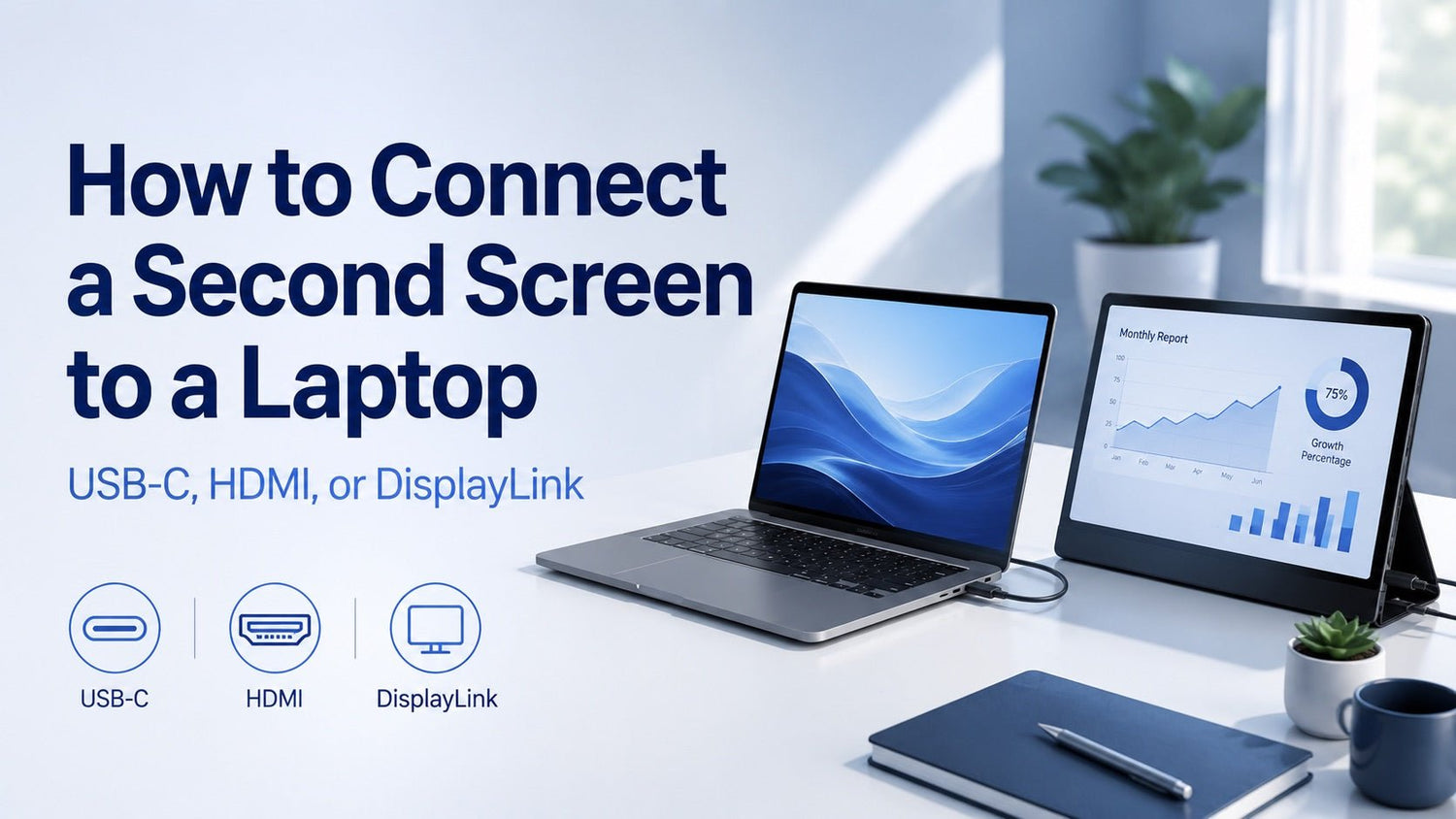
A second screen can make your laptop feel much more productive. Instead of switching between tabs, shrinking windows, or losing track of your workflow, you can keep more information visible at once.
The easiest way to connect a second screen to a laptop depends on the ports your laptop and monitor support. For many users, HDMI is the simplest option. For modern laptops, USB-C can create a cleaner setup with fewer cables. For multi-monitor workstations, DisplayLink can help when your laptop has limited native display support.
This guide explains how USB-C, HDMI, and DisplayLink work, how to set up your second screen on Windows or macOS, and how to fix common connection problems.
Why Use a Second Screen with Your Laptop?
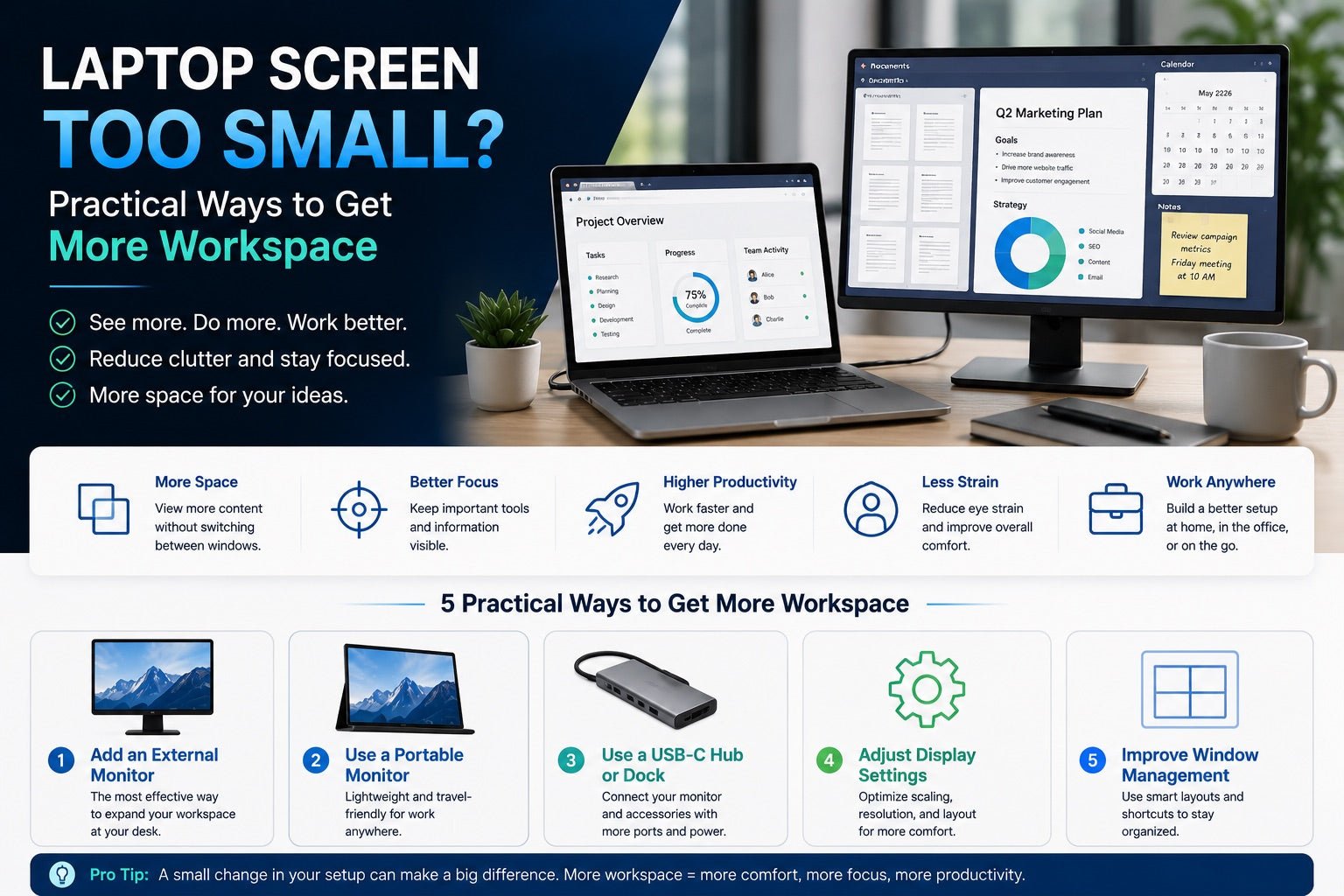
A laptop is portable, but one built-in display can feel limiting when you are working, studying, presenting, or creating content. A second screen gives you more room to organize your apps and focus on the task in front of you.
A dual-screen setup is useful when you want to:
- Keep a video meeting open while taking notes
- Compare documents side by side
- Write on one screen while researching on another
- View more columns in spreadsheets
- Code while keeping documentation or previews visible
- Edit photos or videos with more space for tools and timelines
- Present from one screen while viewing speaker notes on another
For remote workers, students, developers, designers, and business travelers, a second screen can turn a compact laptop into a more flexible workstation.
Before You Connect: Check Your Laptop and Monitor Ports
Before buying a cable, adapter, or dock, check which ports are available on your laptop and your second screen.
| Port Type | What It Does | Common Use |
|---|---|---|
| USB-C | May support video, data, and charging depending on the device | Modern laptops, portable monitors, USB-C hubs |
| Thunderbolt | Uses a USB-C connector and supports high-speed data and video | Premium laptops, docking stations, high-resolution displays |
| HDMI | Sends video and audio to a monitor, TV, or projector | Common monitors, TVs, office displays |
| DisplayPort | Sends video to external monitors | Desktop monitors and high-resolution displays |
| Mini DisplayPort | Smaller version of DisplayPort | Some older laptops and monitors |
| USB-A | Does not natively carry video, but can work with DisplayLink adapters | Older laptops and docking stations |
The most important point is that not every USB-C port supports video output. Some USB-C ports are only designed for charging or data transfer. To connect a second screen through USB-C, your laptop usually needs support for DisplayPort Alt Mode, Thunderbolt, or USB4.
You should also consider power. Some USB-C monitors, hubs, and docking stations can charge your laptop while sending video through the same cable, but only if both the laptop and accessory support USB-C Power Delivery.
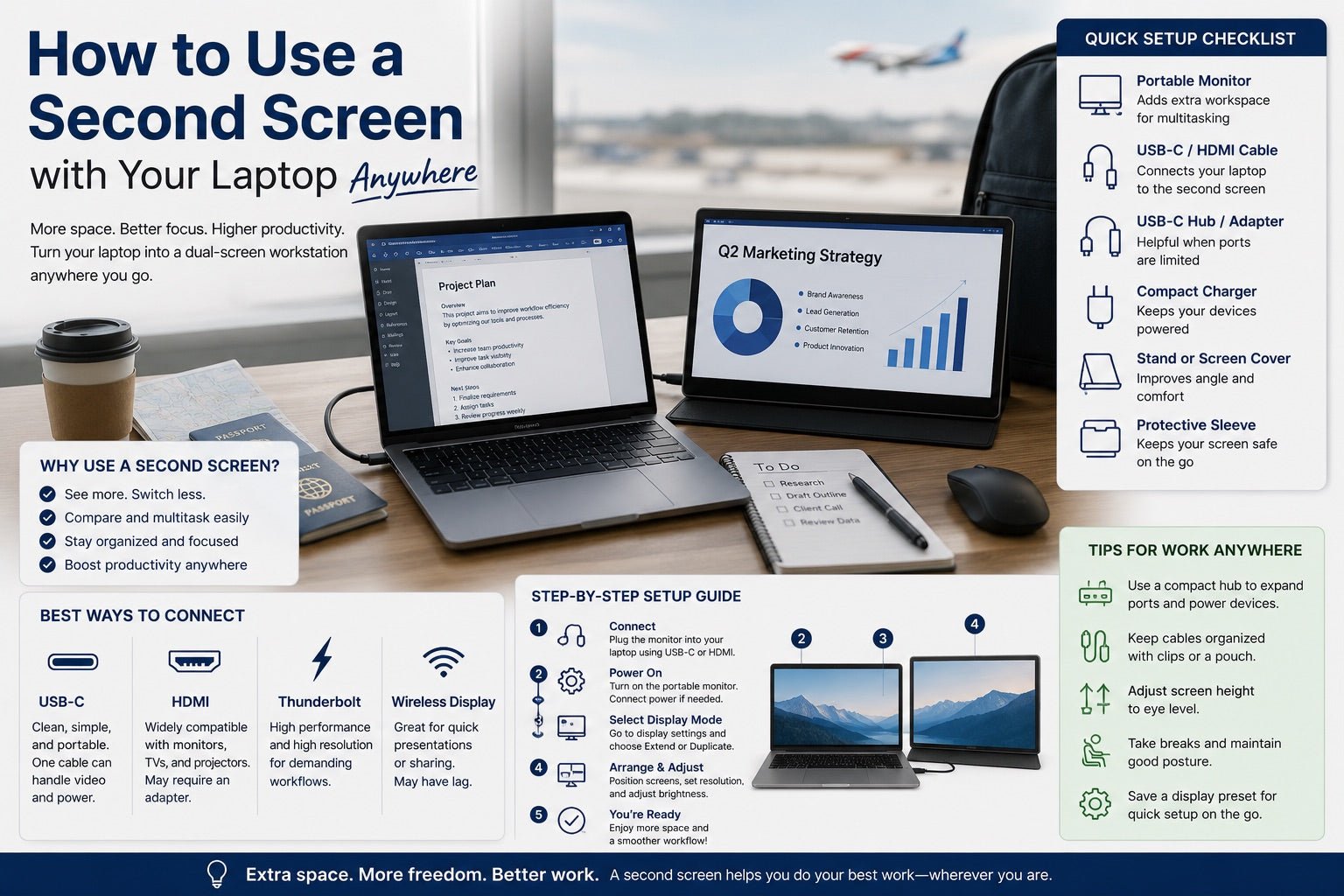
Method 1: Connect a Second Screen to a Laptop with USB-C
USB-C is often the cleanest option for modern laptops. When supported, one USB-C cable can carry video, data, and power, which helps reduce cable clutter on your desk or in your travel setup.
When USB-C Is the Best Choice
USB-C is a good option if:
- Your laptop has a USB-C port that supports video output
- Your monitor has a USB-C input
- You want a cleaner single-cable setup
- You use a USB-C hub or docking station
- You want to connect a monitor and charge your laptop at the same time
How to Connect with USB-C
- Check whether your laptop’s USB-C port supports video output.
- Connect a USB-C cable from your laptop to the monitor.
- Turn on the monitor.
- Select USB-C as the monitor input if needed.
- Open your laptop display settings.
- Choose whether to mirror or extend the display.
If your laptop has USB-C but your monitor only has HDMI, you can use a USB-C to HDMI adapter or a USB-C hub with HDMI output.
What to Watch For
USB-C ports can look identical but support different functions. If the second screen shows “No Signal,” the issue may be that:
- The USB-C port does not support video
- The USB-C cable does not support display output
- The monitor is set to the wrong input
- The adapter or hub does not support the required resolution
- The laptop needs a display setting adjustment
For the most reliable setup, choose a USB-C cable, hub, or adapter that clearly supports video output at the resolution and refresh rate you need.
Method 2: Connect a Second Screen to a Laptop with HDMI
HDMI is one of the most common ways to connect a laptop to an external monitor. It is simple, widely supported, and often works without extra software.
When HDMI Is the Best Choice
HDMI is a good option if:
- Your laptop has an HDMI port
- Your monitor has an HDMI input
- You want a simple plug-and-play connection
- You are connecting to a TV, projector, or meeting room display
- You do not need a docking station
How to Connect with HDMI
- Plug one end of the HDMI cable into your laptop.
- Plug the other end into your monitor.
- Turn on the monitor.
- Select the correct HDMI input on the monitor.
- Open display settings on your laptop.
- Choose whether to duplicate or extend the display.
For many users, HDMI is the easiest way to connect a second screen to a laptop because it is familiar and widely available.
What to Watch For
HDMI performance depends on your laptop, monitor, cable, and HDMI version. Older HDMI ports or basic cables may limit resolution or refresh rate.
For everyday work such as browsing, email, writing, spreadsheets, and video calls, HDMI is usually enough. For 4K monitors, high-refresh displays, or more demanding visual work, check your laptop and cable specifications before setting up.
If your laptop does not have an HDMI port, a USB-C to HDMI adapter or USB-C hub can help you connect to an HDMI monitor.
Method 3: Connect a Second Screen with DisplayLink
DisplayLink is different from standard USB-C or HDMI. It uses a compatible adapter or docking station plus software to send video through a USB connection.
This can be useful when your laptop does not have enough native display outputs or when you want to connect multiple monitors through one dock.
When DisplayLink Is Useful
DisplayLink may be a good choice if:
- Your laptop has limited display output options
- You want to connect two or more external monitors
- Your laptop does not support multiple external displays natively
- You are using a USB-A or USB-C docking station
- You want one dock for your monitor, keyboard, mouse, and other accessories
DisplayLink is especially helpful for productivity setups where you need more screen space for documents, dashboards, browsers, email, and communication tools.
How to Connect with DisplayLink
- Connect a DisplayLink-compatible dock or adapter to your laptop.
- Connect your monitor to the dock using HDMI, DisplayPort, or another supported port.
- Install the DisplayLink driver if required.
- Restart your laptop if prompted.
- On macOS, approve any required screen recording or display permissions.
- Open display settings and arrange your screens.
What to Watch For
DisplayLink is practical for office work and multi-monitor productivity, but it may not be ideal for gaming, high-end video editing, or tasks that require very low latency.
Before choosing a DisplayLink dock, check:
- Whether the dock or adapter specifically supports DisplayLink
- Whether the driver supports your operating system
- The maximum resolution and refresh rate
- Whether your laptop supports the number of screens you want to use
- Whether macOS permissions are required
When a USB-C Hub or Dock Makes the Setup Easier
A second screen setup is not only about the monitor cable. Many laptop users also need to connect a charger, keyboard, mouse, storage device, Ethernet cable, or SD card reader.
This is where a USB-C hub or docking station can make the setup much cleaner.
A hub or dock is useful if:
- Your laptop has only one or two ports
- You want HDMI, USB-A, USB-C, and charging in one accessory
- You want to avoid plugging in several cables every time
- You work between home, office, and travel locations
- You want a cleaner desk with fewer visible connections
For example, a USB-C hub with HDMI and Power Delivery can let you connect your external monitor and laptop charger through one compact accessory. A larger docking station may be better for a full desk setup with multiple monitors and peripherals.
The key is to match the hub or dock to your laptop’s capabilities. If your USB-C port does not support video output, a regular USB-C hub with HDMI may not solve the issue. In that case, a DisplayLink-compatible dock may be required.
How to Set Up Display Settings on Windows
After connecting your second screen, Windows often detects it automatically. If not, you can adjust the display settings manually.
Windows Setup Steps
- Right-click on the desktop.
- Select Display settings.
- Click Detect if the second screen does not appear.
- Find Multiple displays.
- Choose one of the following options:
- Duplicate these displays: Shows the same content on both screens.
- Extend these displays: Gives you more workspace across two screens.
- Show only on 1: Uses only the laptop screen.
- Show only on 2: Uses only the external screen.
- Drag the display icons to match your real desk layout.
- Adjust resolution and scaling if needed.
- Set your preferred main display.
For most work setups, Extend these displays is the best option because it lets you move windows between your laptop screen and external monitor.
How to Set Up Display Settings on macOS
macOS also supports external displays, but the number of external screens depends on your exact Mac model, chip, and configuration.
macOS Setup Steps
- Connect the second screen to your Mac.
- Open System Settings.
- Go to Displays.
- Select the connected display.
- Choose whether to mirror or extend the display.
- Arrange the display position to match your desk.
- Adjust resolution, scaling, brightness, or refresh rate if available.
Use mirroring if you want both screens to show the same content. Use an extended display if you want more workspace.
If your second screen does not work, check your Mac’s external display support. Some Mac models support only one external display natively, while others support multiple displays. If you need more screens than your Mac supports directly, a DisplayLink dock may be an option.
USB-C vs HDMI vs DisplayLink: Which One Should You Choose?
The best method depends on your laptop ports, monitor input, and the type of setup you want.
| Connection Method | Best For | Main Benefit | Key Requirement |
|---|---|---|---|
| USB-C | Modern laptops, portable monitors, clean setups | Can support video, data, and charging through one cable | USB-C port must support video output |
| HDMI | Simple monitor, TV, or projector connections | Widely compatible and easy to use | HDMI port, cable, or USB-C to HDMI adapter |
| DisplayLink | Multi-monitor setups and laptops with limited display output | Adds display support through a compatible USB dock | DisplayLink-compatible hardware and driver |
Choose USB-C if...
You want a modern, streamlined setup with fewer cables. USB-C is especially useful for portable monitors, compact desks, and laptop users who already rely on USB-C accessories.
Choose HDMI if...
You want the simplest connection and your laptop or adapter supports HDMI. HDMI is a practical choice for home monitors, office displays, TVs, and projectors.
Choose DisplayLink if...
You need more external monitor support than your laptop provides natively. DisplayLink is especially useful for multi-screen desk setups using a compatible dock.
Common Problems and How to Fix Them
Second screen issues are usually caused by the wrong input source, unsupported ports, incompatible cables, outdated drivers, or display setting problems.
Second Screen Not Detected
Try these fixes:
- Unplug and reconnect the cable
- Restart your laptop
- Click Detect in display settings
- Try another cable or adapter
- Make sure the monitor is powered on
- Select the correct monitor input source
Monitor Shows “No Signal”
Check whether:
- The monitor is set to the right HDMI, USB-C, or DisplayPort input
- The cable is fully connected
- The laptop port supports video output
- The adapter or hub supports external displays
- The monitor is connected to the correct port
USB-C Monitor Connection Does Not Work
Try these steps:
- Confirm that your laptop USB-C port supports DisplayPort Alt Mode, Thunderbolt, or USB4
- Use a USB-C cable that supports video
- Try a different USB-C port if your laptop has more than one
- Test a USB-C to HDMI adapter or USB-C hub
- Restart the laptop after reconnecting the screen
DisplayLink Dock Is Not Working
Check whether:
- The dock or adapter is DisplayLink-compatible
- The DisplayLink driver is installed
- The driver supports your current operating system
- macOS permissions have been approved if required
- The dock is connected to power if needed
Resolution Looks Blurry
To improve image quality:
- Set the external monitor to its recommended resolution
- Adjust scaling in display settings
- Use a cable or adapter that supports your monitor’s resolution
- Check the refresh rate settings
- Avoid low-quality adapters for high-resolution displays
Display Keeps Disconnecting
Try these fixes:
- Use a reliable cable
- Connect the dock to external power if supported
- Avoid stacking multiple adapters together
- Update graphics or DisplayLink drivers
- Check laptop power-saving settings
- Make sure the hub or dock supports your display requirements
Laptop Does Not Charge Through the Dock
Check:
- The dock’s Power Delivery rating
- Your laptop’s charging requirements
- Whether the USB-C cable supports charging
- Whether the dock’s power adapter is connected
- Whether the laptop supports charging through that USB-C port
Tips for a Cleaner Second Screen Setup
A good second screen setup should be easy to connect, comfortable to use, and simple to maintain.
Use One Reliable Hub or Dock
Instead of using several adapters, choose one hub or dock that matches your needs. This can reduce clutter and make your setup easier to troubleshoot.
Choose the Right Cable Length
A cable that is too short limits your desk layout. A cable that is too long creates unnecessary clutter. Choose a length that reaches comfortably without leaving extra cable across your workspace.
Keep Charging and Display Simple
If your laptop supports USB-C video and Power Delivery, a single-cable setup can make your desk much cleaner. You can connect your monitor, charge your laptop, and use accessories with fewer cables.
Think About Travel
For mobile work, choose compact accessories that are easy to pack. A lightweight USB-C hub, short HDMI cable, or portable monitor can make it easier to build a productive setup in hotels, coworking spaces, or meeting rooms.
Avoid Unnecessary Adapters
Every extra adapter adds another possible point of failure. A direct cable or a well-matched hub is usually more reliable than a chain of dongles.
Conclusion
The best way to connect a second screen to a laptop depends on your ports, your monitor, and how you work.
Use USB-C if you want a clean modern setup with fewer cables. Use HDMI if you want a simple and widely compatible connection. Use DisplayLink if you need extra monitor support through a compatible dock or adapter.
Before setting up your second screen, check your laptop’s display capabilities, your monitor input, and whether you need charging, extra ports, or multiple displays. With the right cable or hub, your laptop can become a more comfortable and flexible workstation for work, study, travel, and everyday productivity.
FAQ
Can I connect a second screen to a laptop with USB-C?
Yes. You can connect a second screen with USB-C if your laptop’s USB-C port supports video output. Look for support for DisplayPort Alt Mode, Thunderbolt, or USB4. If your monitor only has HDMI, you can use a USB-C to HDMI adapter or a USB-C hub with HDMI.
Why is my second screen not detected?
Your second screen may not be detected because of a loose cable, wrong monitor input, unsupported USB-C port, outdated driver, or incompatible adapter. Try reconnecting the cable, selecting the correct input source, and checking your laptop display settings.
Do all USB-C ports support monitors?
No. Some USB-C ports only support charging or data transfer. To connect a monitor, the USB-C port must support video output. Check your laptop specifications before buying a USB-C monitor, hub, or adapter.
Is HDMI better than USB-C for a second screen?
HDMI is simple and widely compatible, while USB-C can support a cleaner setup with video, data, and charging through one cable. HDMI is often best for basic connections, while USB-C is better for modern desk and travel setups when supported.
What is DisplayLink used for?
DisplayLink is used to send video through a compatible USB adapter or docking station. It is helpful when a laptop has limited display outputs or when you want to connect multiple external monitors through one dock.
Can I connect two monitors to one laptop?
Yes, but it depends on your laptop’s hardware, graphics support, ports, and operating system. Some laptops support multiple external displays directly, while others may need a docking station or DisplayLink adapter.
Do I need a docking station for a second screen?
Not always. If your laptop and monitor have matching ports, one USB-C or HDMI cable may be enough. A docking station is useful if you want to connect multiple devices, reduce cable clutter, charge your laptop, or add extra monitor support.
Why does my USB-C hub connect to accessories but not my monitor?
Your USB-C hub may support data transfer but not video output, or your laptop’s USB-C port may not support display output. Check whether both the laptop port and the hub support video, such as DisplayPort Alt Mode or Thunderbolt.

Leave a comment
This site is protected by hCaptcha and the hCaptcha Privacy Policy and Terms of Service apply.