


After a few hours working on a triple screen setup, many people notice the same problems creeping in: a stiff neck, tired eyes, tight shoulders, and an increasingly cluttered desk. Ironically, the very setup designed to improve productivity can slowly create physical discomfort when ergonomics are ignored.
Triple screen extenders have become incredibly popular among remote workers, programmers, traders, gamers, and digital creators because they dramatically expand screen space and workflow efficiency. But more screens also mean more head movement, more visual stimulation, and more opportunities for poor posture.
The difference between a productive workstation and a painful one often comes down to a few critical ergonomic adjustments.
In this guide, you’ll learn how to create a healthier, smarter, and more comfortable ergonomic triple screen setup — whether you’re working from a home office, traveling with a portable workstation, or building a high-performance productivity desk.
What Is a Triple Screen Extender?
A triple screen extender is a multi-display solution that adds two additional screens to your laptop or desktop computer. Some setups use standalone monitors, while others rely on compact laptop screen extenders designed for portability.
These setups allow users to:
- Multitask more efficiently
- Reduce constant tab switching
- View multiple applications simultaneously
- Improve workflow organization
- Enhance focus during complex tasks
Triple screen setups are especially common among:
- Remote professionals
- Programmers and developers
- Financial traders
- Video editors
- Designers
- Gamers and streamers
- Digital nomads
While the productivity benefits are significant, proper ergonomics become even more important as your visual workspace expands.
Why Triple Monitor Ergonomics Matter
A poorly designed workstation doesn’t just cause temporary discomfort — it can affect long-term health, focus, and work performance.
According to ergonomic research and workplace health recommendations, repetitive neck rotation, poor posture, and prolonged screen exposure can contribute to:
- Chronic neck and shoulder pain
- Lower back strain
- Eye fatigue and headaches
- Wrist tension
- Reduced concentration
- Mental fatigue
A properly optimized triple monitor ergonomic setup helps your body remain in a neutral, natural position during long work sessions.
The goal isn’t simply adding more screens — it’s creating a workspace that supports both productivity and physical well-being.
How Screen Layout Impacts Cognitive Fatigue
One overlooked issue with triple monitors is cognitive overload.
When screens are poorly arranged, your brain constantly processes excessive peripheral movement, visual distractions, and rapid eye transitions between displays. Over time, this increases mental fatigue and reduces focus.
A cleaner and more intentional screen layout improves not only posture — but also concentration.
Smart Screen Zoning
The best setups assign clear purposes to each display.
Example:
| Screen | Purpose |
|---|---|
| Center | Primary work |
| Left | Communication tools |
| Right | Reference material or secondary apps |
This minimizes unnecessary visual searching and creates a smoother workflow rhythm.
Proper Monitor Height and Alignment
One of the biggest ergonomic mistakes people make is incorrect monitor positioning.
Keep the Main Screen at Eye Level
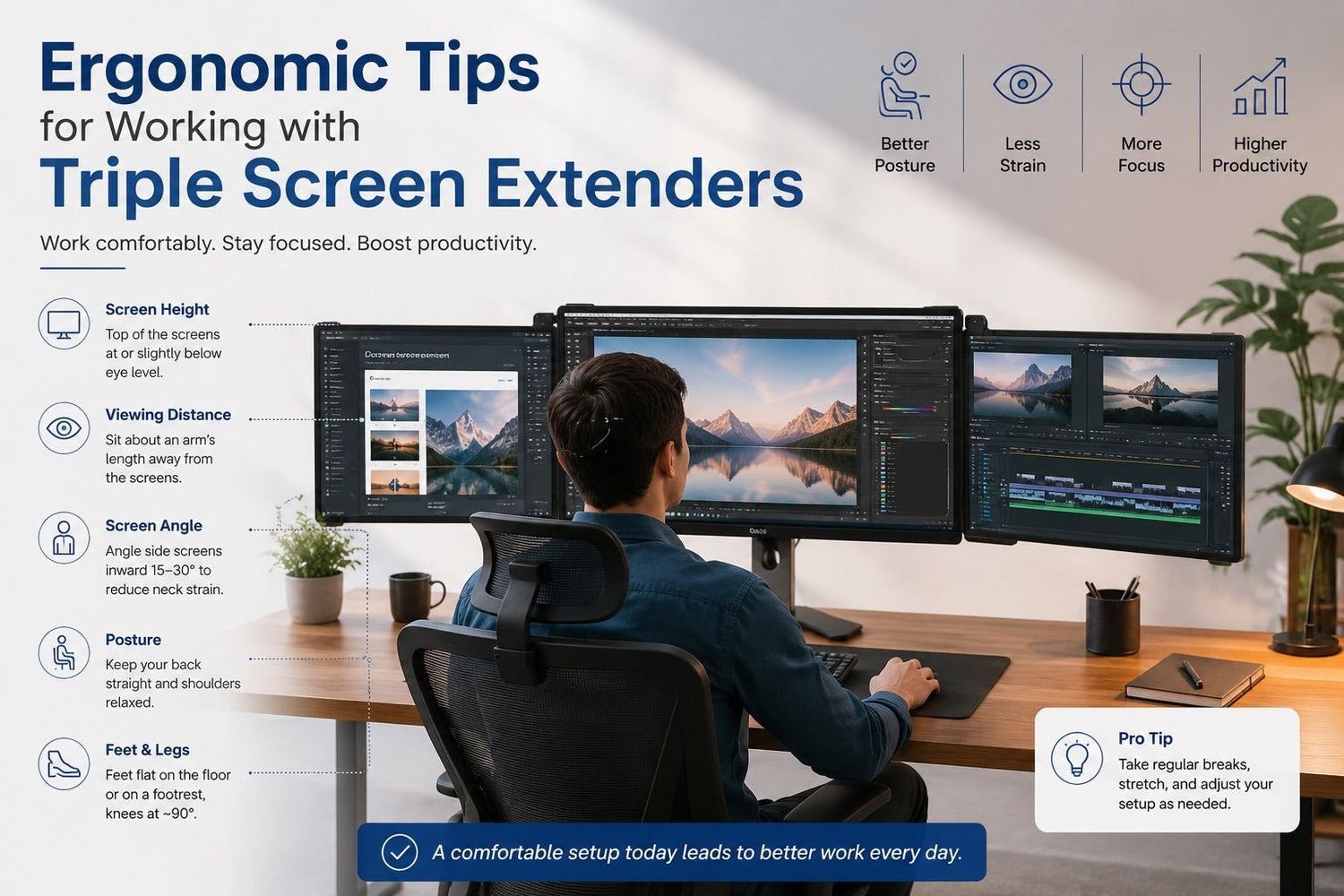
Your primary display should sit directly in front of you with the top of the screen at or slightly below eye level.
Benefits include:
- Reduced neck bending
- Better posture
- Less upper back tension
If the screen sits too low, you’ll naturally hunch forward over time.
Angle Side Monitors Inward
Side displays should slightly wrap around your natural field of view.
Recommended angle:
- 15–30 degrees inward
This reduces excessive neck rotation while making transitions between screens feel more natural.
Align Monitor Heights Consistently
Uneven monitors force your eyes and neck to constantly readjust.
For the most comfortable experience:
- Keep bezels aligned
- Match viewing heights
- Maintain equal screen distances
This is especially important for large monitors and ultrawide setups.
The Ideal Viewing Distance
Viewing distance directly affects both posture and eye strain.
Recommended Distance
Most users should position screens:
- Approximately 20–30 inches from the eyes
- Close enough for easy readability
- Far enough to avoid leaning forward
Larger monitors may require additional distance.
Avoid “Tech Neck”
One of the most common posture problems is leaning toward the screen unconsciously.
Instead of moving your body toward the monitor:
- Increase text scaling
- Adjust display resolution
- Reposition monitors properly
Your back should remain supported against your chair.
Best Sitting Posture for Triple Monitor Users
Even a premium monitor setup won’t help if posture is poor.
Ideal Ergonomic Sitting Position
Your body should remain relaxed and neutral.
Proper posture checklist:
- Feet flat on the floor
- Knees at 90 degrees
- Shoulders relaxed
- Lower back supported
- Elbows close to the body
- Wrists straight while typing
Avoid twisting your torso toward side monitors repeatedly throughout the day.
Why Monitor Arms Are Worth It
A quality monitor arm is one of the smartest upgrades for any productivity workstation because it instantly improves posture, frees desk space, and allows precision screen alignment.
Benefits include:
- Better height adjustment
- Easier viewing angle customization
- Improved cable management
- More desk space
- Reduced neck strain
For triple monitor setups, flexibility matters enormously.
Reducing Neck and Shoulder Strain
Triple screen users often experience repetitive side-to-side movement throughout the day.
Small ergonomic adjustments make a major difference.
Keep Your Primary Task Centered
Your main activity should always happen on the center screen.
Examples:
- Coding editor
- Spreadsheet work
- Video editing timeline
- Main trading dashboard
Side monitors should support the primary workflow rather than dominate it.
Avoid Overly Wide Screen Placement
A common mistake is spreading monitors too far apart.
This causes:
- Excessive neck rotation
- Shoulder tension
- Visual fatigue
Keep displays close enough to maintain comfortable movement.
How to Reduce Eye Fatigue
Eye strain is one of the biggest complaints among users with multiple displays.
Match Brightness Across Screens
Inconsistent brightness forces your eyes to constantly adapt.
Try to maintain:
- Similar brightness
- Balanced contrast
- Consistent color temperature
This creates a smoother visual experience.
Use Blue-Light Reduction Features
Many modern displays include:
- Low blue light modes
- Flicker-free technology
- Eye comfort settings
These features can help reduce fatigue during long work sessions.
Follow the 20-20-20 Rule
Every 20 minutes:
- Look at something 20 feet away
- For 20 seconds
This helps relax eye muscles and reduce digital strain.
Workspace Lighting Matters More Than You Think
Poor lighting quietly increases fatigue and headaches.
Minimize Screen Glare
Avoid placing monitors directly in front of:
- Windows
- Harsh overhead lights
- Bright lamps
Glare forces your eyes to work harder.
Use Soft Ambient Lighting
A softly lit room feels dramatically more comfortable during extended work sessions.
Recommended options:
- Indirect LED lighting
- Adjustable desk lamps
- Warm ambient light sources
Avoid working in total darkness with bright monitors.
Best Desk Dimensions for Triple Monitor Setups
Many ergonomic problems come from insufficient desk space.
Recommended Desk Size
For comfortable triple monitor usage:
- Minimum width: 55–72 inches
- Recommended depth: 24–30 inches
This allows:
- Proper viewing distance
- Comfortable keyboard placement
- Better posture support
Shallow desks often force users too close to the screens.
Cable Management for Cleaner Workspaces
Cable clutter doesn’t just look messy — it creates mental clutter too.
A clean desk improves:
- Focus
- Efficiency
- Workspace comfort
Simple Cable Management Tips
Use:
- Cable sleeves
- Under-desk trays
- Velcro ties
- Wireless accessories when possible
Minimalist workspaces reduce visual stress and improve workflow clarity.
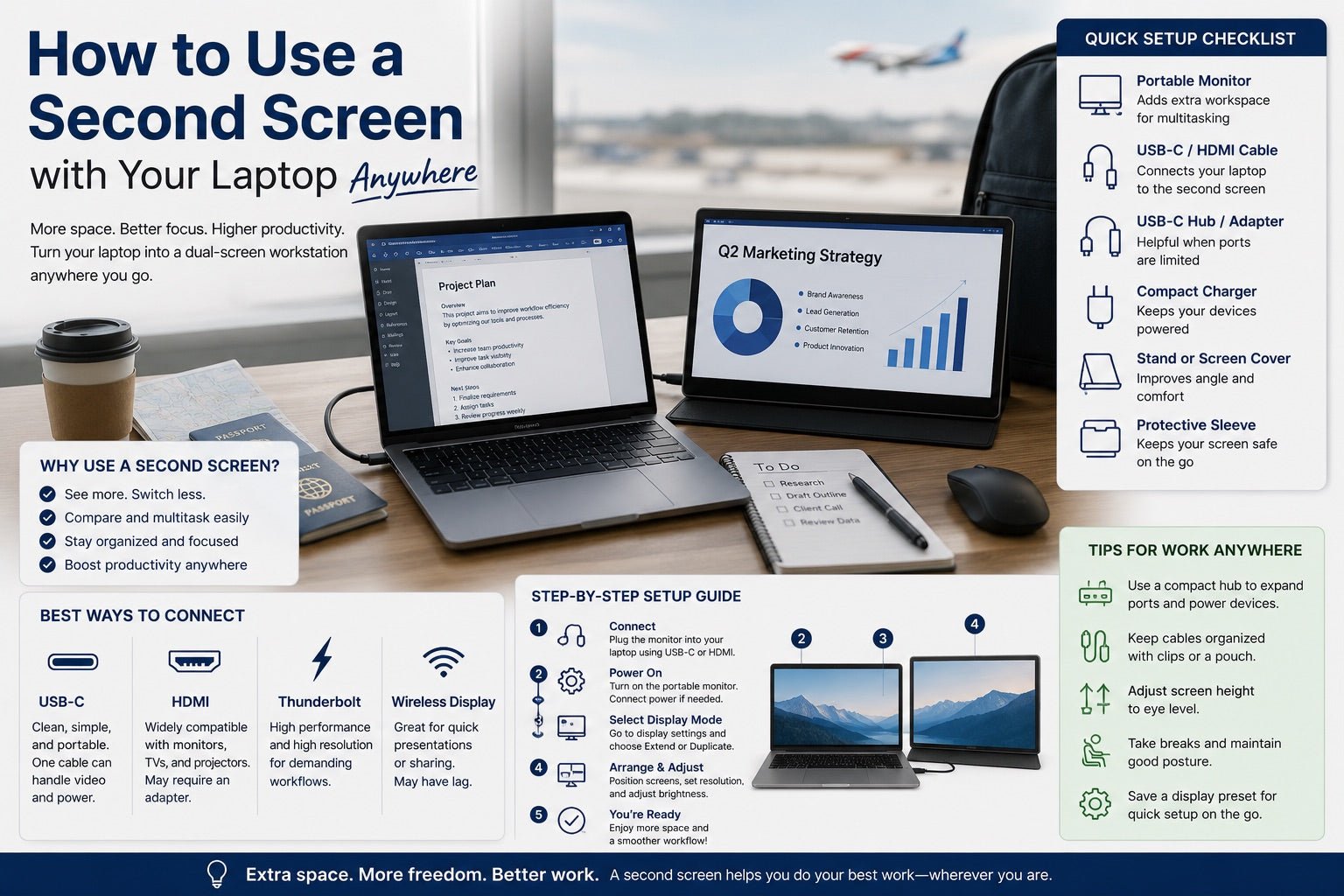
Ergonomic Tips for Portable Triple Monitor Setups
A portable triple monitor setup introduces unique challenges because temporary workspaces are rarely ergonomic by default.
Elevate Your Laptop
Portable setups often place screens too low.
Use:
- Foldable laptop stands
- Adjustable risers
- Portable ergonomic mounts
This helps prevent neck strain during travel.
Always Use an External Keyboard and Mouse
Typing directly on a low laptop keyboard encourages poor posture.
External accessories improve:
- Wrist alignment
- Arm positioning
- Sitting posture
Even compact travel accessories make a huge difference.
Triple Screen Ergonomics by Profession
Remote Workers
Ideal setup:
- Center: primary tasks
- Side screens: communication and meetings
- Adjustable standing desk for movement variation
Programmers and Developers
Recommended layout:
- Center: code editor
- Left: documentation
- Right: terminal or browser testing
This minimizes repetitive switching.
Financial Traders
Traders benefit from:
- High screen visibility
- Balanced brightness
- Strong ergonomic seating support
Long monitoring sessions demand excellent posture discipline.
Gamers and Streamers
Gamers should prioritize:
- Center-screen alignment
- Wrist support
- Proper viewing distance
- Reduced shoulder tension
Immersion should never come at the expense of posture.
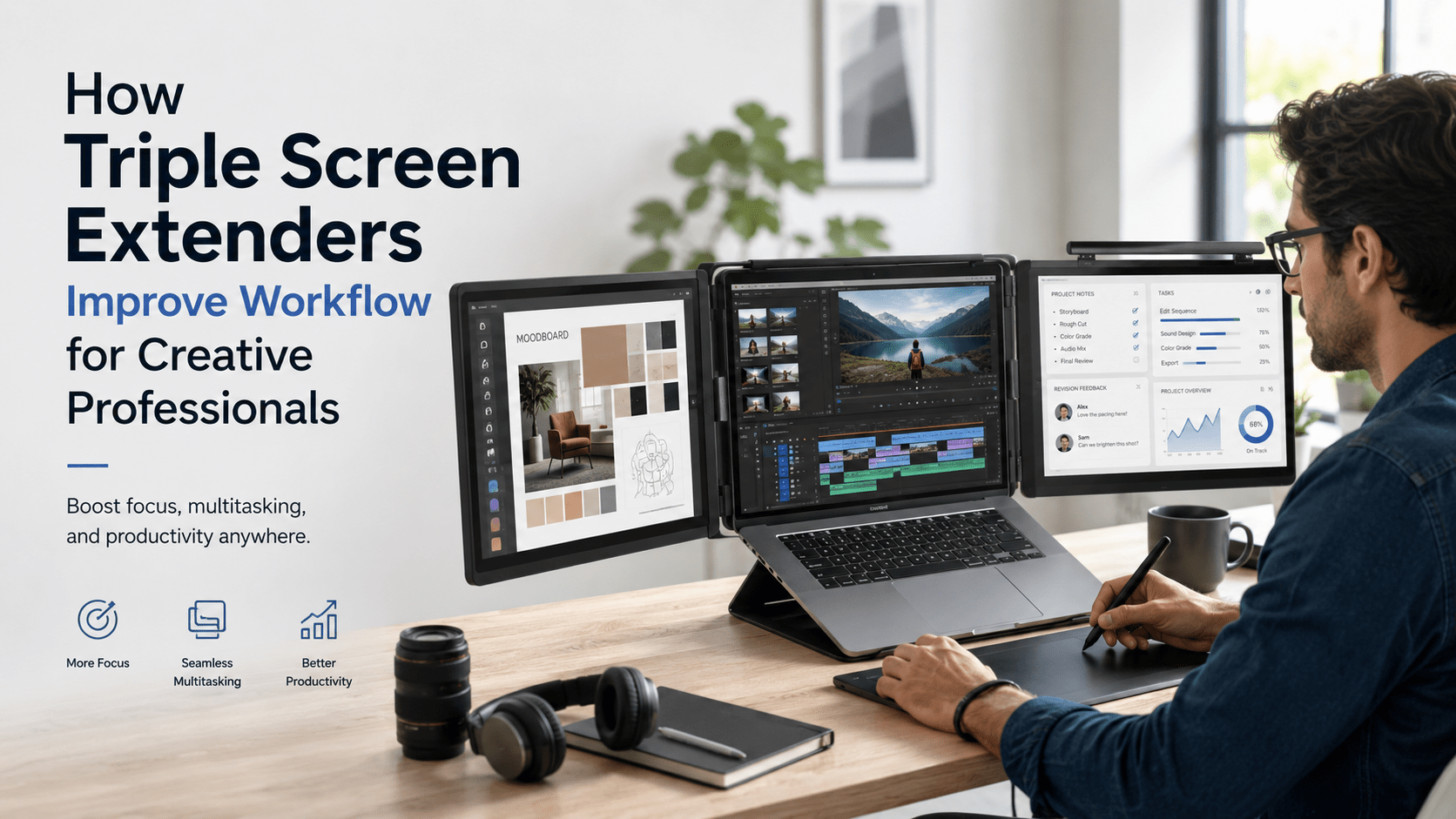
Creative Professionals
Designers and editors benefit from:
- Color-calibrated displays
- Controlled lighting
- Adjustable monitor positioning
Creative work often involves extended focus sessions, making ergonomics especially important.
Common Triple Monitor Mistakes to Avoid
Placing Screens Too High
This creates upward neck strain over time.
Your eyes should naturally look slightly downward toward the displays.
Ignoring Chair Quality
Even perfectly aligned monitors cannot compensate for poor seating support.
Your chair is part of the ergonomic system.
Sitting for Too Long Without Movement
No setup is healthy if you remain static all day.
Take:
- Stretch breaks
- Walking breaks
- Standing intervals
Movement is essential for long-term comfort.
Using Inconsistent Display Settings
Different:
- brightness
- resolutions
- scaling
- color temperatures
can increase visual fatigue significantly.
Triple Monitor Setup Checklist
Before starting work, confirm:
- Monitor centered at eye level
- Side screens angled inward
- Proper viewing distance maintained
- Feet flat on the floor
- Wrists neutral while typing
- Brightness balanced across screens
- Minimal glare
- Desk organized and clutter-free
Small adjustments create major long-term benefits.
Frequently Asked Questions
Do triple monitors improve productivity?
Yes. Triple monitors improve multitasking efficiency by reducing window switching and improving workflow organization.
Can triple monitors cause neck pain?
Yes. Poor monitor positioning can lead to repetitive neck rotation and posture strain.
What size monitors work best for triple setups?
Most users prefer 24–27 inch monitors because they balance visibility and ergonomic comfort effectively.
Are curved monitors better for triple screen setups?
Curved monitors can reduce edge distortion and create more natural viewing angles, especially on larger displays.
How far should triple monitors be from your eyes?
Most setups work best at approximately 20–30 inches away.
Are monitor arms worth it?
Absolutely. Monitor arms improve positioning flexibility, desk organization, and ergonomic comfort.
Can a laptop support triple screen extenders?
Many modern laptops support triple displays, but compatibility depends on GPU capability, ports, and docking solutions.
Conclusion
A triple screen extender should make work feel smoother — not physically exhausting.
When properly optimized, an ergonomic triple screen setup can dramatically improve productivity, focus, organization, and workflow efficiency without sacrificing comfort. Small adjustments like monitor height, viewing angles, lighting, posture, and desk organization can prevent years of unnecessary strain.
Whether you’re building a permanent workstation or creating a flexible portable triple monitor setup, ergonomics should never be an afterthought.
The best productivity setup isn’t just powerful — it’s sustainable, comfortable, and designed to support how you work every single day.

Leave a comment
This site is protected by hCaptcha and the hCaptcha Privacy Policy and Terms of Service apply.