


Introduction
If your laptop screen is crowded with a half-written document, a browser full of tabs, a video call, and a notes app, your workspace may be slowing you down. A single laptop screen is convenient, but it often forces you to switch between windows instead of focusing on the task in front of you.
A dual-screen laptop setup gives you more room to work, study, compare information, and stay organized. You can keep your main task on one screen and place notes, research, messages, lectures, or reference material on the other.
The goal is not simply to add another display. A good dual-screen workspace should feel comfortable, practical, and easy to use every day. This guide explains how to set up a dual-screen laptop workspace for work and study, including equipment, layout ideas, ergonomic tips, and common mistakes to avoid.
What Is a Dual-Screen Laptop Setup?
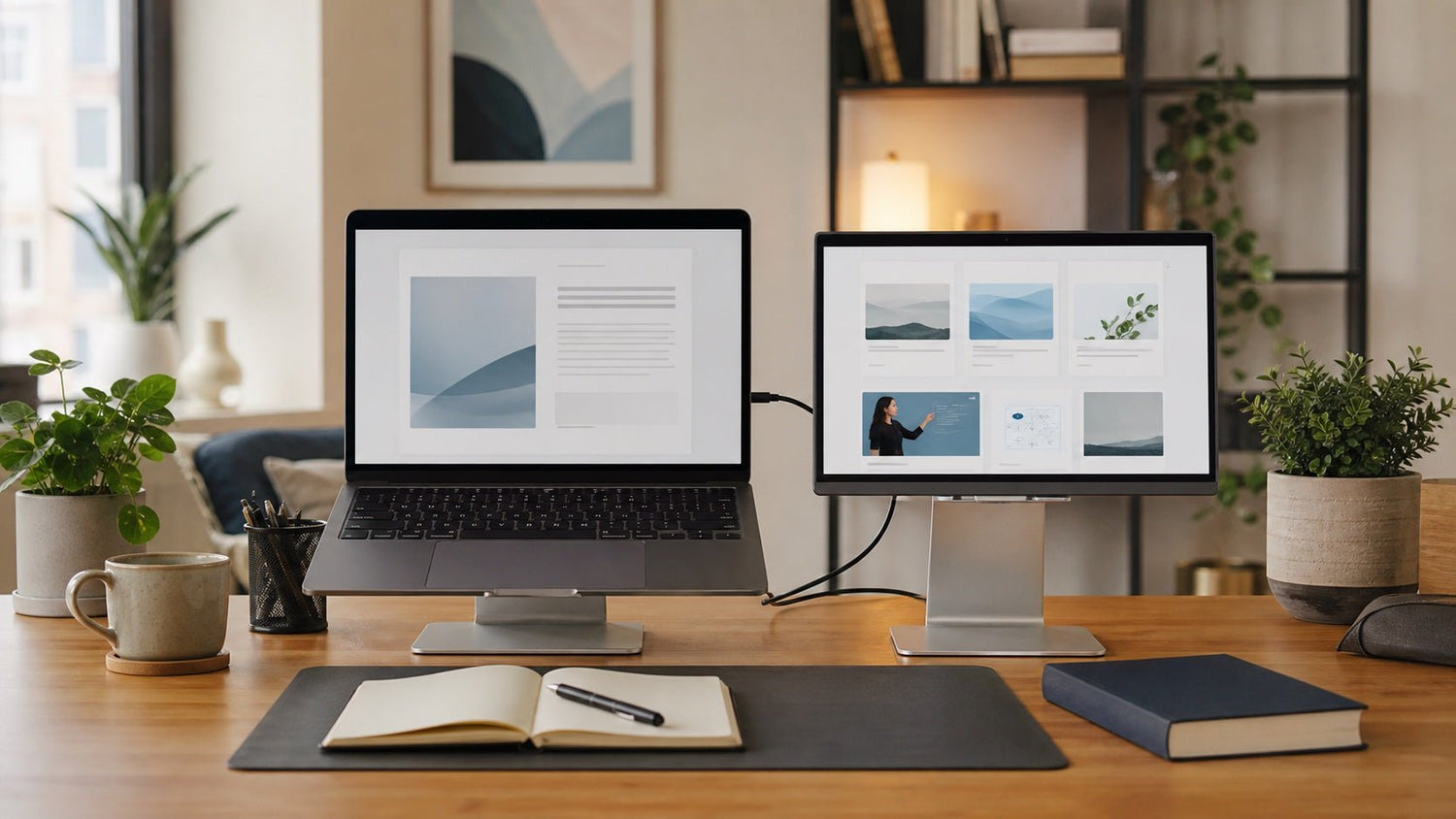
A dual-screen laptop setup is a workspace where your laptop is used with a second display. The second screen can be an external monitor, a portable monitor, a tablet, or a built-in secondary display on a dual-screen laptop.
Instead of keeping every app on one small screen, you spread your workflow across two displays. For example, you might write an essay on your main screen while keeping research open on the second screen. During work, you might keep a spreadsheet on one display and a report, dashboard, or video meeting on the other.
A useful laptop productivity setup depends on three things:
- The right second screen for your needs
- A comfortable desk layout
- A clear plan for how each screen will be used
When these three parts work together, a dual-screen workspace can make both work and study feel smoother.
Benefits of a Dual-Screen Laptop Workspace
1. Less Time Switching Between Tabs
One of the biggest advantages of a dual-screen laptop setup is that it reduces constant tab switching. Instead of opening and closing windows all day, you can keep important information visible.
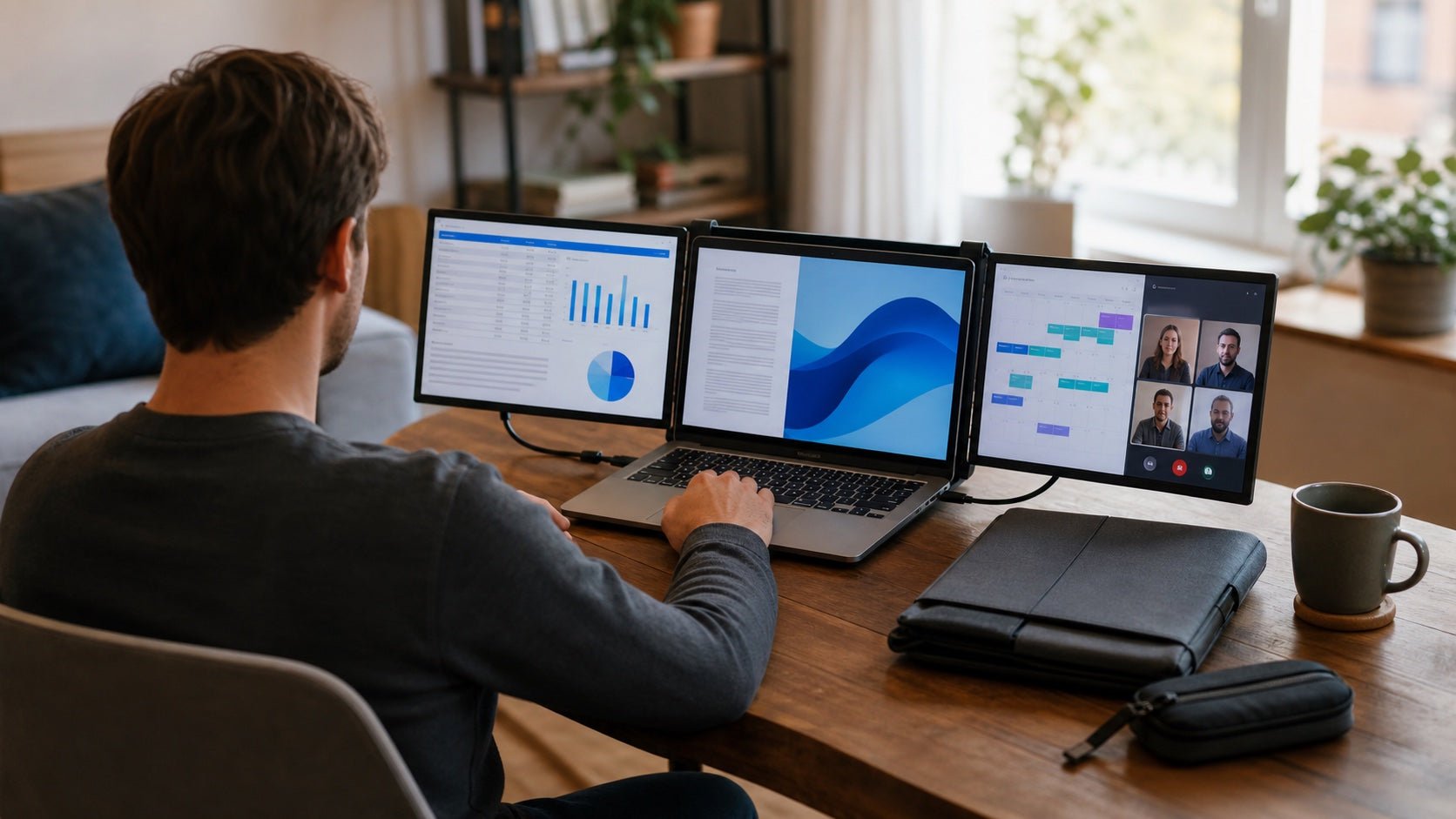
For example, a student can watch an online lecture on one screen while taking notes on the other. A remote worker can keep a video call open while reviewing a shared document. A writer can place research beside a draft instead of moving back and forth between browser tabs.
This does not just save time. It also reduces the mental interruption that happens every time you stop to find the right window.
2. Better Multitasking
A second screen for laptop use is especially helpful when your task involves more than one source of information.
Common examples include:
- Writing while referencing research
- Coding while checking documentation
- Studying while watching a recorded class
- Comparing two spreadsheets
- Taking meeting notes while viewing an agenda
- Designing while keeping inspiration or feedback visible
A dual-screen setup makes multitasking more structured. Instead of letting windows pile up, each screen has a purpose.
3. Cleaner Workflows
A dual-screen workspace helps separate active work from supporting tasks. Your main screen can stay focused on the task that matters most, while the second screen holds secondary tools like notes, chat, calendar, email, or reference material.
For work, this can make meetings, writing, analysis, and project management easier. For study, it can help keep assignments, sources, notes, and lectures organized.
4. Better Comfort During Long Sessions
Working directly from a laptop for hours can lead to poor posture. Many people look down at the screen, hunch their shoulders, or lean forward without noticing.
A more ergonomic laptop setup can help. When your main screen is raised closer to eye level and you use an external keyboard and mouse, your posture becomes more natural. This is especially useful for students, remote workers, freelancers, and anyone who spends long hours at a desk.
Essential Equipment for a Dual-Screen Laptop Setup
1. A Laptop That Supports a Second Display
Most modern laptops can connect to a second screen, but the available ports vary. Before buying a monitor or adapter, check your laptop for ports such as:
- HDMI
- USB-C
- Thunderbolt
- DisplayPort
- Mini DisplayPort
Some laptops need an adapter or docking station to connect to an external display. If you plan to use a high-resolution monitor, check that your laptop can support the display quality and refresh rate you want.
2. A Second Screen
Your second screen should match how and where you work.
| Setup type | Best for | Main advantage | Possible limitation |
|---|---|---|---|
| Laptop + external monitor | Home office, remote work, long study sessions | Larger and more comfortable screen | Less portable |
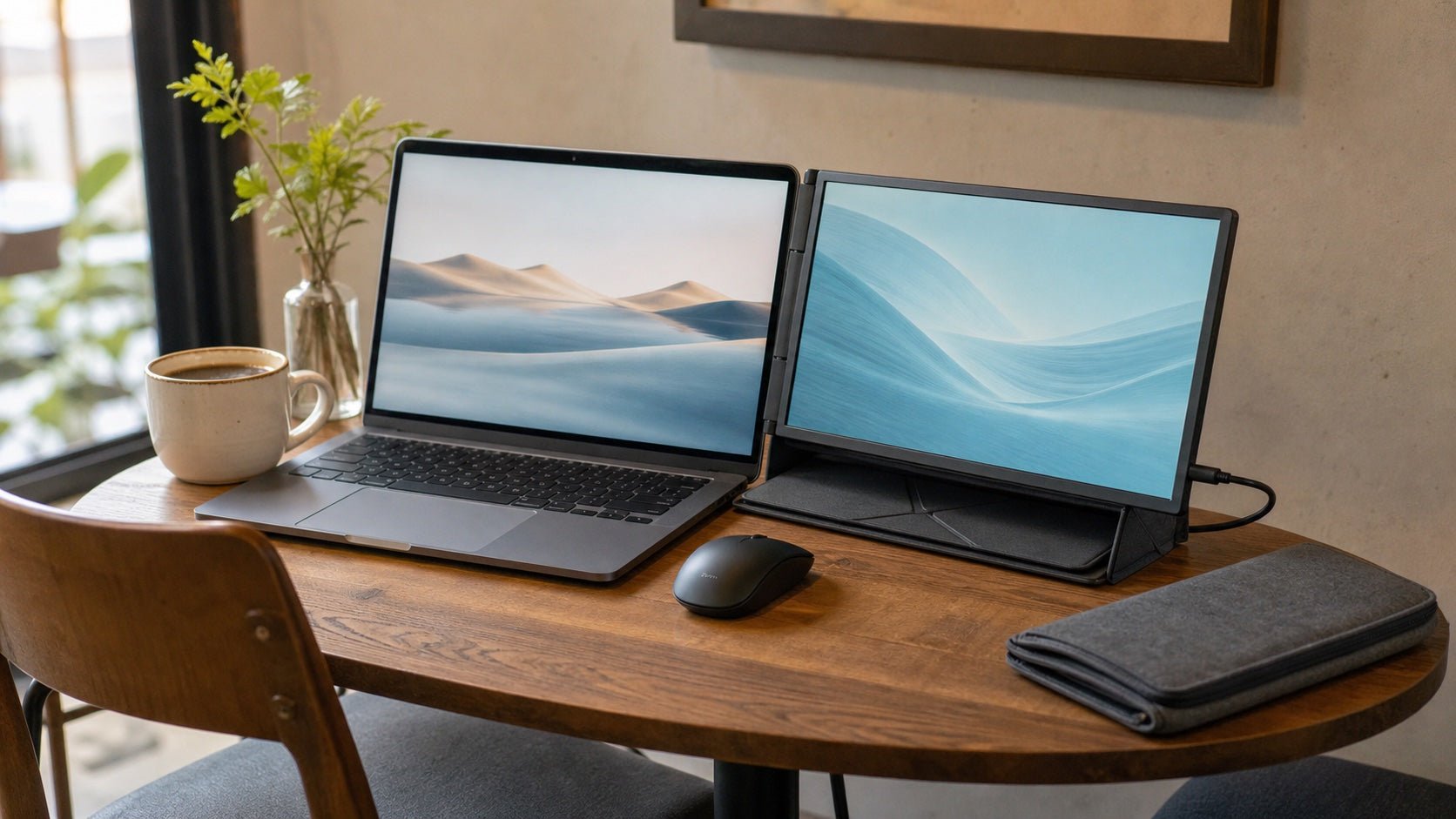
| Laptop + portable monitor | Students, hybrid workers, travel | Easy to carry and set up | Smaller display size |
| Laptop + tablet | Reading, notes, light multitasking | Flexible and compact | May require extra apps |
| Dual-screen laptop | Compact desk setups, mobile productivity | Built-in second screen | Usually more expensive |
For a fixed desk, a 24-inch or 27-inch monitor is often more comfortable than a small portable display. For school, travel, or shared workspaces, a portable monitor may be more practical.
3. A Laptop Stand or Monitor Riser
A stand helps raise your screen to a better height. Ideally, your main screen should sit close to eye level so you do not need to look down for long periods.
You can use:
- A laptop stand
- A monitor riser
- A monitor arm
- A stackable desk shelf
This small adjustment can make your work and study desk setup much more comfortable.
4. External Keyboard and Mouse
If your laptop is raised, avoid typing on the built-in keyboard for long sessions. An external keyboard and mouse allow your hands, wrists, and shoulders to stay in a more natural position.
This is one of the most important upgrades for an ergonomic laptop setup.
5. Cables, Adapters, or a Docking Station
Depending on your laptop and monitor, you may need an HDMI cable, USB-C cable, DisplayPort cable, adapter, or docking station.
A docking station is useful if you connect several devices at once, such as:
- Monitor
- Keyboard
- Mouse
- Webcam
- Speakers
- Ethernet cable
- External storage
With a dock, you can connect everything through one main cable, which keeps your desk cleaner and makes setup faster.
How to Set Up a Dual-Screen Laptop Workspace Step by Step
Step 1: Decide Which Screen Will Be Your Main Display
Choose the screen where you will do your most focused work. In most cases, the larger external monitor should be the main screen because it gives you more space and better viewing comfort.
Use the main screen for tasks such as:
- Writing
- Studying
- Coding
- Designing
- Spreadsheet work
- Presentations
- Research analysis
Your laptop screen can then hold supporting apps like notes, chat, email, calendar, or reference material.
If your laptop has a better display than your second screen, you may prefer to keep the laptop as your main display and use the second screen for lighter tasks.
Step 2: Connect the Second Screen
Connect your laptop to the second display using the correct cable or adapter. Once connected, open your display settings and choose the extended display option.
Use Extend rather than Duplicate for productivity. Duplicate mode shows the same content on both screens, while extended mode lets you use both displays as one larger workspace.
For most users:
- Windows: Go to display settings and choose “Extend these displays.”
- macOS: Open display settings and arrange the screens to match your desk layout.
After this, move your cursor between both screens to make sure the arrangement feels natural.
Step 3: Arrange the Screens in Display Settings
Your digital display arrangement should match the physical position of your screens.
If your monitor is on the right side of your laptop, place it on the right side in display settings. If it is above your laptop, arrange it above the laptop display.
Also adjust:
- Resolution
- Text scaling
- Brightness
- Refresh rate
- Display orientation
- Main display selection
If text looks too small or too large on one screen, adjust scaling until both displays feel comfortable.
Step 4: Position Your Screens for Comfort
Screen placement is one of the most important parts of a dual-screen laptop setup.
For a comfortable layout:
- Keep your main screen directly in front of you.
- Place the second screen slightly to one side.
- Keep the top of the main screen near eye level.
- Keep both screens at a similar distance from your eyes.
- Angle the second screen slightly inward.
- Avoid placing one screen much higher or lower than the other.
- Keep bright windows or lamps from reflecting directly on the displays.
If you use both screens equally, place them side by side and centered around your chair. If you use one screen much more than the other, keep the main screen centered and the secondary screen off to the side.
Step 5: Assign Each Screen a Role
A dual-screen workspace works best when each display has a clear job.
For work:
- Main screen: active project, document, spreadsheet, design tool, or code editor
- Second screen: notes, calendar, email, chat, dashboard, meeting agenda, or research
For study:
- Main screen: assignment, essay, notes, quiz, or study guide
- Second screen: lecture video, digital textbook, browser research, flashcards, or source material
For creative work:
- Main screen: editing software, design canvas, writing draft, or project file
- Second screen: references, assets, feedback, outline, or preview window
This structure prevents the second screen from becoming a distraction zone.
Best Dual-Screen Layouts for Work and Study
Layout 1: External Monitor as the Main Screen
This is the best layout for most home offices and study desks. Place the external monitor directly in front of you and keep the laptop slightly to the side.
Best for:
- Remote work
- Writing
- Research
- Online classes
- Spreadsheet tasks
- Project management
This layout is comfortable because your largest screen becomes the main focus.
Layout 2: Laptop Below, Monitor Above
In this setup, the external monitor sits above the laptop. The monitor is used for main work, while the laptop screen holds notes, chat, or meeting tools.
Best for:
- Video meetings
- Note-taking
- General office work
- Online lectures
- Writing and editing
This layout saves horizontal desk space, but make sure the upper screen is not too high.
Layout 3: Side-by-Side Screens
A side-by-side layout works well when you use both screens equally. Place your laptop and second display next to each other, then angle them slightly inward.
Best for:
- Comparing documents
- Coding and previewing
- Research and writing
- Data analysis
- Study sessions with multiple sources
This layout is flexible, but avoid turning your neck too far in one direction.
Layout 4: Vertical Second Monitor
A vertical monitor can be useful for reading and writing. It gives you more vertical space for long pages, documents, code, and notes.
Best for:
- Programmers
- Writers
- Researchers
- Students reading PDFs
- Editors reviewing long drafts
A vertical screen can make a second screen for laptop productivity especially effective if you work with long-form content.
Layout 5: Portable Monitor Setup
A portable monitor is a strong option for people who move between locations. It can fit into a backpack and connect quickly at a library, office, classroom, or hotel desk.
Best for:
- Students
- Hybrid workers
- Consultants
- Freelancers
- Travelers
The main limitation is screen size, but the portability makes it useful for flexible work and study routines.
Productivity Tips for a Better Dual-Screen Laptop Setup
Use One Screen for Focus and One for Support
Do not treat both screens as equal dumping grounds for apps. A better approach is to make one screen your focus screen and the other your support screen.
For example:
- Focus screen: report, essay, spreadsheet, design, or code
- Support screen: research, notes, instructions, meeting agenda, or reference material
This keeps your workflow clean.
Create Different Layouts for Different Tasks
Your best layout may change depending on what you are doing.
A study layout might include lecture video on the second screen and notes on the main screen. A meeting layout might include the video call on one display and notes on the other. A writing layout might include a draft on the main screen and research on the second screen.
Changing layouts based on task type helps you use the dual-screen workspace more intentionally.
Use Window Snapping
Window snapping helps organize apps quickly. You can place two windows side by side, split a screen into sections, or move apps between displays without resizing everything manually.
Good combinations include:
- Notes beside research
- Email beside calendar
- Code beside preview
- Essay beside source material
- Meeting agenda beside video call
Control Notifications
A second screen can become distracting if it is filled with email, chat, and social media. Keep notifications limited during deep work or study sessions.
Use focus modes, mute nonessential alerts, and close apps that do not support your current task.
Keep Your Desktop Clean
A cluttered digital workspace can be just as distracting as a cluttered desk. Keep only the apps and windows you need for the current task visible.
At the end of the day, close unused tabs, save files, and reset your screen layout. This makes it easier to start the next session with a clear workspace.
Ergonomic Tips for Work and Study
Keep the Main Screen Near Eye Level
Your main screen should be high enough that your neck stays relaxed. If you constantly look down, your posture can become uncomfortable over time.
Use a stand, riser, or monitor arm to raise the display.
Keep the Keyboard and Mouse at a Comfortable Height
Your keyboard and mouse should sit where your elbows can rest naturally near your sides. Avoid reaching too far forward or typing with your wrists bent sharply.
If your laptop is on a stand, use an external keyboard and mouse.
Match Brightness Between Screens
If one display is much brighter than the other, your eyes may feel strained. Adjust brightness and color temperature so both screens feel similar.
This is especially helpful during long study sessions or evening work.
Reduce Glare
Position your desk so sunlight or bright lights do not reflect directly on the screens. If possible, place windows to the side rather than directly in front of or behind your displays.
Take Regular Breaks
Even a well-designed ergonomic laptop setup still requires breaks. Stand up, stretch, and look away from the screen regularly during long sessions.
Common Mistakes to Avoid
Mistake 1: Using the Second Screen Only for Distractions
A second screen can improve productivity, but only if it supports your task. If it is always filled with social media, unrelated videos, or constant notifications, it may reduce focus.
Give the second screen a useful role.
Mistake 2: Ignoring Screen Height
Poor screen height can cause neck and shoulder discomfort. Avoid placing your main screen too low or too far to the side.
Your main display should be directly in front of you whenever possible.
Mistake 3: Buying Accessories Without Checking Compatibility
Before buying a monitor, adapter, or docking station, check your laptop’s ports and display support. This helps avoid problems with resolution, charging, cable type, and external display limits.
Mistake 4: Making the Desk Too Crowded
More equipment does not always mean a better setup. Too many accessories can make your desk feel cramped.
Start with the essentials: second screen, stand, keyboard, mouse, and clean cable management.
Mistake 5: Keeping Too Many Windows Open
A dual-screen laptop setup gives you more space, but it can also encourage clutter. Keep only the apps you need visible. Close or minimize anything that does not support your current task.
Image Suggestions for This Blog
Use images or diagrams to make the guide easier to understand:
- A clean side-by-side dual-screen laptop setup
- A diagram showing correct monitor height
- A student setup with lecture video and notes
- A remote work setup with video call and document review
- A vertical monitor layout for reading or coding
- A simple cable management example
FAQ
Is a dual-screen laptop setup good for students?
Yes. A dual-screen laptop setup is useful for students because it allows them to watch lectures, take notes, read digital textbooks, research online, and write assignments without constantly switching tabs.
Do I need a large monitor for a dual-screen workspace?
No. A large monitor is helpful for a fixed desk, but a portable monitor or tablet can also work well. The best choice depends on your desk space, budget, and how often you move your setup.
Can I use a tablet as a second screen for my laptop?
Yes. Many people use a tablet as a second screen for reading, note-taking, drawing, or keeping reference material visible. Compatibility depends on your laptop, tablet, and available software.
What is the best dual-screen layout for work and study?
For most people, the best layout is to keep the main screen directly in front and place the second screen slightly to the side. Use the main screen for focused work and the second screen for notes, research, communication, or reference material.
Does a dual-screen setup improve productivity?
A dual-screen setup can improve productivity when used intentionally. It helps reduce tab switching, keeps important information visible, and makes multitasking easier. However, it can become distracting if both screens are filled with unrelated apps.
Final Thoughts
A well-planned dual-screen laptop setup can make work and study more organized, comfortable, and efficient. The best setup is not necessarily the most expensive one. It is the one that fits your tasks, your desk, and your daily routine.
Start with a simple layout: choose your main screen, connect a second display, raise your screen to a comfortable height, and assign each display a clear purpose. Once the basics feel right, improve your setup with better cable management, lighting, and productivity habits.
Whether you are studying for exams, working remotely, managing projects, or building a home office, a dual-screen workspace can help you stay focused and make better use of your laptop every day.

Leave a comment
This site is protected by hCaptcha and the hCaptcha Privacy Policy and Terms of Service apply.