


Working from a laptop gives you flexibility, but it can also make your workspace feel crowded. A video call takes over one side of the screen. Your notes are hidden behind a browser window. Slack, email, spreadsheets, and research tabs compete for space. Before long, you are spending more time switching windows than actually focusing.
A dual-screen remote work setup solves this problem by giving you more room to think, compare, create, and communicate. But a productive setup is not just about adding another monitor. It is about building a workspace that is easy to connect, comfortable to use, simple to power, and clean enough to support focused work.
Whether you work from a home office, coworking space, hotel room, or shared desk, this guide will help you create a dual-screen setup that feels practical, organized, and ready for daily remote work.
What Is a Dual-Screen Remote Work Setup?
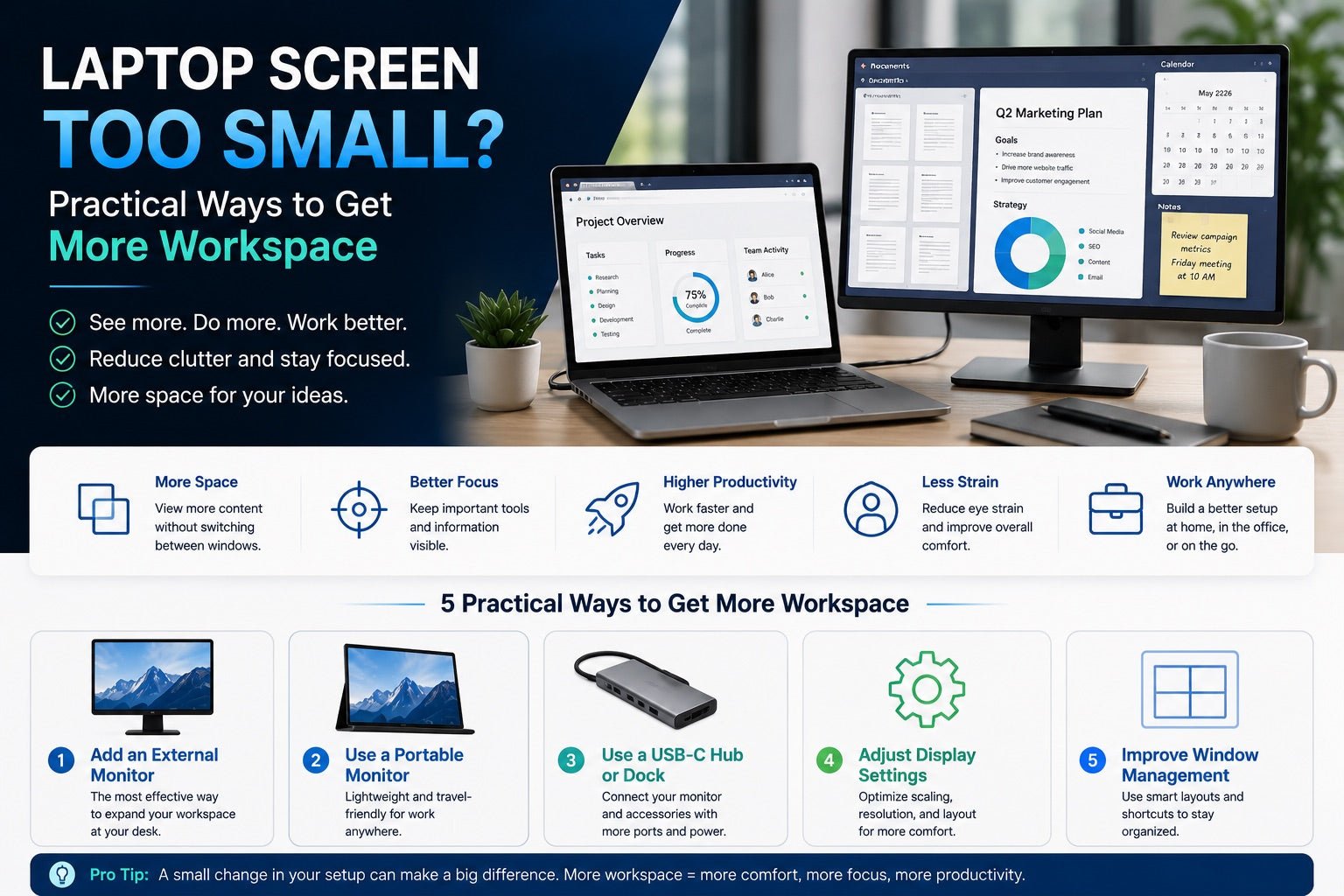
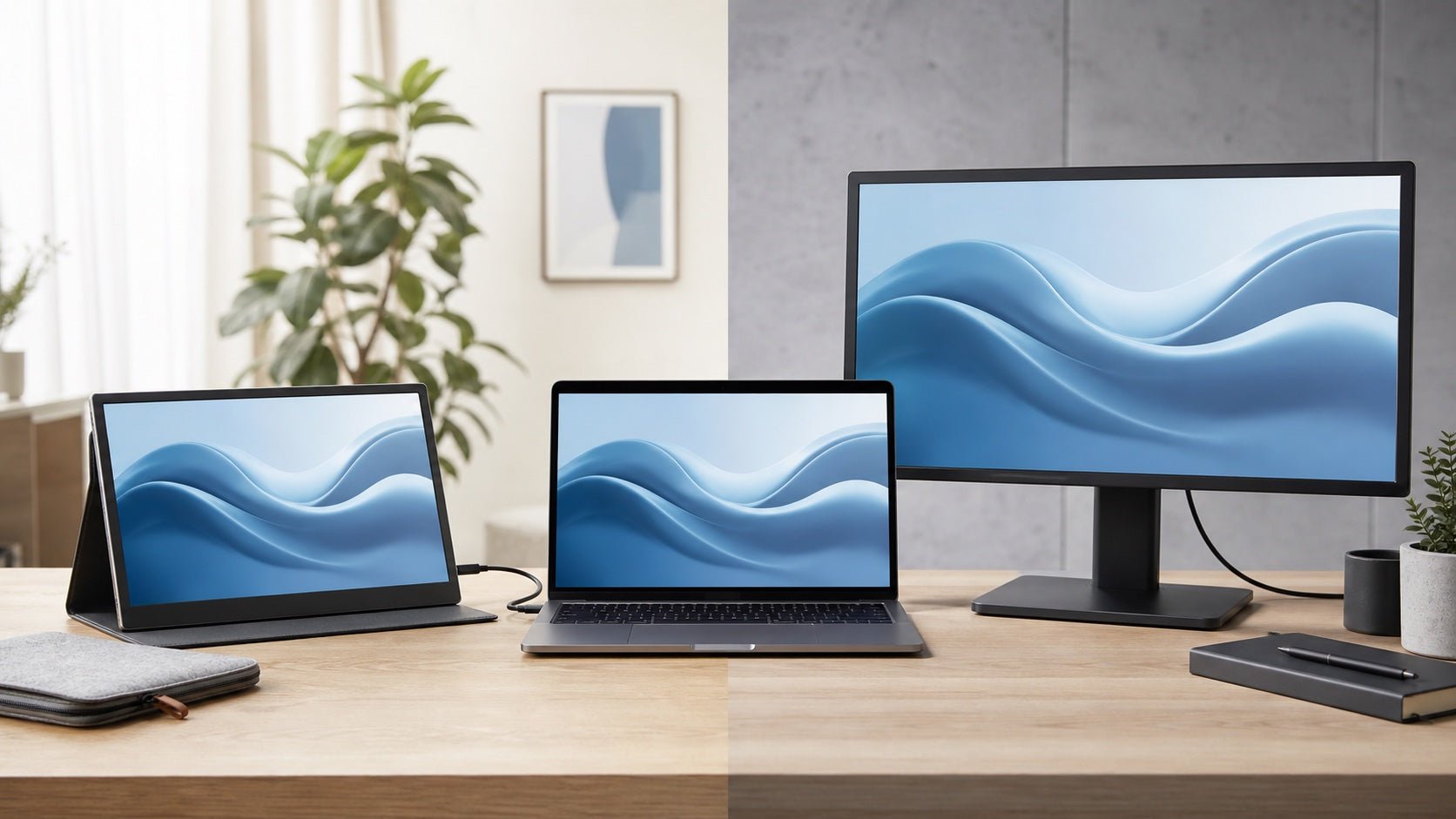
A dual-screen remote work setup uses your laptop with a second display. The second display can be a desktop monitor, a portable monitor, or a tablet used as an extended screen.
The purpose is simple: give yourself more usable workspace.
Instead of squeezing everything onto one laptop display, you can divide your work more naturally. For example, you can keep a video meeting on one screen and notes on the other. You can write on one screen while keeping research open beside it. You can code, design, analyze data, manage support tickets, or review documents without constantly resizing windows.
There are two common ways to build this setup:
A fixed home office setup usually includes a larger monitor, laptop stand, keyboard, mouse, USB-C hub or dock, and a reliable charging solution.
A portable remote setup uses lighter gear, such as a portable monitor, compact USB-C charger, travel hub, and a small cable kit that can fit into a laptop bag.
The best setup depends on how and where you work most often.
Why a Dual-Screen Setup Improves Remote Work
A second screen can make a laptop feel much closer to a full workstation. The biggest benefit is not just more display space. It is less friction.
When your key tools stay visible, you do not have to keep digging through tabs or reopening hidden windows. That makes everyday work smoother, especially during tasks that require comparison, reference, communication, or deep focus.
A dual-screen setup can help you:
- Keep meetings open while taking notes
- Compare documents side by side
- Write while viewing research or outlines
- Code while previewing results or reading documentation
- Review spreadsheets with dashboards or reports nearby
- Keep chat and email visible without interrupting your main task
- Manage creative tools, references, and feedback more efficiently
For remote workers, this can make the difference between a temporary laptop setup and a workspace that feels stable, professional, and productive.
Choose the Right Second Screen
The right second screen depends on your work style, available space, and how often you move between locations.
Full-Size Monitor for a Home Office
A full-size monitor is best if you work from the same desk most days. It offers more screen area, better viewing comfort, and a more desktop-like experience.
For many remote workers, a 24-inch or 27-inch monitor is a practical choice. It gives you enough space for multitasking without overwhelming a smaller desk.
A full-size monitor works especially well for:
- Writers and marketers who need research beside a draft
- Analysts who work with spreadsheets and dashboards
- Designers who need space for tools and references
- Managers who switch between meetings, documents, and project tools
- Developers who want code, preview windows, and documentation visible
If your work involves design, video editing, or detailed spreadsheets, consider a higher-resolution display for sharper text and more usable workspace.
Portable Monitor for Flexible Work
A portable monitor is ideal if you work from different locations. It is usually lightweight, slim, and easy to pack with your laptop.
This type of setup is useful for digital nomads, consultants, hybrid workers, remote sales teams, and anyone who wants a consistent workspace outside a traditional office.
When choosing a portable monitor, look at:
- Screen size and weight
- Brightness
- Resolution
- Stand stability
- USB-C video support
- Whether it needs separate power
- How easily it fits into your laptop bag
A 14-inch to 16-inch portable monitor is often a good balance for travel. It gives you extra space without making your bag too heavy.
Tablet as a Second Screen
A tablet can work as a secondary display for lighter tasks. It is useful for notes, chat, calendars, meeting controls, or reference documents.
However, a tablet may not feel as comfortable as a dedicated monitor for long work sessions, especially if you need a larger workspace or precise window management.
Check Your Laptop Ports Before Buying Anything
Before you buy a monitor, hub, or cable, check your laptop ports. This step is simple, but it prevents many common setup problems.
USB-C
USB-C is one of the cleanest options for a modern laptop dual-screen setup. Depending on your laptop and monitor, one USB-C cable can carry video, data, and sometimes power.
This is especially useful for portable monitors because it can reduce the number of cables you need.
However, not every USB-C port supports video output. Check whether your laptop supports DisplayPort Alt Mode, Thunderbolt, or USB-C video output before relying on a USB-C monitor.
HDMI
HDMI is common and easy to use. Many monitors, TVs, and some laptops include HDMI ports.
The downside is that HDMI usually only handles video and audio. You may still need separate cables for charging your laptop, powering your monitor, and connecting accessories.
DisplayPort
DisplayPort is often found on desktop monitors and docking stations. It is useful for high-resolution displays and more advanced desk setups, though it is less common on slim laptops.
USB-C Hub or Docking Station
If your laptop has limited ports, a USB-C hub or docking station can make your setup much easier.
A hub can help you connect:
- Monitor
- Charger
- Keyboard
- Mouse
- External storage
- SD card
- Ethernet cable
- Other USB accessories
For remote work, the main benefit is convenience. Instead of plugging in several cables every time you sit down, you can connect your laptop to one central hub and start working faster.
DisplayLink
DisplayLink can be helpful for some multi-monitor setups, especially when your laptop does not support enough native display outputs. It may require driver installation, so it is best for users who are comfortable with a slightly more technical setup.
Build a Clean Power and Charging Setup
A productive dual-screen remote work setup needs reliable power. The second screen is only one part of the system. You may also need to charge a laptop, phone, tablet, earbuds, keyboard, mouse, portable monitor, power bank, or USB-C hub.
Without a power plan, your setup can quickly become messy. One charger for the laptop, another for the phone, another adapter for the monitor, and extra cables across the desk can make your workspace feel cluttered.
A compact USB-C Power Delivery charger or multi-port GaN charger can help simplify this.
GaN chargers are designed to deliver strong charging performance in a smaller form factor, which makes them useful for both home desks and travel setups. A multi-port charger can also reduce the number of wall adapters you need, helping you power multiple devices from one compact unit.
For example, an INVZI USB-C charging solution can fit naturally into a dual-screen workspace by helping power several work essentials from fewer outlets. This is especially useful if your daily setup includes a laptop, portable monitor, phone, tablet, and wireless accessories.
When choosing a charger, check:
- Your laptop’s charging requirement
- Total charger output
- USB-C Power Delivery support
- Number of USB-C and USB-A ports
- Cable power rating
- Whether you need a desktop charger or travel charger
The goal is not just faster charging. The goal is a cleaner, more dependable workspace with fewer interruptions.
Arrange Your Screens for Comfort
A dual-screen setup should make work easier, not strain your neck and shoulders. Screen placement matters, especially if you work for long hours.
Start by choosing your main display.
If you use a larger external monitor, place it directly in front of you and use it as your main screen. Put your laptop on a stand to the side. This layout works well for long writing, coding, design, spreadsheet, and meeting-heavy workdays.
If you use a portable monitor, place it close to your laptop screen so your eyes can move naturally between both displays. This is useful when the second screen is mainly for notes, chat, research, or reference materials.
Use these basic comfort tips:
- Keep your main screen near eye level
- Avoid looking sharply down at your laptop for long periods
- Place your keyboard and mouse directly in front of your body
- Keep both screens close enough to read comfortably
- Angle the secondary screen slightly toward you
- Reduce glare from windows and overhead lights
- Use a laptop stand if your screen sits too low
A good setup should feel natural within the first few minutes. If you are constantly twisting, leaning, or squinting, adjust the height, distance, or angle.
Organize Cables and Accessories
More screens should not mean more mess. A good dual-screen setup should be easy to start, easy to pack, and easy to maintain.
For a home desk, try to keep cables in fixed positions. Place your charger, hub, and main cables where they are easy to reach but not constantly in the way.
For a travel setup, build a small repeatable kit:
- One reliable USB-C cable for display or charging
- One compact multi-port charger
- One USB-C hub if needed
- One HDMI cable if your monitor requires it
- One small pouch for cables and adapters
This keeps your setup consistent across home, office, coworking spaces, and hotels.
Simple cable management ideas include:
- Use shorter cables for desk setups
- Use cable clips to keep cords from falling
- Keep charging cables grouped together
- Avoid using more adapters than necessary
- Store travel cables in one pouch
- Replace unreliable cables before they cause problems
A clean setup helps you focus because your workspace feels less temporary and less distracting.
Recommended Dual-Screen Workflows
A dual-screen setup works best when each screen has a clear role. Here are a few practical layouts based on common remote work tasks.
For Meetings
Use one screen for the video call and the other for notes, agenda, documents, or presentation controls. This helps you stay present while still having the information you need.
For Writing and Research
Place your draft on the main screen and your research, outline, or source material on the second screen. This reduces tab switching and makes writing feel more fluid.
For Coding
Use one screen for your code editor and the other for documentation, terminal windows, browser preview, or debugging tools. This creates a smoother development environment.
For Marketing and Project Management
Keep campaign dashboards, calendars, documents, or project boards on one screen while using the other for email, reports, or messaging tools.
For Finance and Data Work
Use the larger screen for spreadsheets and the second screen for dashboards, source documents, or notes. This makes it easier to compare numbers and reduce mistakes.
For Design and Creative Work
Use your main display for the design canvas and the second screen for references, asset folders, feedback, or communication tools.
For Customer Support
Keep the ticketing system or CRM on one screen and the knowledge base, chat, or order details on the other. This can help you respond faster and with more accuracy.
Common Mistakes to Avoid
A dual-screen setup should feel simple. Avoid these mistakes when building yours.
Buying a Monitor Before Checking Compatibility
Always check your laptop ports before choosing a monitor. A great display is not useful if you need multiple adapters just to connect it.
Choosing the Wrong Charger
If your charger does not provide enough power, your laptop may charge slowly or lose battery while you work. Choose a charger that matches your laptop and accessory needs.
Using the Wrong USB-C Cable
USB-C cables can look the same but support different functions. Some only charge. Some support data. Some support video. Some handle higher power output. Choose cables that match your setup.
Placing the Screen Too Low
A low screen can cause neck strain during long sessions. Use a laptop stand, monitor riser, or adjustable arm to bring your main display closer to eye level.
Making the Travel Setup Too Heavy
If your portable monitor, charger, hub, and cables are too bulky, you may stop carrying them. For travel, choose gear that is light, compact, and easy to pack.
Ignoring Cable Clutter
A messy setup can slow you down every day. Fewer cables, better cable placement, and a compact charger can make your workspace easier to use.
Final Dual-Screen Remote Work Setup Checklist
Use this checklist before finalizing your setup:
- Laptop
- Second screen or portable monitor
- USB-C, HDMI, or DisplayPort cable
- USB-C hub or docking station if needed
- USB-C Power Delivery charger
- Reliable charging cable
- Laptop stand
- Keyboard and mouse
- Cable clips or cable sleeve
- Good desk lighting
- Travel pouch for portable accessories
You do not need to build the perfect setup all at once. Start with the second screen and the correct connection method. Then improve your charging, ergonomics, and cable management over time.
Conclusion
A productive dual-screen remote work setup is about more than adding another display to your laptop. It is about creating a workspace that gives you more room to focus, fewer interruptions, better comfort, and a cleaner way to power your essential devices.
The best setup is the one you can use consistently. At home, that may mean a larger monitor, laptop stand, keyboard, mouse, hub, and desktop charging station. On the move, it may mean a portable monitor, compact USB-C hub, and multi-port GaN charger that fits easily into your bag.
With the right screen, connection method, power solution, and layout, your laptop can become a flexible workstation for almost anywhere you work. INVZI charging solutions and USB-C accessories can help support that kind of cleaner, more adaptable remote workspace by reducing cable clutter and keeping your devices ready throughout the day.
FAQ
Is a dual-screen remote work setup worth it?
Yes. A dual-screen setup can reduce tab switching, improve multitasking, and make it easier to manage calls, documents, research, dashboards, and communication tools at the same time.
What is the best second screen for a laptop?
For a home office, a 24-inch or 27-inch monitor is a practical choice. For travel or coworking, a lightweight 14-inch to 16-inch portable monitor is usually easier to carry.
Can I connect a second screen to my laptop with USB-C?
Yes, if your laptop’s USB-C port supports video output. Look for DisplayPort Alt Mode or Thunderbolt support. Some USB-C monitors can also receive power through the same cable.
Do I need a USB-C hub for a dual-screen setup?
You may need a USB-C hub if your laptop has limited ports or if you want to connect a monitor, charger, keyboard, mouse, storage device, and other accessories through one central device.
How do I reduce cable clutter in a dual-screen setup?
Use a multi-port charger, a USB-C hub or dock, shorter cables, cable clips, and a fixed charging position on your desk. For travel, keep your monitor cable, charger, and adapters in one small pouch.

Leave a comment
This site is protected by hCaptcha and the hCaptcha Privacy Policy and Terms of Service apply.