


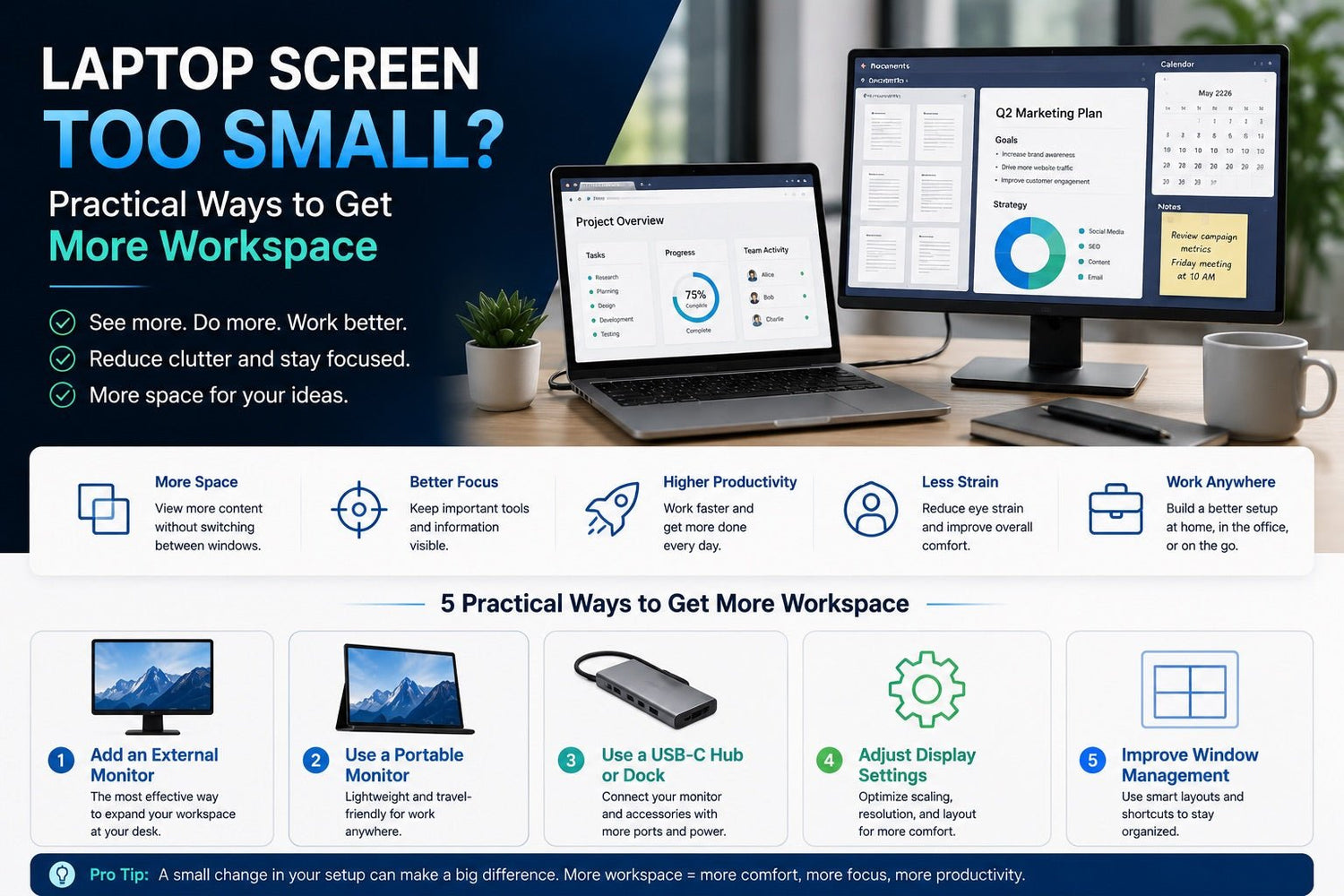
If you spend your day shrinking windows, switching between tabs, or trying to read tiny text while juggling video calls and documents, your laptop screen may feel too small for the way you actually work.
A compact laptop is great for portability, but it can quickly become limiting when you need to compare files, manage multiple apps, review spreadsheets, edit content, or study with several resources open at once.
The good news is that you do not always need to replace your laptop. In many cases, you can get more workspace by adding a second screen, adjusting display settings, improving your window layout, or using the right USB-C hub or docking solution.
This guide explains practical ways to solve the laptop screen too small problem and build a more comfortable, flexible workspace.
Why Your Laptop Screen Feels Too Small
A laptop screen often feels small because modern work rarely happens in just one window.
You may need a browser, video call, document, chat app, spreadsheet, or reference page open at the same time. On a small laptop display, these windows compete for space. As a result, you spend more time switching between apps instead of focusing on the task.
Common problems include:
- Too many open windows on one screen
- Constant switching between tabs and apps
- Limited room for documents, browsers, and video calls
- Difficulty comparing information side by side
- Smaller text and crowded interface elements
- More visual clutter during long work sessions
A small laptop screen is not just a size issue. It is a workflow issue. When your screen does not match how you work, even simple tasks can feel slower and less comfortable.
What More Screen Space Can Help You Do
Adding more screen space gives your work room to spread out naturally.
Instead of hiding one window behind another, you can keep important information visible. This makes it easier to compare, reference, edit, and communicate without breaking your focus.
For example:
- A remote worker can keep a video call on one screen and notes on another.
- A student can read research material while writing an assignment.
- A developer can view code, documentation, and a browser preview together.
- A designer can keep editing tools, reference images, and previews visible.
- A business user can compare spreadsheets, reports, and dashboards more easily.
The goal is simple: reduce screen clutter and make your laptop easier to use for real work.
Best Ways to Get More Workspace from Your Laptop
There are several ways to expand your workspace. The best option depends on where you work, what ports your laptop has, and how portable your setup needs to be.
| Situation | Best Solution | Why It Helps |
|---|---|---|
| You work mainly at a desk | External monitor | Gives you the largest and most comfortable workspace |
| You travel often | Portable monitor | Adds a second screen without a fixed desk setup |
| Your laptop has limited ports | USB-C hub or dock | Lets you connect a monitor and accessories more easily |
| Your laptop does not support multiple displays directly | DisplayLink dock | Adds more display flexibility through compatible hardware |
| You want a cleaner setup | USB-C hub with HDMI and power delivery | Reduces cable clutter and simplifies daily connection |
1. Connect an External Monitor
An external monitor is one of the most effective ways to solve a small laptop screen problem.
It gives you a larger display for everyday work and lets your laptop function more like a desktop workstation. You can use the external monitor as your main screen and keep the laptop screen as a secondary display for email, chat, calendar, or reference materials.
This setup works well for:
- Home offices
- Office desks
- Spreadsheet work
- Writing and research
- Design and editing
- Coding and testing
- Long video meetings
If you mostly work from one location, an external monitor is usually the most comfortable upgrade.
2. Add a Portable Monitor
If you work from different locations, a portable monitor can give you extra screen space without tying you to a fixed desk.
Portable monitors are slim and travel-friendly, making them useful in hotels, coworking spaces, classrooms, client offices, or temporary work setups. They are especially helpful when your laptop is powerful enough for your work, but the display feels too cramped.
A portable monitor is ideal for:
- Business travelers
- Remote workers
- Students
- Consultants
- Digital nomads
- People who work between home and office
For mobile productivity, a portable monitor can make a laptop setup feel much closer to a full workstation.
3. Use a USB-C Hub or Docking Station
Many modern laptops are thinner and lighter than before, but that often means fewer built-in ports. Some laptops only have USB-C or Thunderbolt ports, which can make it harder to connect a monitor, charger, keyboard, mouse, storage drive, or Ethernet cable at the same time.
A USB-C hub or docking station helps solve this problem by expanding your laptop’s connection options.
Depending on the model, a hub or dock may add:
- HDMI or DisplayPort for an external monitor
- USB-A ports for a keyboard, mouse, or flash drive
- USB-C power delivery for charging
- Ethernet for a stable wired network
- SD or microSD card slots
- Extra USB-C ports for modern accessories
This is where a compact USB-C accessory can make a small laptop feel more capable. Instead of plugging and unplugging several cables every day, you can connect your monitor and essential accessories through one hub or dock.
For a cleaner desk setup, look for a USB-C hub or dock that supports the display output and charging power your laptop needs.
4. Adjust Display Scaling and Resolution
Before buying extra hardware, check your laptop display settings.
Display scaling controls the size of text, icons, menus, and app elements. If scaling is set too high, everything looks larger but less content fits on the screen. If it is too low, you may see more content, but text can become harder to read.
A better scaling setting can help you balance readability and workspace.
You can also check your screen resolution. Higher resolution can show more detail, but only if it remains comfortable for your eyes and display size.
This will not create the same benefit as a second screen, but it can make your current laptop display easier to use.
5. Organize Your Windows More Efficiently
Sometimes the screen feels small because the workspace is disorganized.
Most laptops include built-in tools that help you arrange windows better. Split-screen layouts, virtual desktops, and window snapping can make a compact screen more manageable.
Try these habits:
- Snap two windows side by side
- Use virtual desktops for different projects
- Keep communication apps separate from focused work
- Use full-screen mode for writing or reading
- Close unused browser tabs
- Group related tabs into separate windows
- Learn keyboard shortcuts for switching apps
These small changes can reduce visual clutter and make your laptop feel less cramped.
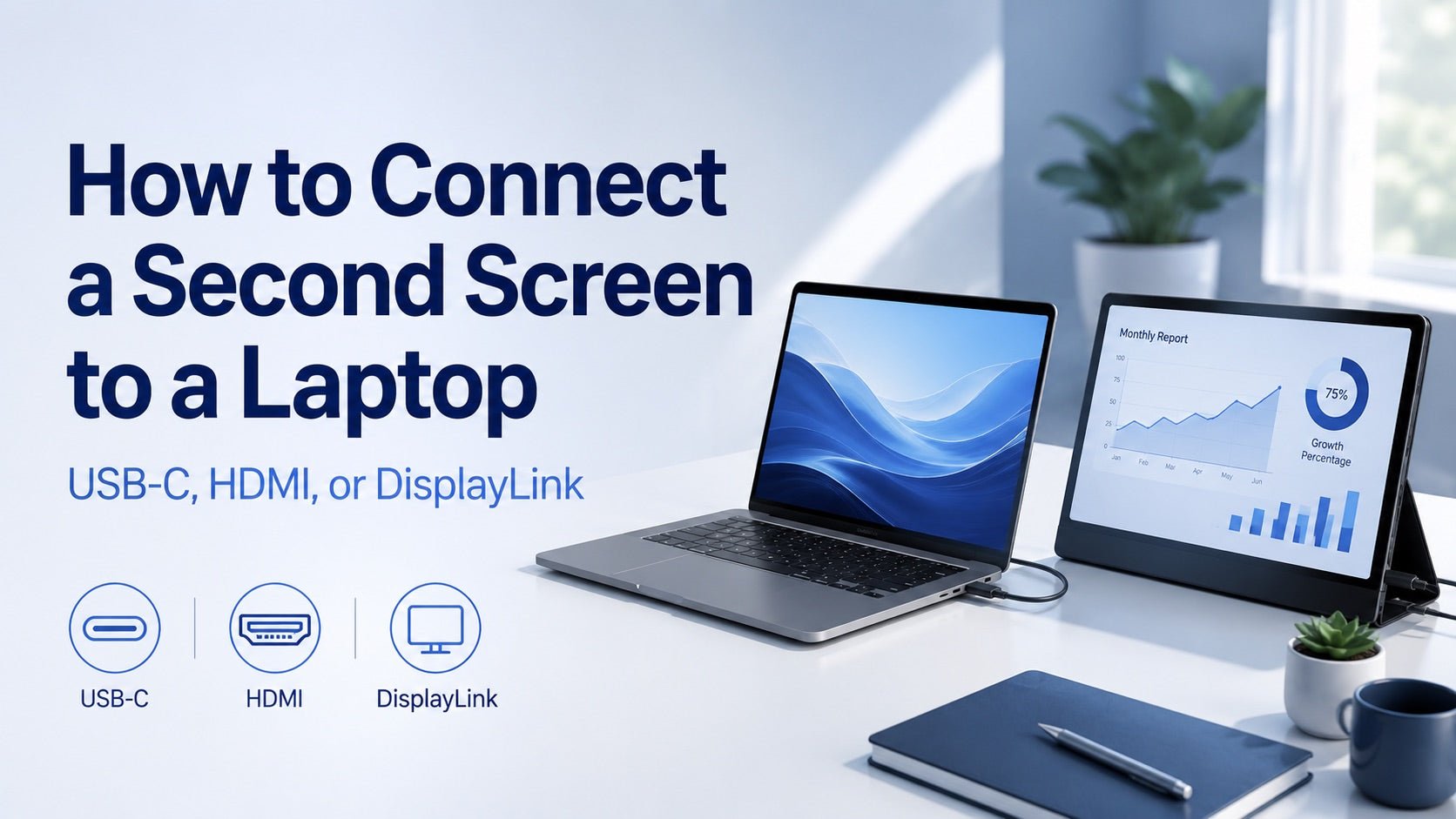
USB-C, HDMI, or DisplayLink: Which Should You Use?
When you add a monitor, the connection type matters. Here is a simple breakdown.
| Connection Type | Best For | What to Know |
|---|---|---|
| USB-C | Modern laptops and portable monitors | Can support video through one cable if the laptop port allows it |
| HDMI | Simple monitor, TV, or projector setup | Common and easy to use |
| DisplayLink | Laptops with limited display output | Requires compatible hardware and software |
| USB-C hub or dock | Full desk setups | Adds display, charging, and accessory ports in one device |
USB-C
USB-C is one of the most convenient options for modern laptop workspaces. A compatible USB-C port can carry video to a monitor, and some setups can also support charging and data through the same connection.
USB-C is a good option if:
- Your laptop supports video output through USB-C
- You use a USB-C monitor or portable monitor
- You want fewer cables
- You prefer a cleaner desk setup
- You already use USB-C accessories
One important note: not every USB-C port supports video. Some USB-C ports only support charging or data transfer. Before buying a monitor or hub, check whether your laptop supports USB-C video output, DisplayPort Alt Mode, or Thunderbolt.
HDMI
HDMI is one of the most common display connections. It is widely used on monitors, TVs, and projectors.
HDMI is a good option if:
- Your laptop has an HDMI port
- Your monitor supports HDMI
- You want a simple plug-and-play setup
- You are connecting to a TV or projector
- You do not need a complex multi-monitor setup
If your laptop does not have HDMI, a USB-C to HDMI adapter or USB-C hub with HDMI can help.
DisplayLink
DisplayLink can be useful when your laptop does not support multiple external displays through its built-in ports.
It works through compatible hardware and software, often through a docking station. This can be helpful for users who want more screens but have a laptop with limited native display support.
DisplayLink may be useful if:
- Your laptop has restricted external display support
- You want to connect multiple monitors
- Your dock supports DisplayLink
- You need more display flexibility through USB
Because DisplayLink usually requires drivers, it may take more setup than USB-C or HDMI. It is best for users who need extra display support beyond what their laptop normally provides.
Setup Ideas for Different Users
For Remote Workers
Use an external monitor as your main display and keep your laptop screen for chat, notes, calendar, or video calls. A USB-C hub can also help connect your monitor, charger, keyboard, and mouse with fewer cables.
For Students
Use a second screen to keep lecture videos, PDFs, or research materials open while taking notes. If you study in different places, a portable monitor may be more practical than a full-size desktop monitor.
For Developers
Use one screen for your code editor and another for documentation, terminal windows, testing tools, or browser previews. This reduces context switching and makes debugging easier.
For Designers and Content Creators
Use a larger monitor for editing and preview work. A second screen can hold tool panels, timelines, folders, or reference images, making creative software easier to manage.
For Business Travelers
Pair a laptop with a portable monitor, compact USB-C hub, and travel-friendly charger. This gives you a more complete workspace in hotel rooms, coworking spaces, or temporary offices.
Before You Buy a Second Screen or Hub
Before choosing an external monitor, portable monitor, USB-C hub, or dock, check these details first:
- What ports does your laptop have?
- Does your USB-C port support video output?
- Do you need HDMI, DisplayPort, USB-C, or DisplayLink?
- Will you use one external monitor or multiple displays?
- Do you need charging through the same USB-C connection?
- Do you need extra USB ports for a keyboard, mouse, or storage?
- Will the setup stay on your desk or travel with you?
- Does your monitor resolution match your work needs?
Checking these points can help you avoid buying an accessory that does not match your laptop or workflow.
Small Accessories That Make a Big Difference
A second screen is useful, but your overall setup also matters. A few simple accessories can make your laptop workspace more comfortable and organized.
Consider adding:
- A laptop stand to raise the screen closer to eye level
- An external keyboard and mouse for better posture
- A USB-C hub to connect your display and accessories
- A compact charger for desk or travel use
- Cable organizers to reduce clutter
- A portable monitor sleeve or stand for mobile setups
These upgrades help create a more stable and comfortable workspace, whether you work at home, in the office, or while traveling.
Final Thoughts
If your laptop screen is too small, you may not need a new laptop. You may simply need a better workspace.
For a fixed desk, an external monitor gives you the biggest improvement. For travel or flexible work, a portable monitor adds useful screen space anywhere. If your laptop has limited ports, a USB-C hub or docking station can help connect your monitor, charger, and accessories in a cleaner way.
The right setup depends on how you work. Start by identifying your biggest problem: limited screen size, too few ports, too much cable clutter, or constant window switching. From there, you can choose the upgrade that gives you more room to focus.
A compact laptop can still become a comfortable and productive workspace with the right screen, connection, and accessories.
FAQ
1. What should I do if my laptop screen is too small?
You can connect an external monitor, use a portable monitor, adjust display scaling, organize windows with split-screen tools, or use a USB-C hub or dock to connect a larger display and accessories.
2. Can I use a second screen with any laptop?
Most modern laptops can use a second screen, but the connection depends on the laptop. Some support HDMI, some use USB-C or Thunderbolt, and others may need an adapter, hub, dock, or DisplayLink-compatible device.
3. Is USB-C better than HDMI for connecting a monitor?
USB-C can be more convenient because it may support video, data, and charging through one cable. HDMI is still a simple and reliable option for many monitors, TVs, and projectors.
4. Why does my USB-C port not work with a monitor?
Not every USB-C port supports video output. Some USB-C ports only support charging or data. Check whether your laptop supports USB-C video output, DisplayPort Alt Mode, or Thunderbolt.
5. Is a portable monitor worth it?
A portable monitor is worth considering if you often work away from a fixed desk. It gives you extra screen space for travel, remote work, studying, presentations, or multitasking.
6. Can a USB-C hub help with a small laptop screen?
Yes. A USB-C hub can help by adding display ports such as HDMI or DisplayPort, along with USB ports, charging, Ethernet, or card readers. This makes it easier to connect your laptop to a larger workspace.
7. What is the best setup for a laptop with only USB-C ports?
A USB-C hub or docking station is usually the most practical option. It can add HDMI or DisplayPort for a monitor, USB ports for accessories, and USB-C power delivery for charging, depending on the model.

Leave a comment
This site is protected by hCaptcha and the hCaptcha Privacy Policy and Terms of Service apply.