


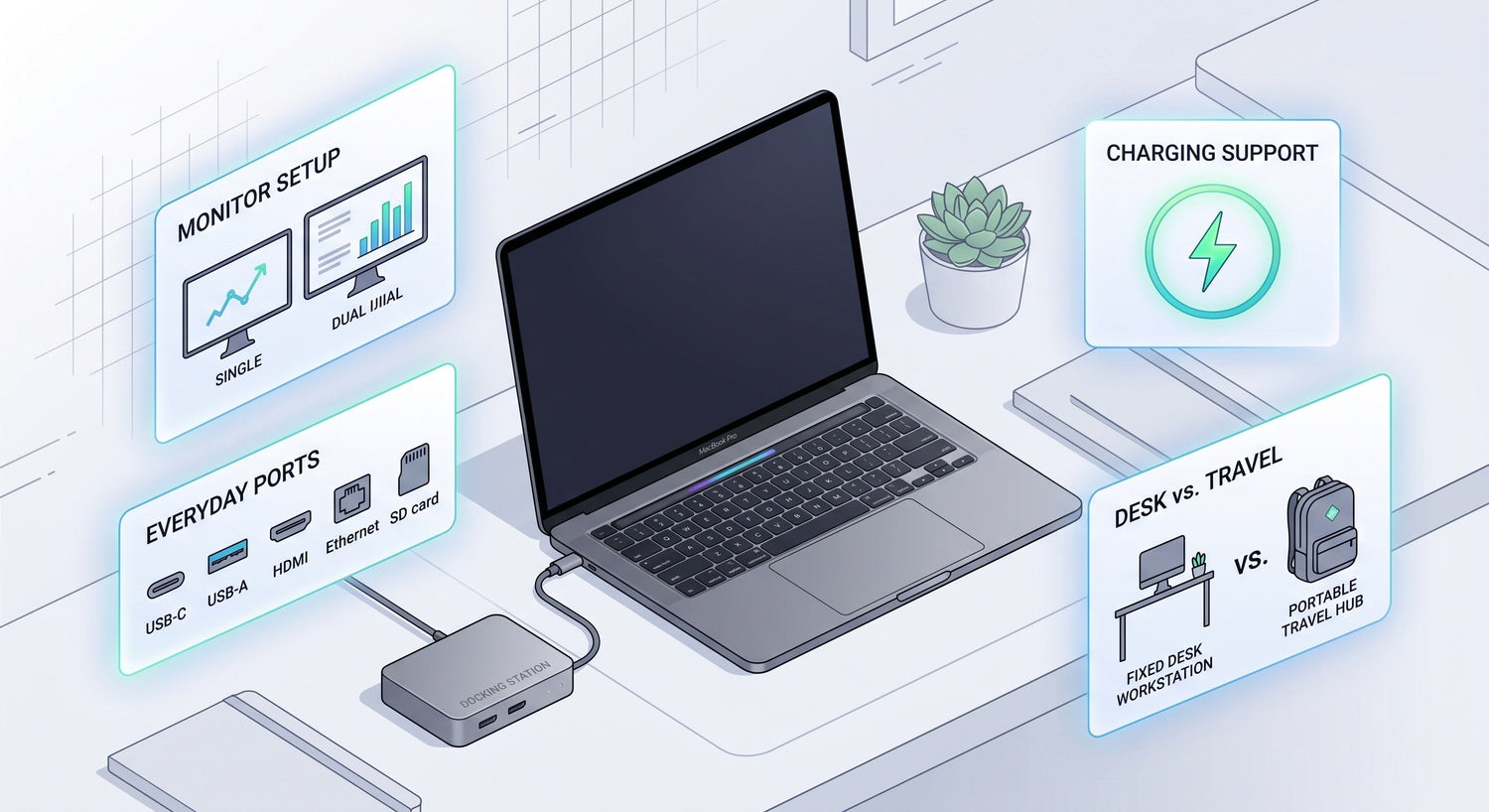
Choosing a docking station for MacBook Pro starts with four practical questions: how many displays you want to connect, which ports you use every day, whether you want the dock to charge your laptop, and whether it will stay on your desk or travel with you.
For some users, a simple USB-C dock is enough for a monitor, a few USB devices, and charging. For others, especially those using external SSDs, multiple accessories, or a more advanced desk setup, a higher-performance dock makes more sense. The best option is not the one with the longest feature list. It is the one that fits your MacBook Pro workflow without adding unnecessary cost, size, or complexity.
What Does a Docking Station for MacBook Pro Do?
A docking station expands the connectivity of your MacBook Pro and helps turn it into a more complete workstation.
Instead of plugging in separate accessories one by one, a dock can let you connect your laptop to:
- external monitors
- USB accessories like a keyboard and mouse
- external SSDs and hard drives
- wired Ethernet
- SD or microSD cards
- audio devices
- power for charging
For MacBook Pro users, the biggest benefit is often one-cable convenience. You connect a single cable to your laptop, and your desk setup is ready to go.
Docking Station vs USB-C Hub: What’s the Difference?
Many people compare docking stations and USB-C hubs, but they are not always the same type of product.
A USB-C hub is usually smaller and more basic. It is a good fit if you only need a few extra connections, such as HDMI, USB-A, or an SD card slot.
A docking station is usually better for a fuller desk setup. It often offers more ports, better charging support, stronger display options, and more reliable performance with multiple devices connected at once.
A hub may be enough if you mostly need:
- one monitor
- a few accessory ports
- light file transfers
- something compact for travel
A docking station is usually better if you want:
- a cleaner permanent desk setup
- charging and connectivity through one cable
- more stable support for multiple accessories
- better display flexibility
- stronger performance for storage and work devices
If your MacBook Pro is your main work computer, a docking station often gives you a better long-term setup than a basic adapter.
The 4 Things to Check First
Before comparing models, focus on these four buying priorities.
1. Your monitor setup
Do you need one display or two? Is the dock mainly for basic office work or for a larger multi-screen workspace? Display needs should be one of your first filters.
2. Your everyday ports
List the devices you actually use. A dock should match your real accessories, not just look impressive on paper.
3. Charging support
If you want true one-cable convenience, the dock should provide enough power to keep your MacBook Pro comfortably charged during normal use.
4. Desk use or travel use
A full desktop dock and a portable dock serve different purposes. Decide early whether you want a fixed workstation accessory or something easy to carry.
Key Things to Check Before Choosing a Docking Station for MacBook Pro
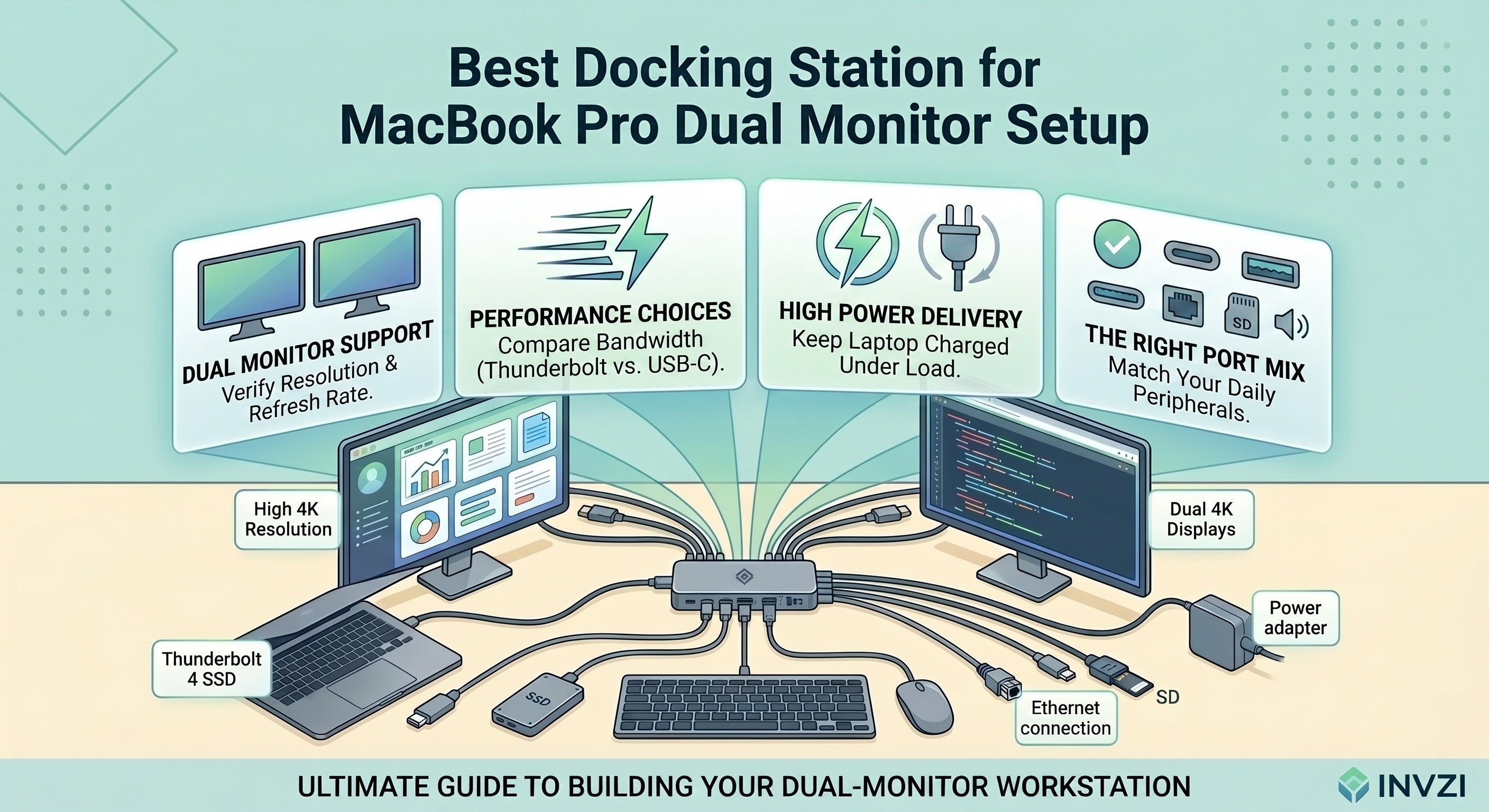
Ports You Actually Need
The easiest way to choose the right dock is to start with your current setup.
Think about whether you need:
- USB-C for modern accessories and drives
- USB-A for older peripherals
- HDMI for common monitor connections
- DisplayPort for certain monitor setups
- Ethernet for stable wired internet
- SD or microSD for photo and video workflows
- 3.5 mm audio for speakers or headphones
Many buyers make the mistake of focusing only on the total number of ports. What matters more is whether the dock includes the right port types for your monitor, storage, and daily accessories.
A MacBook Pro user working with an external SSD, monitor, keyboard, and wired network has very different needs from someone who only wants to connect one display and a mouse.
Display Support
Display support is one of the most important buying factors for MacBook Pro users.
A dock may look similar to another model on the surface, but monitor support can vary a lot. Before buying, think about:
- whether you need one external display or a multi-screen setup
- the resolution your monitor uses
- whether refresh rate matters for your work
- whether your monitor connects through HDMI or DisplayPort
This matters because a simple single-monitor office setup does not need the same dock as a more advanced workstation. If you use your MacBook Pro for spreadsheets, research, coding, editing, or design, extra screen space can improve comfort and productivity, but only if the dock actually fits that setup.
Do not assume that two video outputs automatically mean the dock is the right match for your needs. Always evaluate monitor support carefully before buying.
Thunderbolt vs USB-C
This is one of the most common points of confusion.
USB-C describes the connector shape.
Thunderbolt refers to a higher-performance connection standard that can support more demanding workflows.
A USB-C dock may be a good choice if you mainly need:
- a straightforward desk setup
- basic accessory expansion
- one display
- everyday office or study use
A Thunderbolt dock may be worth it if you need:
- more bandwidth for demanding accessories
- faster external storage performance
- a more advanced display setup
- a more capable workstation for heavier daily use
For many MacBook Pro users, Thunderbolt becomes more valuable when the laptop is being used as a serious work machine rather than just a portable computer with a few occasional accessories.
If your workflow includes large media files, frequent SSD use, or a more complex desk setup, paying more for a stronger dock may be justified. If your setup is lighter, a USB-C dock may be the smarter and more cost-effective choice.
Power Delivery and Charging
If you want a true one-cable setup, charging support matters a lot.
A docking station can help reduce desk clutter by connecting your accessories and charging your MacBook Pro through the same cable. But not every dock provides the same level of power delivery.
This is especially important for MacBook Pro users because charging expectations are often higher than with lighter everyday laptops. A dock that is fine for basic use may feel less suitable if you expect it to handle longer work sessions with displays, external drives, and other connected devices.
Check whether the dock’s charging support matches how you plan to use your MacBook Pro. If you want to leave your main charger in your bag and rely on the dock as your everyday connection point, power delivery should be a priority.
Data Transfer Speed
Data transfer speed matters most when your MacBook Pro workflow includes external storage or larger files.
This is important for users who regularly work with:
- external SSDs
- large photo libraries
- video files
- project archives
- creative software assets
For light office use, web browsing, and documents, this may not be the deciding factor. But for design, editing, and media work, a weak dock can become a bottleneck in daily use.
A good buying rule is simple: if fast external storage is part of your normal workflow, do not treat transfer speed as a minor detail.
Desk Setup vs Travel Setup
Not every MacBook Pro dock should be judged the same way. Some are meant to stay on a desk. Others are designed to move around.
A desktop dock is usually better if you want:
- more ports
- a more permanent workstation
- better cable organization
- a cleaner daily desk experience
A portable dock is usually better if you want:
- something easier to pack
- flexible use between home and office
- fewer cables and less weight
- occasional workstation expansion on the go
If your MacBook Pro moves between meeting rooms, coworking spaces, and home, portability matters. If it mainly lives on one desk and connects to multiple accessories every day, a larger dock is often the better fit.
Build Quality and Cable Simplicity
A docking station is supposed to simplify your setup, not make it more annoying.
Build quality matters because many users connect and disconnect their MacBook Pro daily. A dock should feel dependable, fit naturally into your desk arrangement, and reduce cable clutter.
One of the biggest benefits of buying a dock instead of relying on separate adapters is workflow simplicity. A well-chosen dock helps you sit down, plug in once, and get to work faster.
How to Match the Dock to Your Workflow
Remote Work and Office Productivity
If you mainly use your MacBook Pro for email, web apps, spreadsheets, documents, and video calls, your priorities are usually practical rather than high-end.
Look for:
- reliable charging
- one or two display connections
- USB ports for desk accessories
- Ethernet if you want stable wired internet
- a setup that reduces cable clutter
For this kind of use, a balanced dock is usually better than an expensive performance-focused model.
Creative Work and Large File Transfers
Designers, photographers, and video editors usually need more from a dock because their setups often include large files, external SSDs, and more demanding accessories.
Useful priorities include:
- faster storage connectivity
- better overall bandwidth
- flexible display output
- SD card support
- stable daily performance
If your MacBook Pro is used for creative work, the dock should support your workflow without slowing down transfers or limiting your expansion options.
Dual-Monitor Desk Setups
If you want a larger workstation with more screen space, monitor support should be one of your top buying filters.
This matters for users working in:
- finance
- programming
- operations
- research
- design
- project management
The right dock for a dual-screen setup should support the way you actually work, not just look versatile in a product listing.
Travel and Hybrid Work
Hybrid MacBook Pro users usually need a different balance: enough connectivity for real work, but not so much bulk that the dock becomes inconvenient.
A good travel-friendly dock should be:
- compact
- easy to reconnect quickly
- practical for displays and accessories
- simple to carry between locations
If you split your week between home and office, a portable but capable dock may be the most useful option.
Student or Everyday Use
Students and casual users do not always need a full workstation dock.
If your main goals are:
- adding a monitor
- getting a few USB ports
- connecting storage
- charging more conveniently
then a simpler option may be enough. In this case, usability and value often matter more than maximum performance.
Common Mistakes to Avoid When Buying a MacBook Pro Dock
Buying Based on Port Count Alone
A dock with many ports is not automatically the best choice. Port types matter more than raw quantity.
Ignoring Charging Support
If you want your dock to power your MacBook Pro during daily use, do not treat charging as a secondary detail.
Not Checking Display Needs Properly
One of the most common mistakes is assuming every dock handles monitors the same way. Check display support early, especially if you plan to build a larger desk setup.
Paying for Features You Will Not Use
A more advanced dock is not always a better buy. If your setup is simple, extra complexity may not improve your experience.
Choosing the Wrong Size for Your Work Style
A desk dock may be excellent at home but frustrating for travel. A compact dock may be convenient on the go but too limited for a full workstation.
Who Should Buy a Docking Station Instead of a Basic Adapter?
A docking station is usually the better choice if your MacBook Pro is your main computer and you regularly connect multiple devices.
A dock makes more sense if you:
- connect external displays often
- want charging and accessories through one cable
- use external drives, Ethernet, or multiple USB devices
- want a cleaner daily desk routine
- need a more stable setup than separate adapters provide
A basic adapter or hub may still be enough if your setup is light and occasional. But once your workflow becomes more demanding, a docking station usually adds more convenience and better long-term value.
Final Thoughts
To choose the right docking station for MacBook Pro, focus on what actually shapes your setup: display needs, port types, charging support, and how mobile or desk-based your workflow is.
If you only need simple expansion, a compact USB-C dock may be enough. If your MacBook Pro is the center of a full workstation, it makes more sense to choose a dock built for stronger display support, better charging, and more capable daily performance.
The smartest way to buy is to start with your actual devices and work habits. Once you know what you need to connect, how you want to work, and whether you want a travel dock or desktop dock, the right choice becomes much easier.
FAQ
Do I need a docking station for a MacBook Pro?
Not always. If you only connect a few accessories occasionally, a basic hub may be enough. A docking station is more useful for users who want a fuller desk setup.
Is a Thunderbolt dock better than a USB-C dock for MacBook Pro?
It depends on your workflow. Thunderbolt is often a better fit for heavier setups, faster storage use, and more demanding expansion needs.
Can a docking station charge a MacBook Pro?
Many can, but charging support varies. If one-cable convenience matters to you, check charging capability carefully before buying.
What should I check if I want to connect monitors?
Focus on how many displays you want, the resolution you use, and whether the dock fits your workspace needs.
Is a dock better than using multiple adapters?
For many MacBook Pro users, yes. A dock usually creates a cleaner and more convenient setup, especially for everyday desk use.
Should I choose a desktop dock or a portable dock?
Choose a desktop dock for a permanent workstation and a portable dock if you move between locations often.
What matters most when choosing a MacBook Pro dock?
The main factors are display support, ports, charging, data performance, and whether the dock fits your work style.

Leave a comment
This site is protected by hCaptcha and the hCaptcha Privacy Policy and Terms of Service apply.